See which members have confirmed their email address right from the Members list, and confirm a member yourself when they can’t find the email. You can also resend the confirmation email or ask a member to confirm again.
Email Confirmed Column
The Add On adds an Email Confirmed column to the Memberships > Members screen (after the Level column) and the Users > All Users screen (after the Email column). Each row shows one of these values:
- Confirmed: The member clicked their validation link or was validated by an administrator.
- Pending: The member holds a level that requires confirmation and hasn’t confirmed yet.
- Dash: None of the member’s levels require confirmation, or the member was never asked to confirm (for example, they were added by an administrator or joined before you turned on the setting).
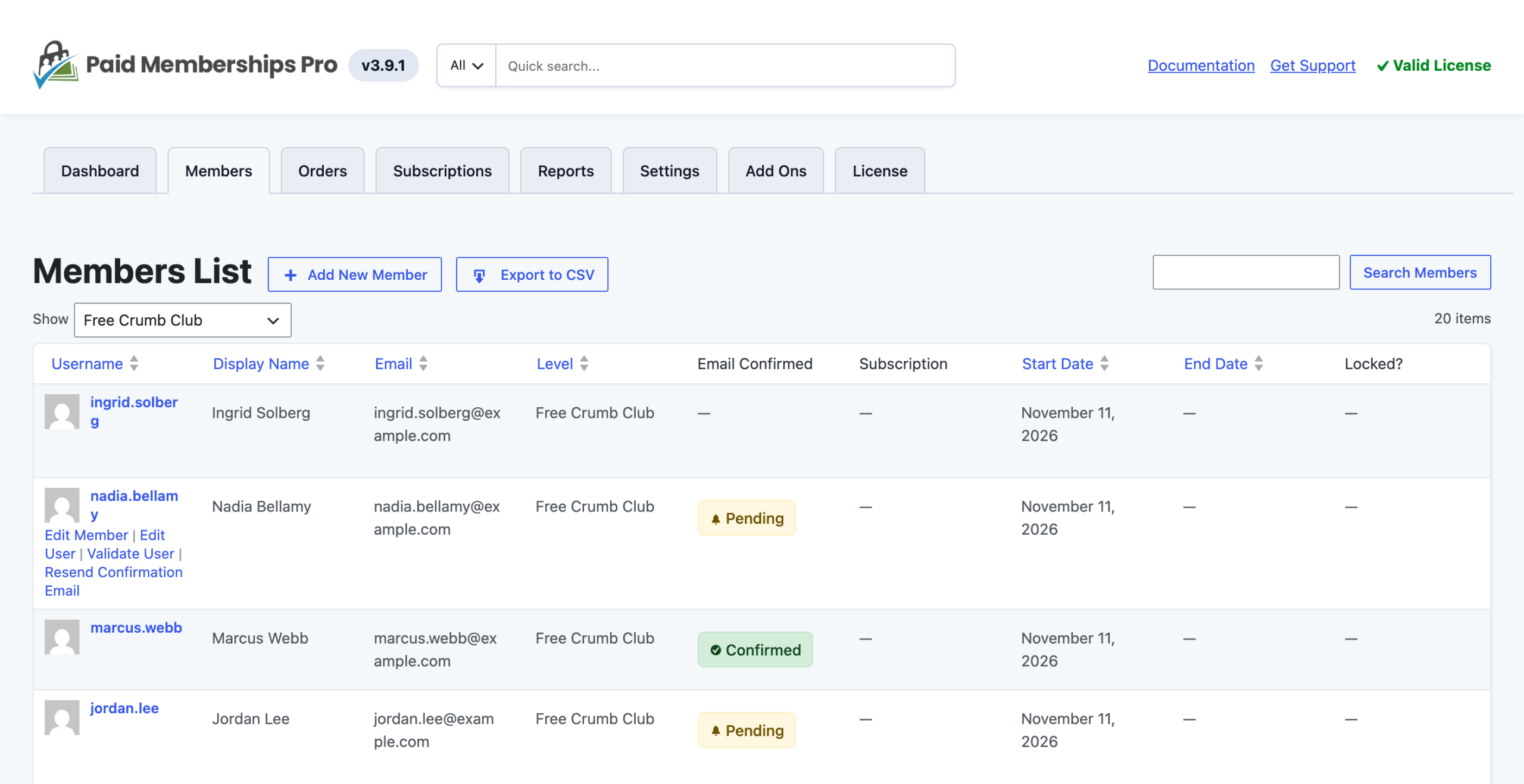
To hide the column, open Screen Options at the top of either screen and uncheck Email Confirmed.
Validate a Member From the Members List
- Navigate to Memberships > Members in the WordPress admin.
- Search for the member you want to validate.
- Hover over the row where the member’s username appears.
- Click Validate User.
A notice confirms that the member’s email address has been validated, and their status changes to Confirmed.
The same row actions are on the Users > All Users screen:
- Validate User: Marks the member as confirmed without requiring them to click the link.
- Resend Confirmation Email: Sends the Resend Confirmation email to the member with their current validation link.
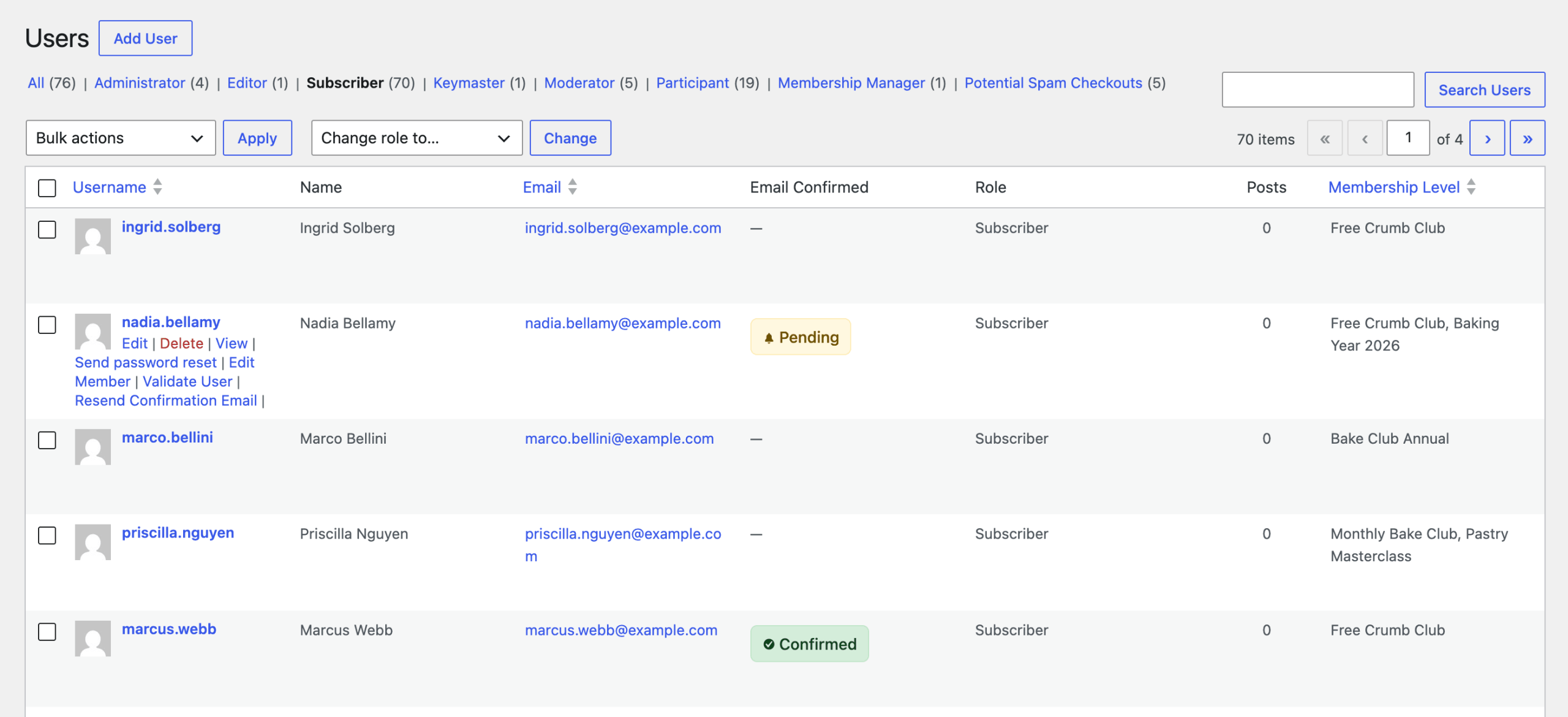
These two actions only appear for pending members who hold a level that requires confirmation. Confirmed members show the word “Validated” in place of the actions. Members whose levels don’t require confirmation show neither.
Administrators and other users with the edit_users capability can see and use these actions. That includes the Membership Manager role from the Membership Manager Role Add On. Developers can change the required capability with the pmproec_validate_user_cap filter.
Email Confirmation Panel on the Edit Member Screen
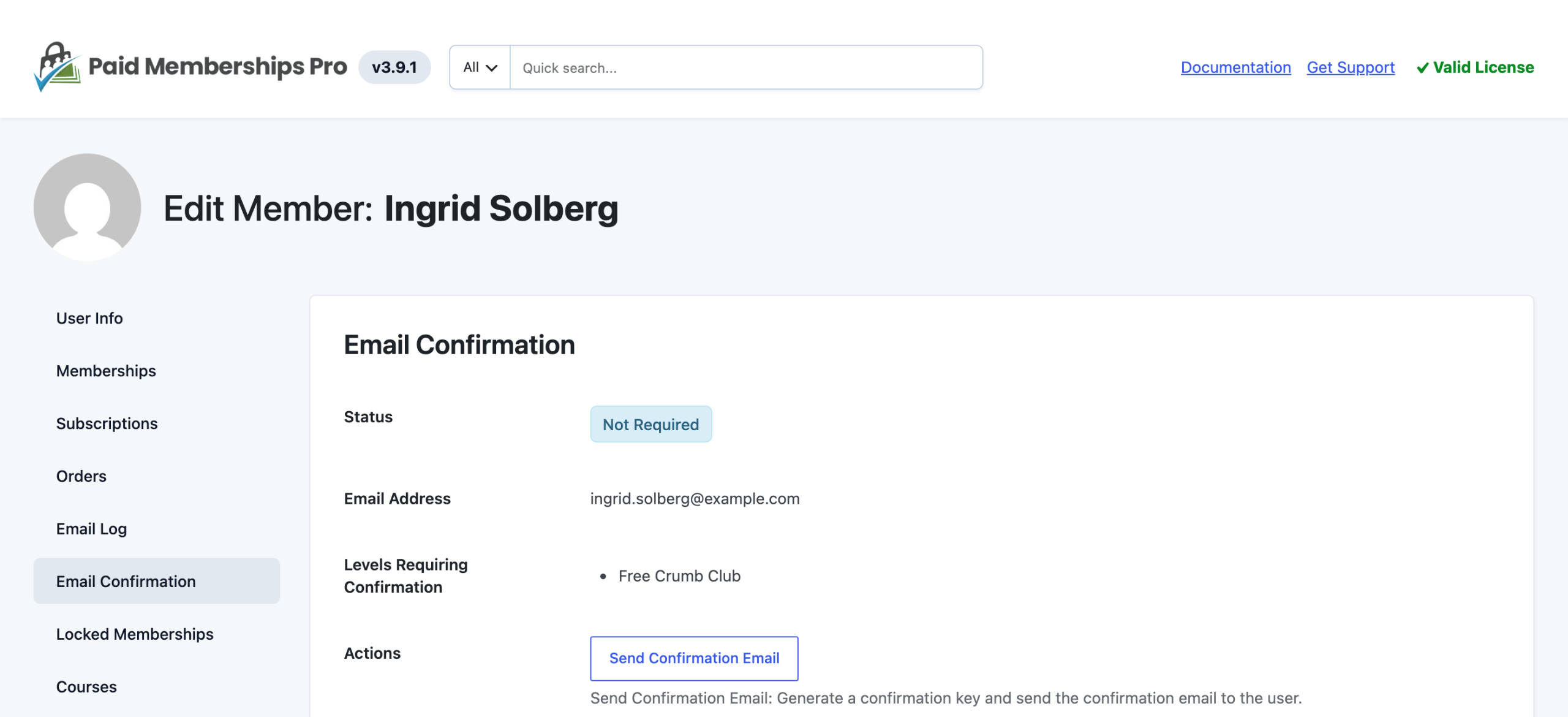
The Edit Member screen has an Email Confirmation panel for any member who holds at least one level that requires confirmation. To open it, navigate to Memberships > Members, select a member, then click Email Confirmation in the panel menu.
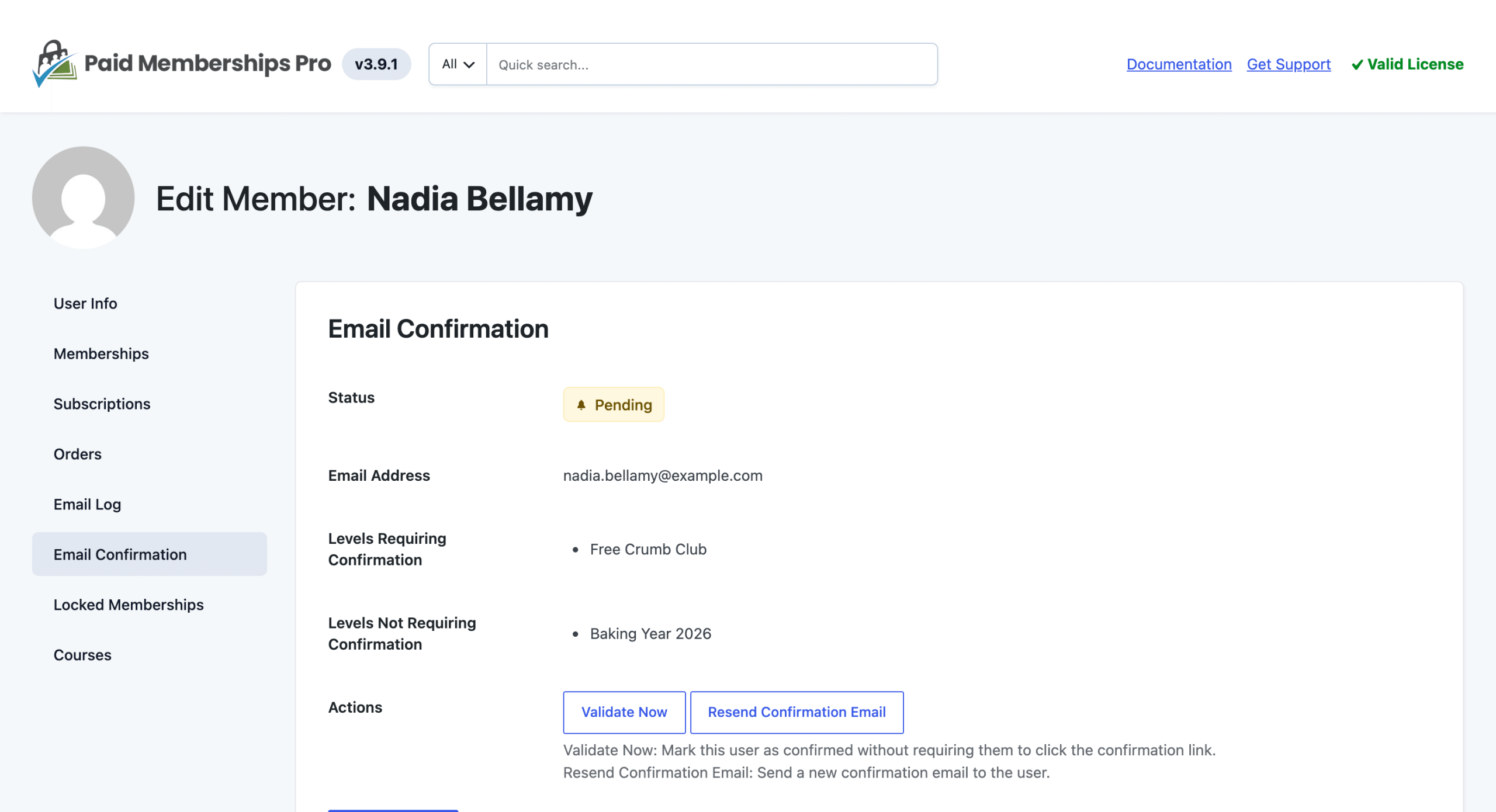
The panel shows:
- Status: Pending, Confirmed, or Not Required. Not Required means the member has never been sent a confirmation key, even though one of their levels requires confirmation. This is common for members you added yourself or who joined before you turned on the setting.
- Email Address: The address the confirmation email is sent to.
- Levels Requiring Confirmation: The member’s levels that have Email Confirmation turned on.
- Levels Not Requiring Confirmation: The member’s other levels, if any. Content for these levels stays available while the member is pending.
- Actions: Buttons that change based on the member’s status (see below).
Panel Actions
Click an action button to run it right away. You don’t need to click Save Changes afterward.
- Validate Now: Shown for pending members. Marks the member as confirmed without requiring them to click the confirmation link.
- Resend Confirmation Email: Shown for pending members. Sends the Resend Confirmation email with the member’s current validation link.
- Require Re-confirmation: Shown for confirmed members. Generates a new confirmation key, sends the Resend Confirmation email, and sets the member back to Pending until they click the new link.
- Send Confirmation Email: Shown when the status is Not Required. Generates a confirmation key and sends the Resend Confirmation email. The member is Pending, and content for their confirmation levels is locked, until they click the link.
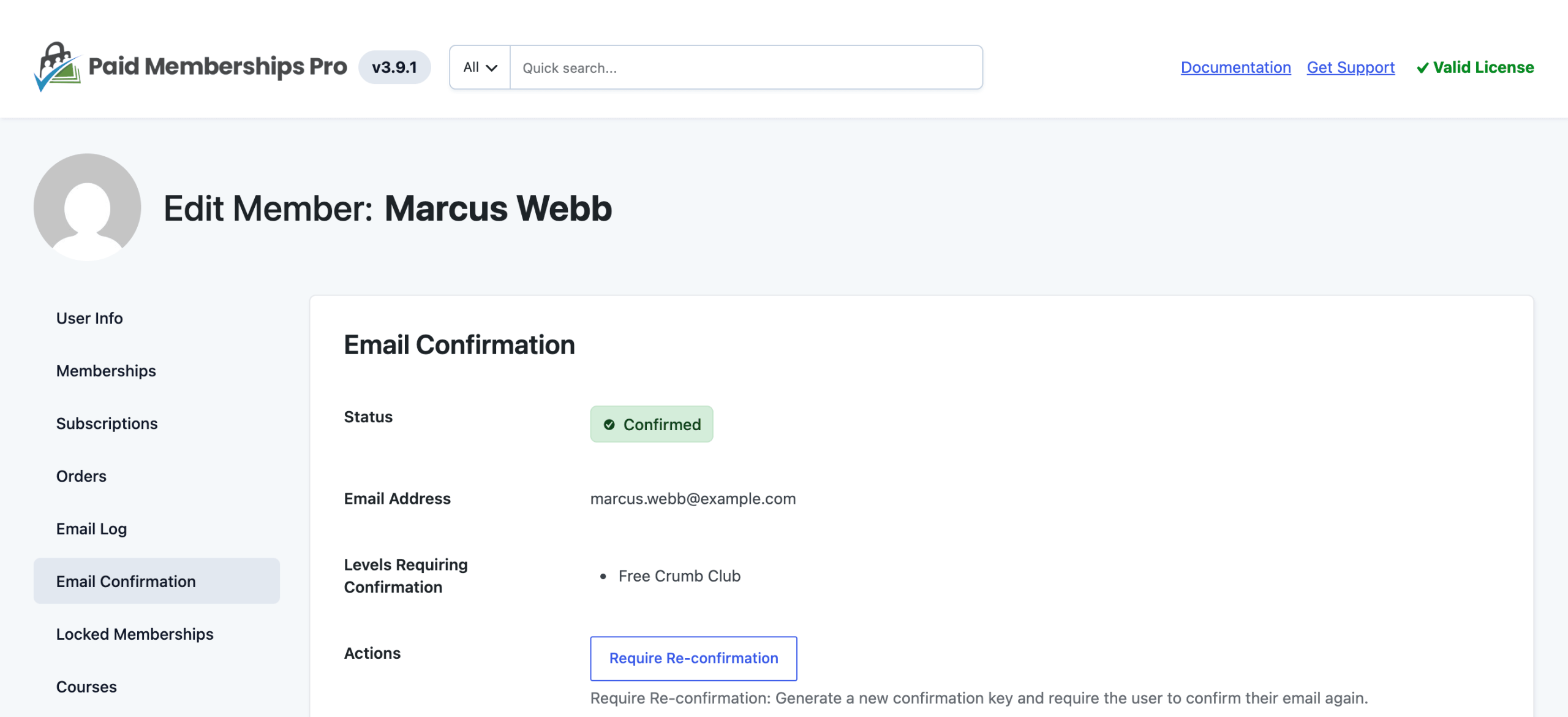
Anyone who can edit members on the Edit Member screen can use the panel. This includes administrators and Membership Managers.
Get Support From Our Team of Experts
Have a question about how to use this feature? Our Support Page outlines three ways to get support.
Our Max plans include hands-on help customizing your membership site and implementing new features. Upgrade to PMPro Max now »
Last updated on November 12, 2026

