Email confirmation is set per membership level. Turn it on for the levels where you want new members to prove their email address works before they can view that level’s members-only content.
Turn On Email Confirmation for a Level
- Navigate to Memberships > Settings > Levels in the WordPress admin.
- Select the level you want to edit to open the Edit Membership Level screen.
- Expand the Other Settings section and scroll to the Email Confirmation heading.
- Check the Email Confirmation box.
- Optionally, check Reset Email Confirmation. This box appears once Email Confirmation is checked.
- Click Save Level.
- Repeat these steps for each level that should require confirmation.
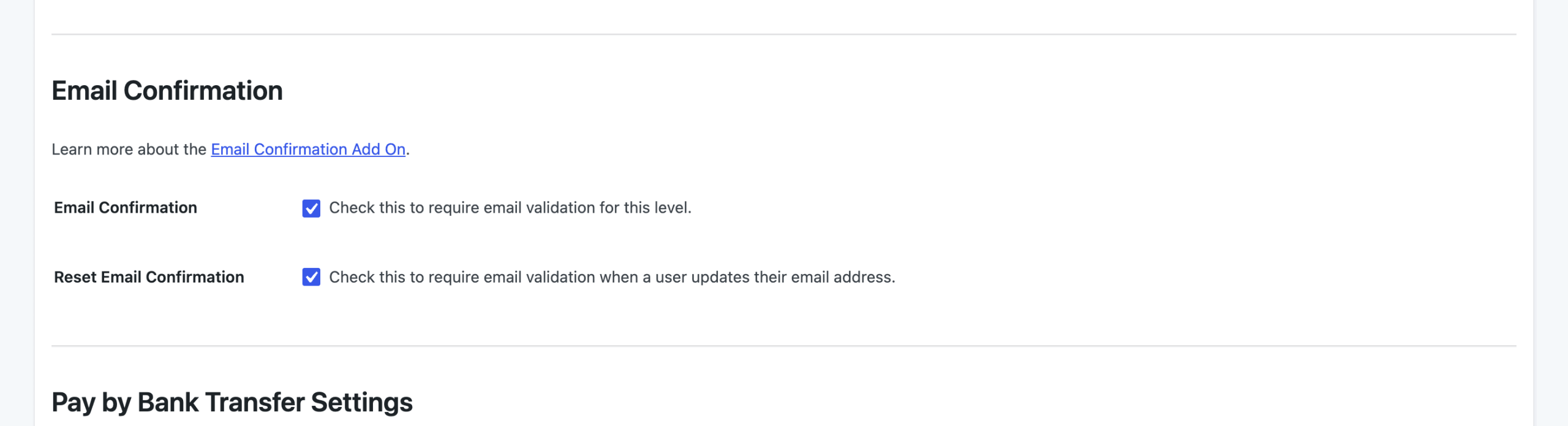
Level Settings
- Email Confirmation: Check this to require email validation for this level. Off by default. New members who check out for the level receive a validation link in their checkout email and can’t view the level’s restricted content until they confirm.
- Reset Email Confirmation: Check this to require email validation when a user updates their email address. Off by default. This setting only applies when Email Confirmation is also checked. If you uncheck Email Confirmation and save, Reset Email Confirmation is turned off too.
Who Needs to Confirm
The Add On creates a confirmation key for a member when they complete checkout for a level that requires confirmation. That key is what puts them in the Pending state. A few things follow from this:
- Existing Members: Members who already had the level before you turned on Email Confirmation are not asked to confirm.
- Members Added by an Admin: Giving someone a level from the Edit Member screen (without a checkout) doesn’t create a key, so they aren’t asked to confirm either. To ask one of these members to confirm, use Send Confirmation Email in the Email Confirmation panel on the Edit Member screen.
- Members Who Already Confirmed: A member who has confirmed once isn’t asked again when they check out for another level that requires confirmation.
- Members With More Than One Level: Only content for the levels that require confirmation is locked. If an unconfirmed member also holds a level that doesn’t require confirmation, they can still view content for that other level.
Require Confirmation When Members Change Their Email
With Reset Email Confirmation checked, a member who changes their email address has to confirm the new one. This applies to any active member who holds at least one level with both settings checked, including members who confirmed in the past.
When the email address on their account changes, the Add On:
- Creates a new confirmation key, which sets the member back to Pending.
- Sends the Resend Confirmation email with the new validation link to the new address.
- Locks content for their confirmation levels until they click the link.
Email changes made by an administrator (any user who can manage site options) are skipped, so you can correct a member’s address without sending them back to Pending. Changes made by other roles, such as a Membership Manager from the Membership Manager Role Add On, do trigger a new confirmation.
Get Support From Our Team of Experts
Have a question about how to use this feature? Our Support Page outlines three ways to get support.
Our Max plans include hands-on help customizing your membership site and implementing new features. Upgrade to PMPro Max now »
Last updated on November 12, 2026

