If you run a membership site that hosts paid events, you have probably hit this question: how do you give your paying members a discount on event tickets while still letting non-members buy in at full price?
Paid Memberships Pro does not offer a native setting for “member price vs. non-member price” on Modern Events Calendar tickets. But Modern Events Calendar (MEC) does have a built-in feature for role-based ticket discounts. By using our Roles for Membership Add On to assign a unique WordPress role to each membership level, you can connect the two and create tiered ticket pricing for every level you offer.
In this tutorial, we walk through the full setup. No custom code required.

Table of contents
How This Workaround Works
Three pieces are doing the work here. Once you understand the chain, the setup is straightforward.
- Paid Memberships Pro manages your membership levels and the access rules tied to them.
- The Roles for Membership Add On assigns a custom WordPress role to every member at checkout, based on the level they purchased. A “Gold” member gets a Gold role. A “Silver” member gets a Silver role. Non-members keep the default WordPress subscriber role (or no role at all).
- Modern Events Calendar has a feature called Discount Per User Roles in its premium booking module. You set a percentage discount for each role, and MEC applies the right discount automatically when a logged-in user views the event ticket page.
Connect those three things, and you have member-tier pricing on every event ticket: Without custom code, having to maintain two sets of tickets, or installing a separate plugin to bridge them.
Required Plugins
Before you start, make sure you have all four of these installed and active:
Step 1: Set Up Roles for Each Membership Level
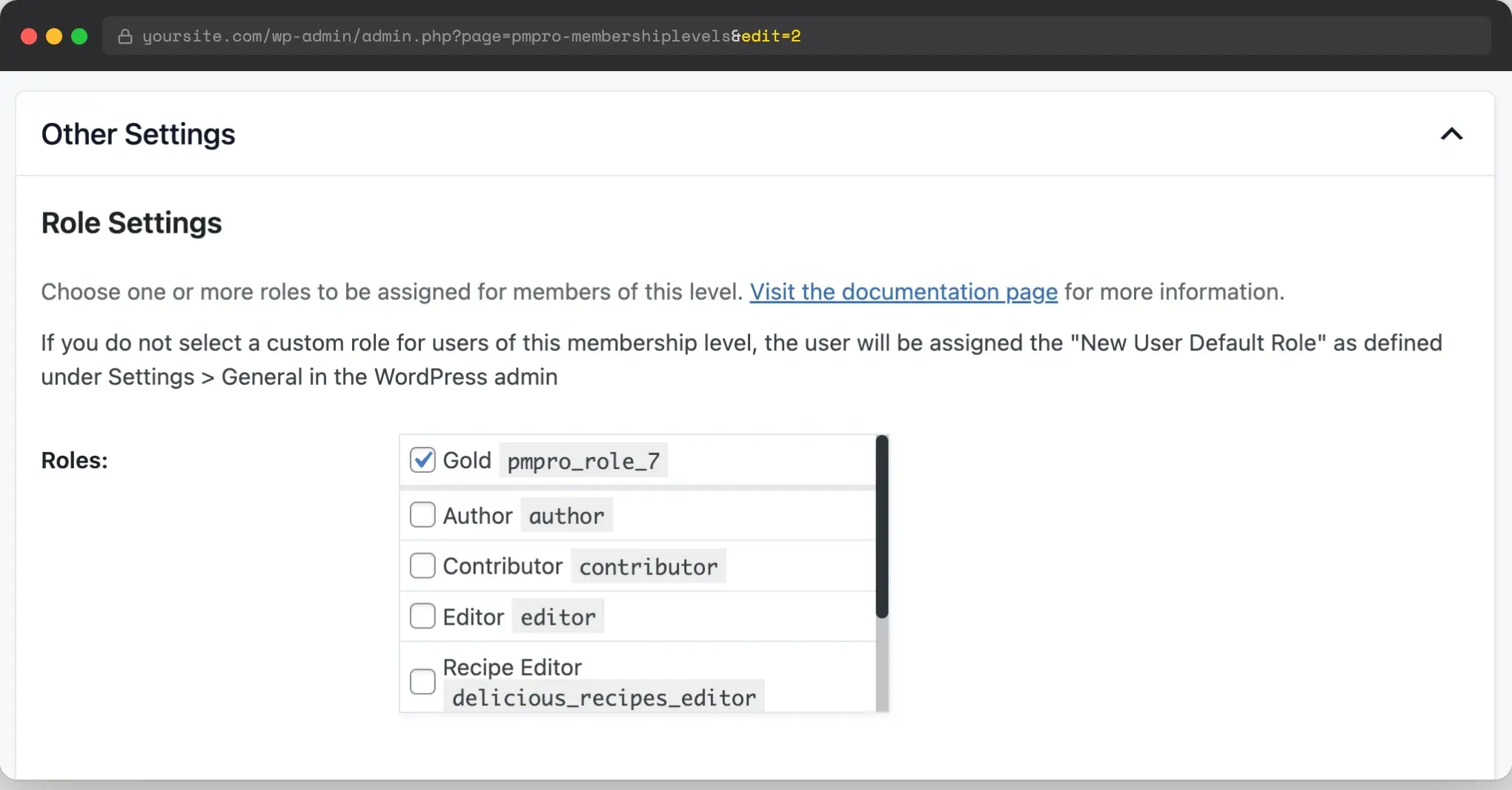
The Roles for Membership Add On creates a custom WordPress role for every membership level on your site. Once activated, each level automatically gets a custom role that matches the level name (for example, “Gold” or “Premium”).
Now you need to confirm the right role is assigned to each level.
- Activate the Roles for Membership Add On under Memberships > Add Ons in your WordPress admin.
- Navigate to Memberships > Settings > Levels and click to edit a level.
- Scroll to the “Other Settings” section. You will see a “Role Settings” box.
- From the “Role” dropdown, select the custom role for this level. By default, the Add On creates one named to match your level (for example, “Gold”).
- Click Save Level.
Repeat this process for every level where you want member-only pricing.
Step 2: Enable Role-Based Discounts in Modern Events Calendar
Now switch over to the MEC settings to turn on the role discount feature. This is a global setting that needs to be enabled before per-event discounts will appear in the event editor.
- Activate Modern Events Calendar and the MEC Ticket and Invoice Add On.
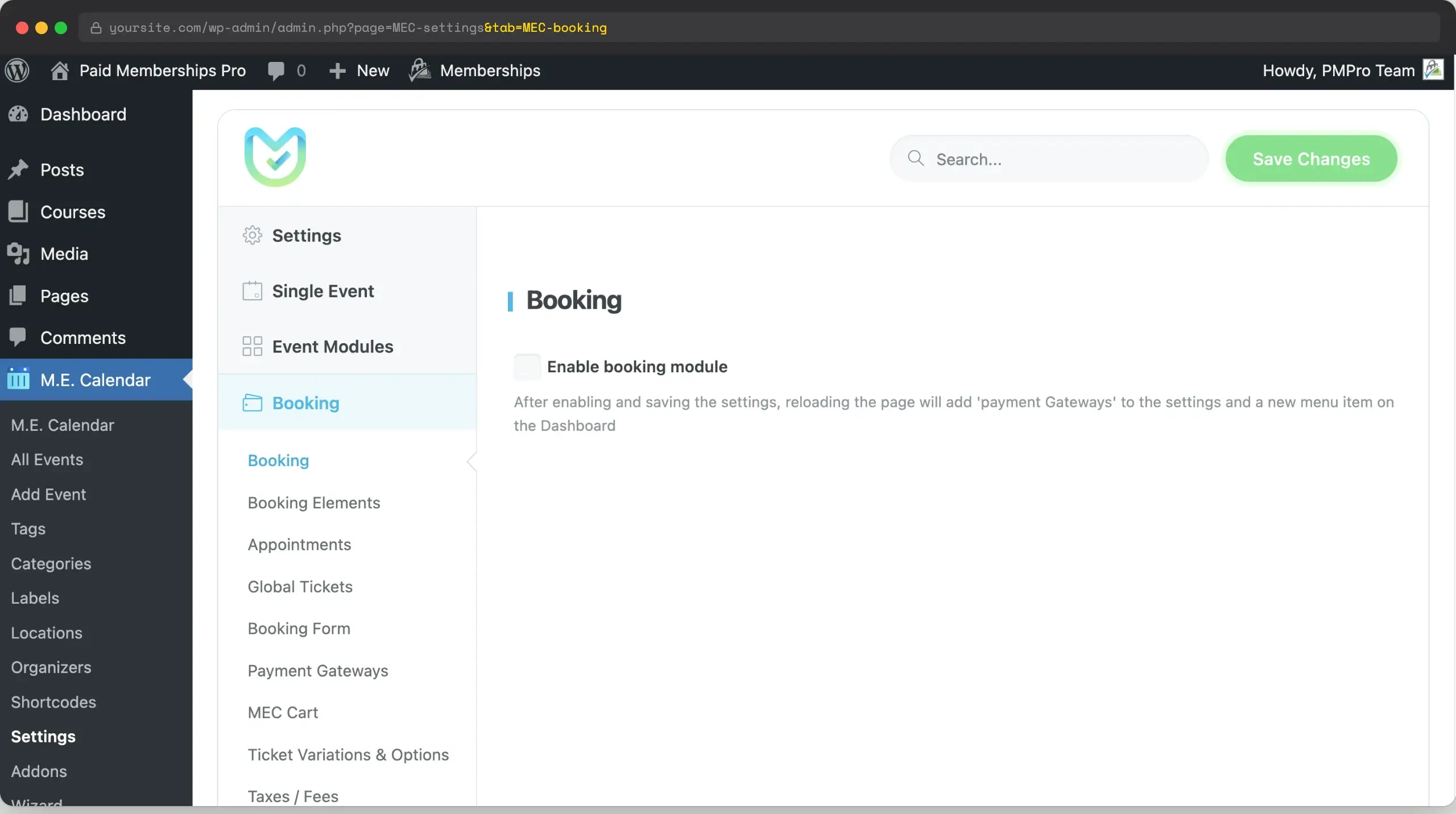
- Navigate to M.E. Calendar > Settings > Booking in your WordPress admin.
- Check the box labeled “Enable booking module”.
- Switch to the “Advanced” tab.
- Scroll to find the “Discount Per User Roles” section.
- Check the box labeled “Discount per User Role”.
- Click Save Changes.
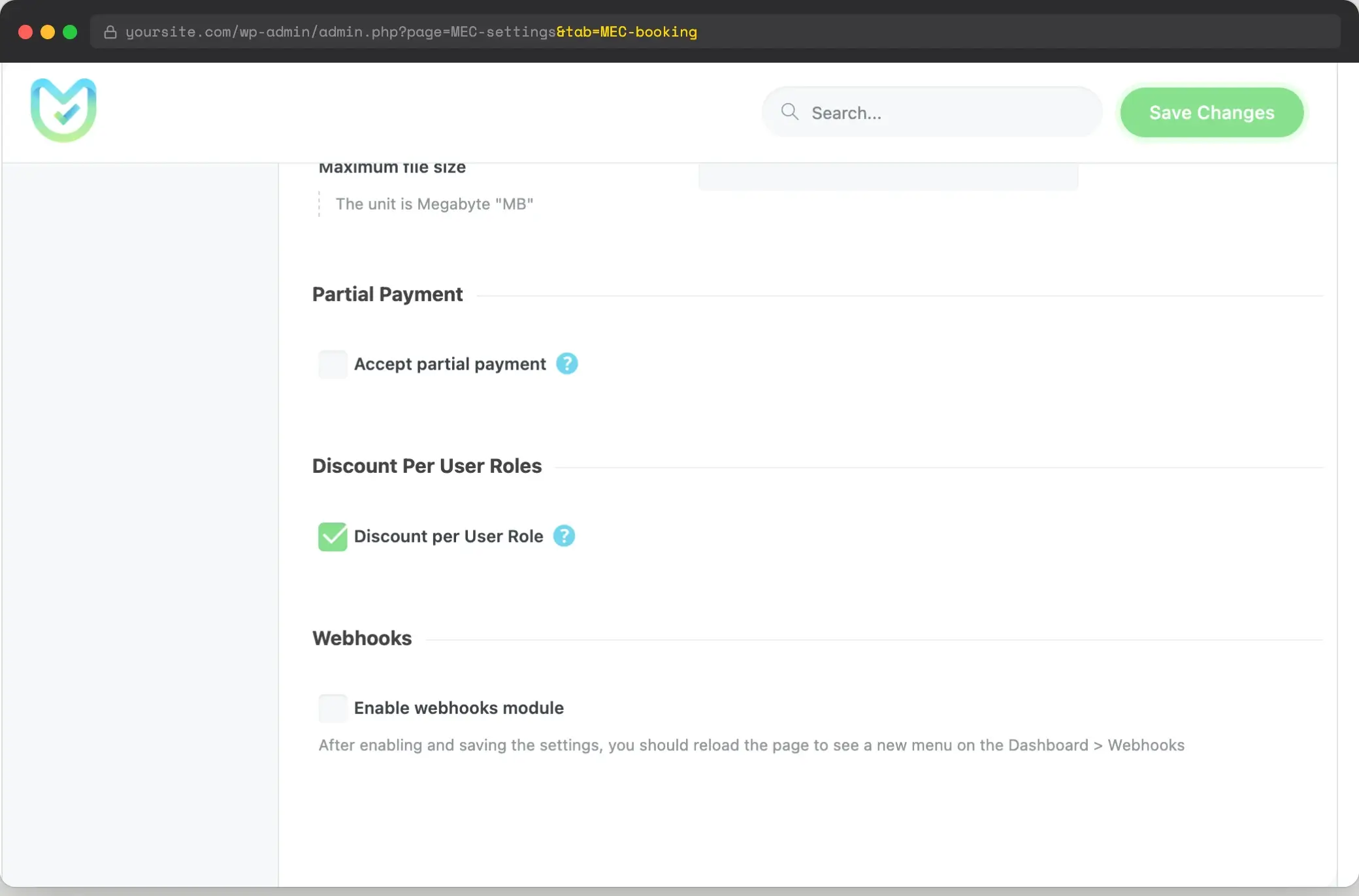
That global toggle does not set any actual discount values. It just unlocks the per-event setting where you will configure the discount amounts. You do that in the next step.
Step 3: Set the Discount on a Specific Event
Discounts are configured event-by-event, not globally. This gives you the flexibility to run a 10% discount for one event, a 25% discount for another, or a free ticket for a member-only webinar.
- Navigate to M.E. Calendar > Add Event to create a new event, or edit an existing one.
- Scroll to the “Booking” section.
- Click “Booking Options”.
- Switch to the “Advanced” tab inside the Booking Options panel.
- In the “Discount Per User Roles” section, you will see a list of every role on your site, including the custom roles you set up in Step 1. Enter the percentage discount for each role.
- Example: enter
20next to the “Gold” role to give Gold members 20% off this event’s tickets. - Leave the Subscriber row blank or
0to charge non-members full price.You can set different percentages per role, so a Silver member might get 10% while Gold gets 20%.
- Example: enter
- In the same “Booking” section, click the “Tickets” panel and add or edit ticket types as you normally would (for example, “General Admission” at $50).
- Update or publish the event.
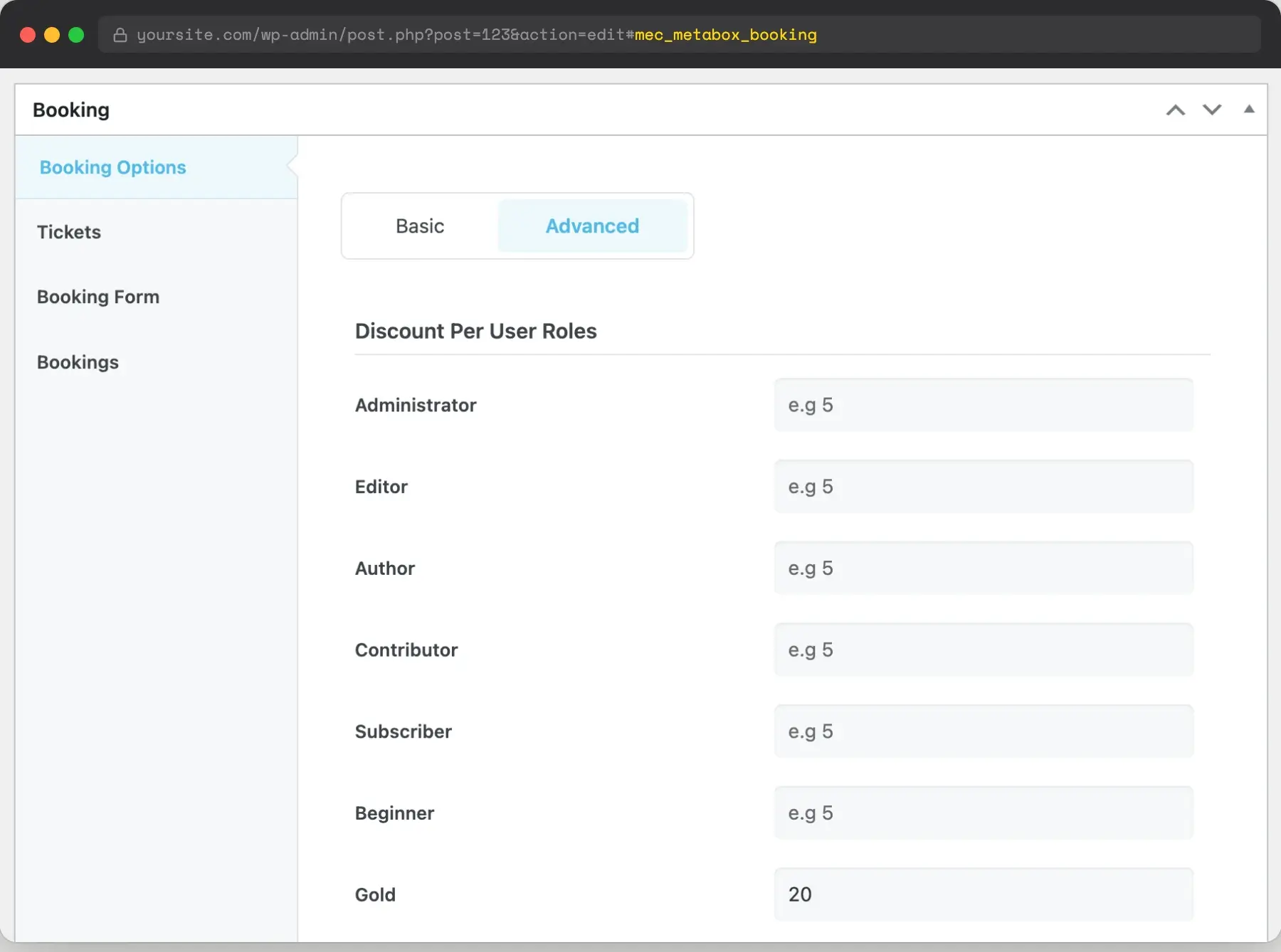
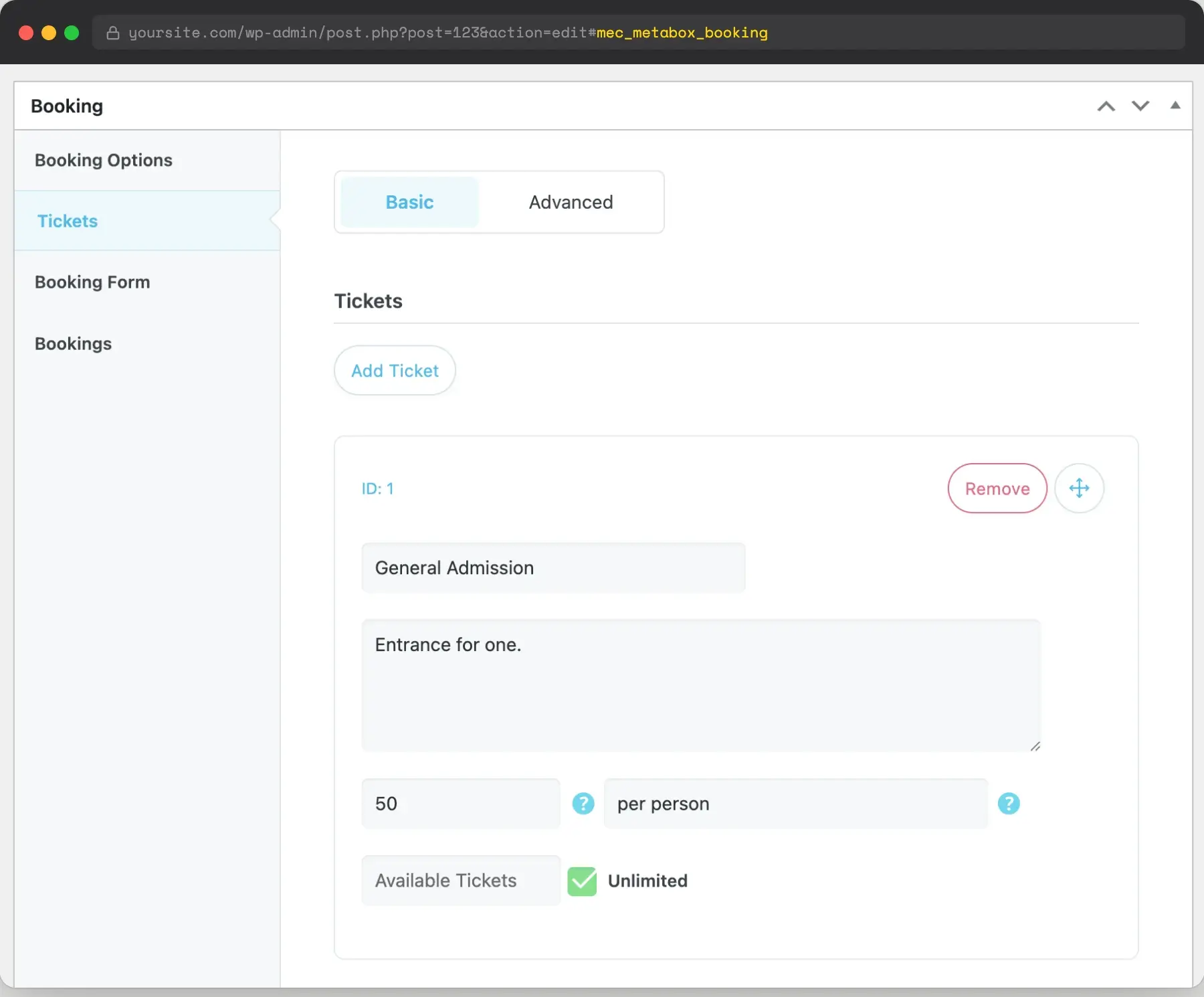
When MEC renders the ticket booking interface on the frontend, it checks the logged-in user’s roles, finds the matching discount you set, and applies it to the ticket price automatically.
Step 4: See the Result on the Frontend
Time to verify it works. Open two browser windows. In one, view the event as a logged-out visitor (or use an incognito window). In the other, log in as a member of the level you discounted.
A non-member sees the full ticket price. For example, a $50 ticket shows as $50.
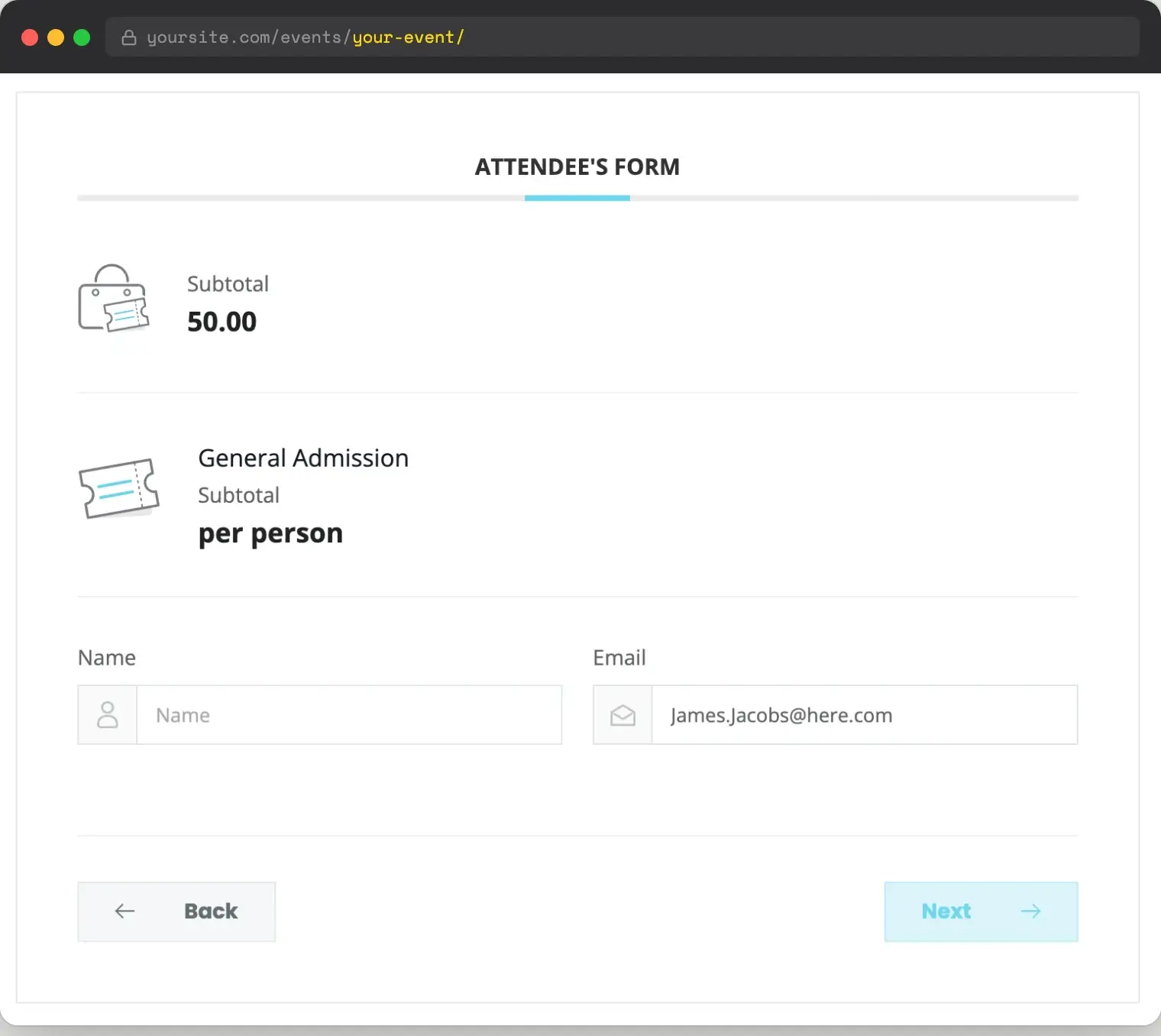
A logged-in Gold member sees the discounted price. With a 20% discount applied, that same $50 ticket shows as $40.
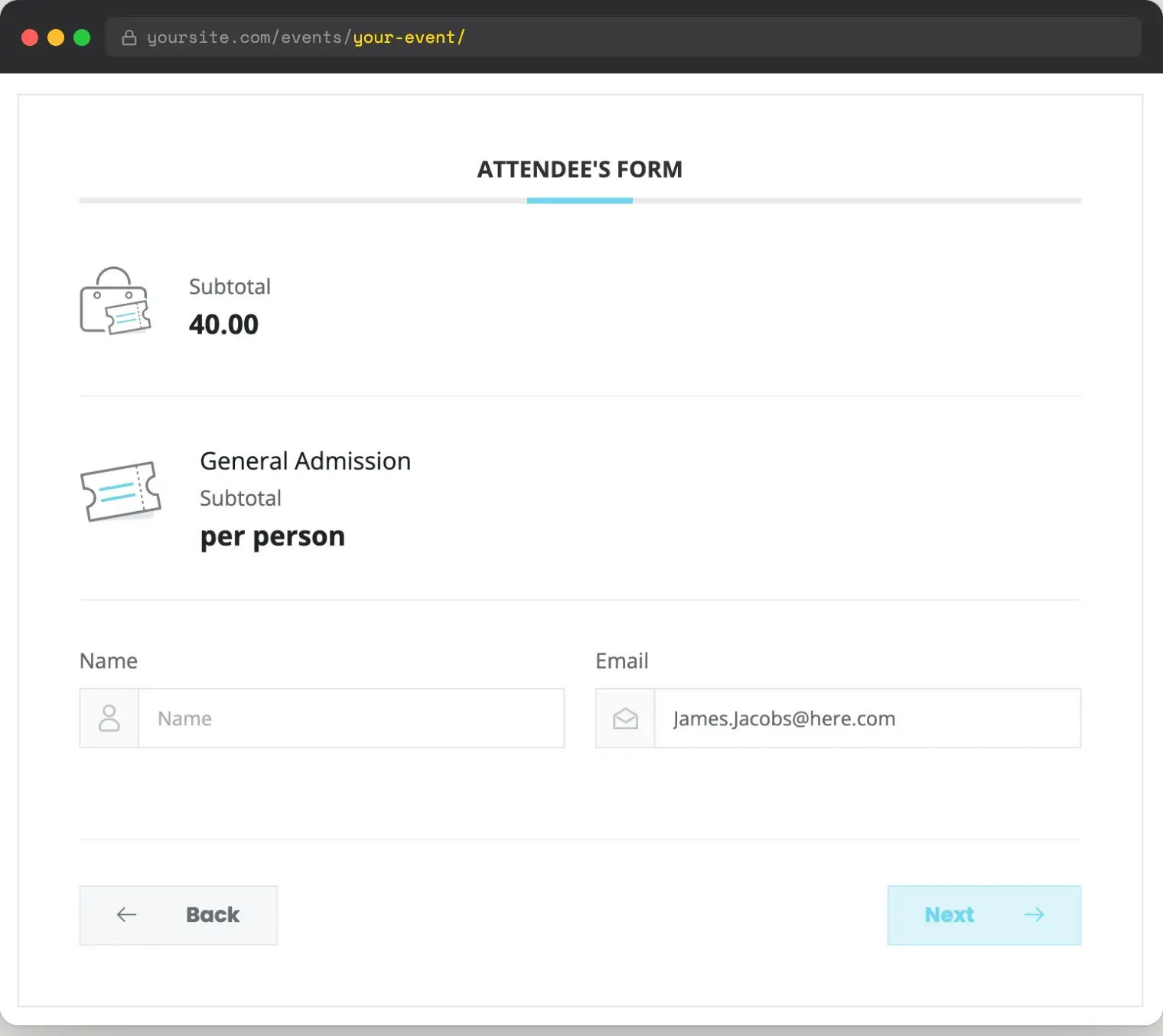
The math is automatic. Your members do not need to enter a coupon code, and you do not need to maintain a separate ticket type for members.
Important Notes and Caveats
Before you publish this on a live site, there are two behaviors worth knowing about. They are not deal-breakers, but you want to plan around them.
Currency Symbol Display
When MEC applies a role-based discount to a ticket, the currency symbol does not always render alongside the discounted price on the frontend. The price still displays, just without the dollar sign (or your local currency symbol). If your audience is global or your branding leans heavily on price formatting, test this on your site and decide whether you need to add a small CSS or template tweak. Webnus is the right team to follow up with on this if you need a permanent fix.
Multiple Memberships and Overlapping Roles
If members hold multiple membership levels and a member holds more than one level, they will have more than one role. MEC handles this gracefully by applying the largest discount available across the user’s roles. So if a member is in both Silver (10%) and Gold (20%), they pay the Gold price. This is usually what you want, but worth knowing if your pricing logic is more nuanced.
This is a workaround, not a native integration.
Be transparent with yourself about what is happening. Modern Events Calendar does not have a native PMPro integration to support discount tickets by membership level.
In this tutorial, we are using the Roles for Membership Add On to translate “membership level” into “WordPress role” and then handing off to MEC’s existing role-discount feature. It works well, but you are relying on three plugins playing nicely together.
Frequently Asked Questions
No. The PMPro Modern Events Calendar Integration is only used to restrict event access by membership level (members-only events). The discount workaround in this post does not need it. You can install both Add Ons if you want both members-only events and member ticket discounts.
No. The role-based discount feature is part of MEC’s premium booking module. You need an active premium MEC license, including the MEC Ticket and Invoice Add-On.
Yes. Set the discount to 100% for the role that should get free access. The ticket cost will calculate to $0 for those members. Make sure your MEC checkout settings still allow zero-dollar bookings to complete.
When the membership ends, the Roles for Membership Add On removes the custom role and reassigns the WordPress default role. From that point on, the member sees full price (or whatever discount you set for the default role).
Yes. The discount is set at the event level, so any recurring instances of that event will inherit the same role discount configuration.
This specific workaround is built around MEC’s role-based discount feature. The Events Calendar and Sugar Calendar do not have an equivalent setting in their core plugins. For those, you would need a different approach, such as using membership-level access restriction or a custom development project. See our Events for Members-Only Add On for the access restriction route with those plugins.
Wrap Up
You do not need a custom integration to offer member discounts on event tickets. By assigning a unique WordPress role to each PMPro membership level using our Roles for Membership Add On, you can take advantage of MEC’s existing role-discount feature and have tiered ticket pricing live in a few minutes.
This is one of those setups that highlights why we are big fans of the WordPress plugin ecosystem. Two well-designed plugins, when their features overlap thoughtfully, can deliver a result that neither plugin offers on its own. Roles are the connection.
If you are not yet a premium PMPro member, install the Roles for Membership Add On for free under Memberships > Add Ons.
Related Resources

Free Download: The AI-Powered Membership Site Blueprint
Download the free guide: Learn how to plan, build, and grow a membership site using AI as your strategic partner: from buyer persona to launch and beyond.