Out of the box, Paid Memberships Pro can protect WordPress posts, pages and 26 other types of content. But sometimes the thing you want to protect isn’t a post or a page. It’s a file, or a whole folder of files, that lives outside of WordPress.
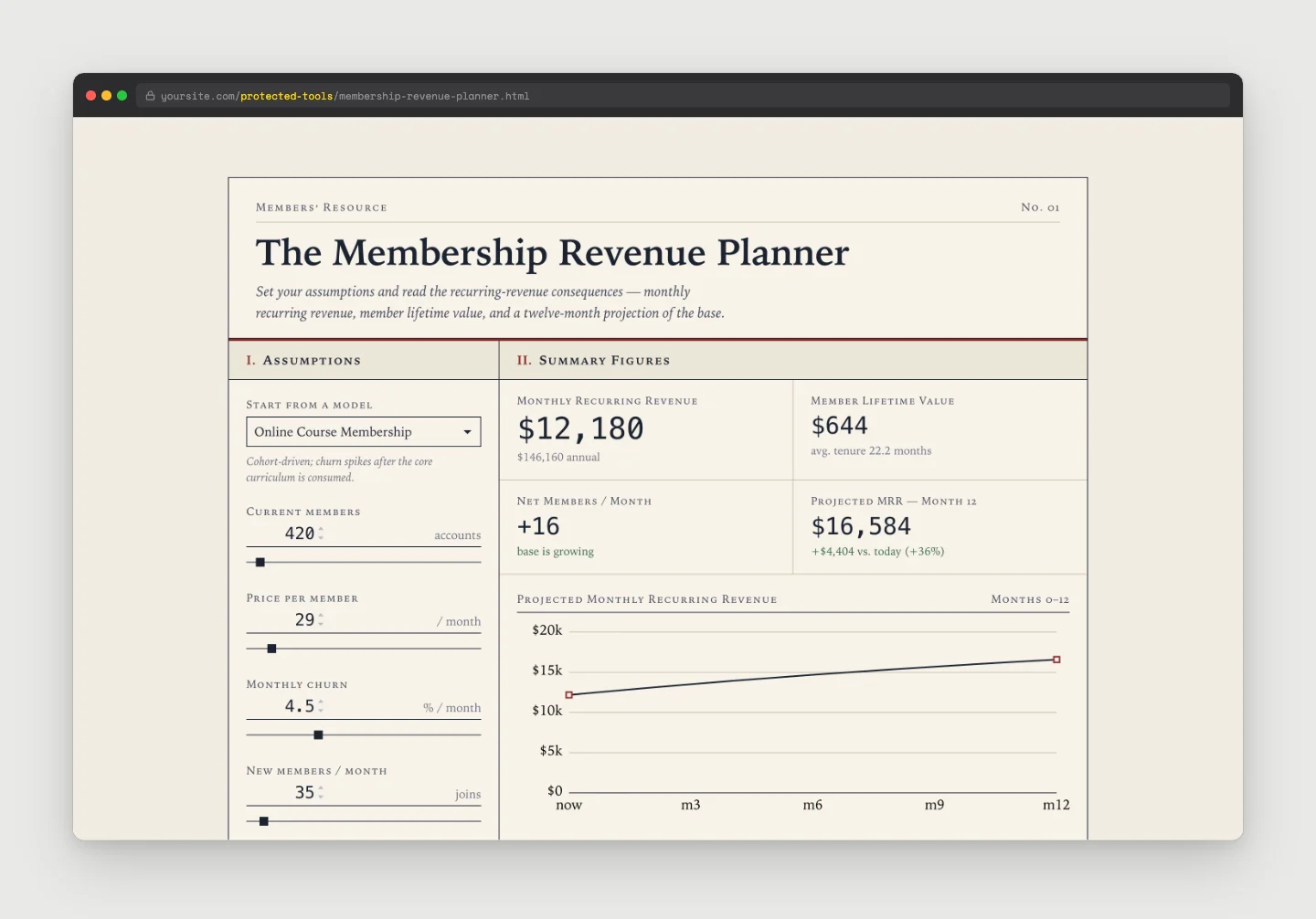
This comes up more than ever now that AI assistants will hand you a complete, working artifact: a self-contained index.html page plus a data file (often a .json), and sometimes its own CSS, JavaScript, or images. A members-only calculator, a benchmarking tool, an interactive directory. The AI builds it, and you want it living inside your membership.
Here’s how to protect it.

Why This Tutorial Now: Hosting an AI Tool for Members
Nearly every AI chat or coding tool can produce these single-page tools now. ChatGPT, OpenAI Codex, and Claude all do it, and Anthropic recently made it even easier to share HTML artifacts generated in Claude Code. The result is the same: you end up holding a folder of files that is a working mini-app, and you want it behind your membership.
PMPro ships with a built-in Restricted Files directory that’s perfect for discrete downloads, like a members-only PDF, a worksheet, or a ZIP. But an interactive artifact is a different animal. It’s often several files that reference each other, and you want them to render in the browser, not download. For that, the better tool is to lock down a whole folder and serve its files through WordPress. That’s what this tutorial covers.
Related: Protected Downloads Add On
First: does it actually need to be restricted?
Before you write any code, ask one question: is the file itself sensitive, or do you just want it to live on a members page?
A lot of AI-generated tools (a calculator, a quiz, a visualizer) aren’t secret. The value is the membership experience around them, not keeping the file itself hidden. If that’s you, don’t restrict the file at all. Drop the artifact in a normal folder, embed it on your members-only page with an <iframe>, and let WordPress restrict the page. The tool loads fast, the browser and your CDN can cache it, and you write zero code.
Only continue with the folder lock-down below if you genuinely need to stop non-members from opening the file directly by its URL.
How the Folder Lock-Down Works
The method has two parts:
- A
mod_rewriterule in your.htaccessfile (or similar configuration for NGINX) that intercepts requests for a folder and routes them to a small script. - A snippet (added to your Code Snippets plugin or customizations plugin) that checks for membership before serving the file.
The folder’s URL is virtual. The rewrite catches the request before the web server looks for a real folder there, so the actual files can live wherever you like (even outside your web root for extra safety). Because the URL the browser sees is a normal path like /protected-tools/app.html, relative links inside your artifact just work. The HTML can fetch('./data.json') and it resolves correctly. This is the big advantage over the Restricted Files directory, where every file has its own query-string URL and relative links break.
Step 1: Add the Rewrite Rule
Add this to the top of your .htaccess file, before the WordPress rules:
# BEGIN protected folder lock down
RewriteBase /
RewriteRule ^protected-tools/(.*)$ /index.php?pmpro_getfile=$1 [L]
# END protected folder lock down
This routes anything under yoursite.com/protected-tools/ to index.php?pmpro_getfile={path}, where WordPress (and our snippet) can take over. It assumes your homepage loads WordPress. If it doesn’t, point the rewrite at a URL that does.
On NGINX, the equivalent rule is:
rewrite ^/protected-tools/(.*)$ /index.php?pmpro_getfile=$1 last;
On some hosts, you may have to open a support ticket and share the rules above to get them to set it up for you.
Step 2: Add the Get-File Snippet
This snippet detects the pmpro_getfile request, makes sure the path is safe, checks the visitor’s membership, and serves the file inline so it renders in the browser:
Now upload your artifact’s files into wp-content/uploads/protected-tools/ (via SFTP or your file manager). A request to yoursite.com/protected-tools/app.html will serve the file only to logged-in members, and any relative files it loads (schools.json, style.css, and so on) are served the same way.
Step 3: Embed the Artifact on a Members-Only Page
Add an <iframe> to the protected page (in any block editor or page builder, such as a Code block in Gutenberg or a Code module in Divi):
<iframe
  src="https://yoursite.com/protected-tools/app.html"
  style="width:100%; height:800px; border:none; border-radius:12px;"
  title="Members tool">
</iframe>
Because the iframe and the page are on the same domain, the member’s login session rides along automatically and the snippet sees them as logged in.
Restricting to Specific Levels
The snippet above allows any active member. To limit access to particular levels, pass their IDs to pmpro_hasMembershipLevel():
// Allow only levels 3, 7, and 10.
if ( ! pmpro_hasMembershipLevel( array( 3, 7, 10 ) ) ) {
    wp_die( esc_html__( 'This file is available to members only.', 'your-text-domain' ), '', array( 'response' => 403 ) );
}
You can also branch on the requested path (the $requested variable) to apply different level rules to different sub-folders.
A Note on Memory Use
To serve a file this way, PHP needs a bit more memory than the size of the largest file you serve. If you see partial downloads or errors after enabling this, raise your PHP memory limit in wp-config.php:
define( 'WP_MEMORY_LIMIT', '64M' );
That stands for 64 megabytes. Set it as high as you need, but no higher. This memory is reserved per request. You could also get fancy and set the memory limit dynamically based on level, role, or anything else.
Other Things to Know
- The
fileinfoPHP extension is required.finfo_open()comes from PHP’sfileinfoextension (also required by PMPro 3.6+). It’s enabled on most modern hosts. If you get a “call to undefined function finfo_open()” error, ask your host to enable it. - Caching and CDNs: Files served through PHP for protection are intentionally not edge-cached. That’s the trade-off for gating them. If your uploads folder is served through a CDN (for example, some configurations of WP Engine or Cloudflare), make sure the protected paths are excluded from the CDN cache, or a non-member could be served a cached copy from the edge. If a protected asset is large and re-downloads on every view, consider caching it client-side in the artifact’s own JavaScript (
localStorage) instead of loosening the server-side protection. - Scripts and cron jobs: Because access is tied to a logged-in member, automated scripts, cron jobs, and other servers won’t be able to read these files. If something legitimate needs access, you’ll have to detect and allow it explicitly.
- Display versus download: The one line that decides whether your artifact renders or downloads is the
Content-Dispositionheader. Useinlineto render,attachmentto force a download.
Which method should I use?
| Your situation | Use |
|---|---|
| The file isn’t sensitive. You just want it on a members page. | No protection. Put it in a normal folder and iframe the members-only page. |
| A single members-only file to download (PDF, ZIP, worksheet). | Protected Downloads Add On or PMPro’s Restricted Files directory. |
| An interactive, multi-file artifact (HTML + data + assets) to display for members. | The folder lock-down in this post. |
For protecting WordPress content itself (posts, pages, categories), see How to Restrict Access to Anything in WordPress. For large media like video, hosting on Amazon S3 is often a better fit.
Looking for a membership solution to charge for access to your AI generated artifacts? Purchase our PMPro Max plan and we will set one up for you.

Free Download: The AI-Powered Membership Site Blueprint
Download the free guide: Learn how to plan, build, and grow a membership site using AI as your strategic partner: from buyer persona to launch and beyond.