Paid Memberships Pro’s built-in Terms of Service setting normally only lets you point to a Page. If your terms already exist somewhere else, like a PDF a lawyer signed off on, you are stuck copying that content onto a new page just to satisfy the setting.
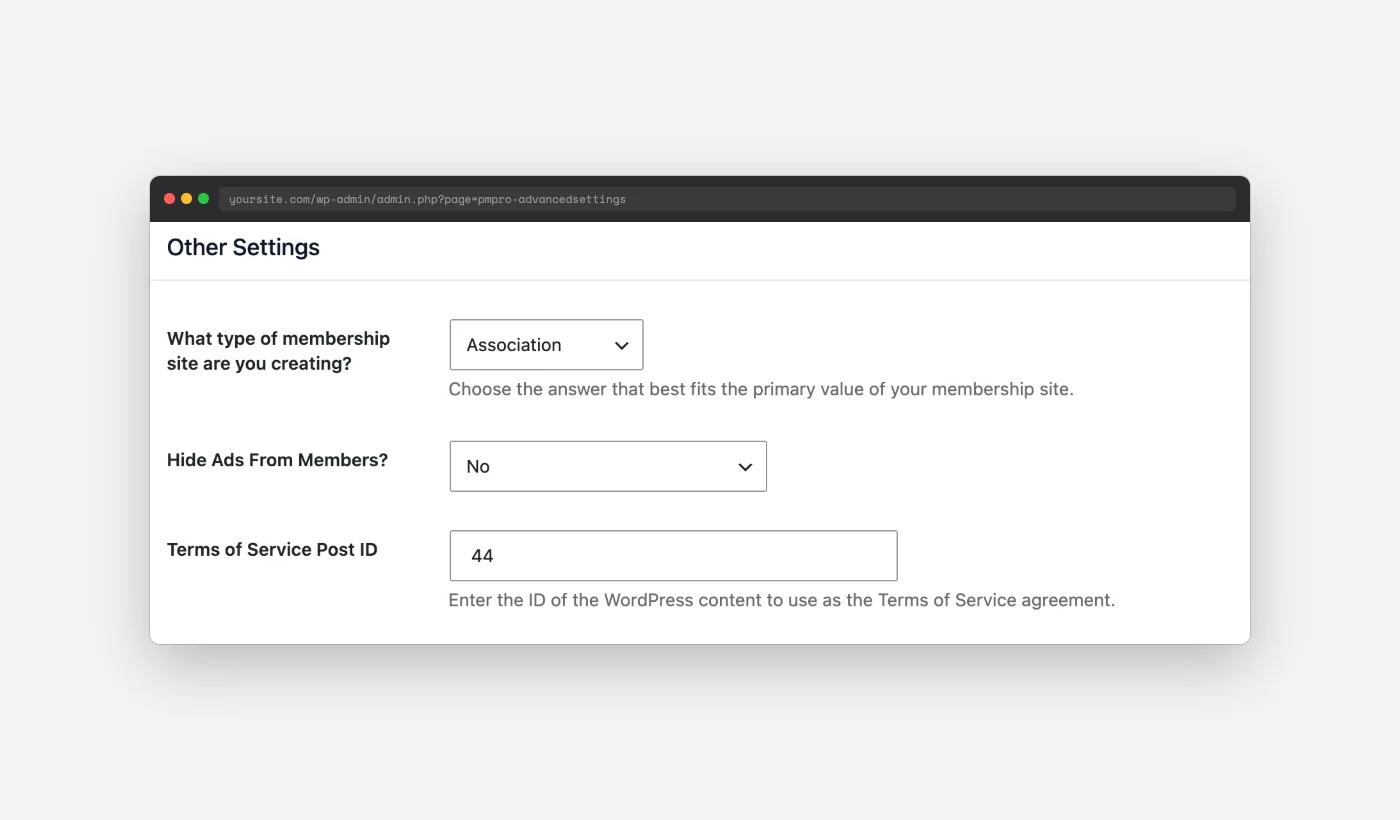
This code recipe changes the Terms of Service Post ID field from a page picker into a plain text field, so you can enter the ID of any page, post, or media file, including a PDF already sitting in your Media Library.
Do You Need This Recipe?
Use this recipe if:
- Your Terms of Service already exists as a PDF, Word doc, or other uploaded file, and you do not want to duplicate that content on a WordPress page
- You want to use PMPro’s built-in “Require Terms of Service on signups?” setting (checkbox plus link at checkout) instead of writing custom code to build your own checkbox field
- You want the flexibility to point your Terms of Service link at any post ID, not only a Page
If your Terms of Service is already a WordPress page, you do not need this recipe. Select the page directly from the standard Terms of Service setting instead.
Best Practices and Considerations
Attachment links open an attachment page, not the raw file: When you point this setting at a media file such as a PDF, PMPro links to the WordPress-generated attachment page for that file, not directly to the file itself. WordPress automatically adds a “Download” link to the file on that page, so members can still reach the PDF in one more click. Test the link at checkout so you know what your members will see.
Referenced content must stay live: The Terms of Service link depends on the ID you enter. If you delete that page or media file later, the link breaks, and members will see a 404 error at checkout.
Still requires the core setting enabled: This recipe changes how the Terms of Service Post ID field works, not whether Terms of Service enforcement is active. You still need “Require Terms of Service on signups?” turned on under Memberships > Settings > Advanced for the checkbox and link to appear at checkout.
About the Code Recipe
By default, the Terms of Service Post ID field under Memberships > Settings > Advanced is a dropdown that only lists Pages. That works fine when your terms live on a Page, but it means you cannot point the setting at anything else, like a media file.
This recipe uses the pmpro_custom_advanced_settings filter to redefine that field as a plain text input instead of the page dropdown. You can then enter the ID of any content, including a media attachment ID, and PMPro resolves that ID the same way it already resolves a Page: with get_permalink().
Step-by-Step Implementation Guide
- Add the code recipe below to your site using a custom plugin or the Code Snippets plugin.
- Navigate to Media > Add New and upload your Terms of Service PDF (or other file).
- Navigate to Media > Library and click on the uploaded file to open the “Attachment Details” panel.
- Note the numeric ID in your browser’s address bar. This is the attachment ID you will use in step 6.
- Navigate to Memberships > Settings > Advanced.
- Under “Other Settings”, enter the attachment ID in the Terms of Service Post ID field.
- Confirm “Require Terms of Service on signups?” is set to “Yes”.
- Save your changes, then visit your membership checkout page to confirm the Terms of Service checkbox and link appear and point to the correct file.
Understanding the pmpro_custom_advanced_settings Hook
The pmpro_custom_advanced_settings filter runs on the Memberships > Settings > Advanced admin page and lets you add, remove, or redefine the settings fields shown there. It receives an array of field definitions and expects the same array back, modified.
In this recipe, the filter targets the existing tospage field (used for the Terms of Service Post ID setting) and overrides its field_type from a page dropdown to text. The stored value, and how PMPro uses it everywhere else, does not change. Only how you enter that value in the admin changes.
The Code Recipe
Adding the Recipe to Your Website
You can add this recipe to your site by creating a custom plugin or using the Code Snippets plugin available for free in the WordPress repository. Read this companion article for step-by-step directions on either method.
How to Customize This Code Recipe
Change the field label or description: On lines 20 and 21, you can edit the label or description values in the snippet to match the language you want site admins to see on the settings page.
Validate the ID before saving: If you want to guard against a mistyped ID, add a check in my_pmpro_replace_tos_field_with_post_id() that confirms get_post( $id ) returns a valid object before saving the value.

Get Support From Our Team of Experts
Have a question about how to use this feature? Our Support Page outlines three ways to get support.
Our Max plans include hands-on help customizing your membership site and implementing new features. Upgrade to PMPro Max now »