You set up Google Analytics 4, wired in conversion events, and have your first Google Ads campaign running. After a few checkouts come in, you decide to compare the conversions report with the revenue report in your Paid Memberships Pro admin… but the numbers don’t match.
If your GA4 purchase count looks like roughly half of your actual PMPro orders, you are not imagining it. That gap is real, and it is not a bug in your tracking setup. It is the predictable result of how modern browsers, consent banners, and privacy tools interact with third-party analytics.
In this guide, we walk through why client-side conversion tracking under-reports, and how to layer in a privacy-first signal using the Lightweight Affiliate Tracking Add On. With a few minutes of setup, you can attribute ad campaign conversions on your own site, in your own database, without depending on cookies that may never load.

Table of contents
Why GA4 Under-Reports Membership Site Conversions
Most membership sites running paid traffic rely on Google Analytics 4 or an ad platform pixel to count conversions after a checkout. Those tools are excellent for understanding traffic patterns and behavior. They are not always reliable for counting paying members.
Here is what is happening behind the scenes. The Google Analytics Integration for Paid Memberships Pro fires a purchase event in the visitor’s browser when they land on the Membership Confirmation page. That event has to load a script, set a cookie, and send a beacon to Google’s servers. Every step in that chain depends on the visitor’s browser being willing to run third-party tracking.
Three things commonly break that chain:
- Cookie consent banners: GDPR and CCPA-compliant tools like Cookiebot, Complianz, OneTrust, and CookieYes block analytics scripts until the visitor actively accepts. Many users dismiss the banner or decline. Their checkout still completes in PMPro, but the GA4 purchase event never fires.
- Browser-level privacy protections: Safari’s Intelligent Tracking Prevention, Firefox’s Enhanced Tracking Protection, and Brave’s Shields all interfere with third-party analytics by default. No banner required.
- Ad blockers and privacy extensions: uBlock Origin, AdBlock Plus, Ghostery, and Privacy Badger block the GA4 script outright. The visitor never even loads the tracking code.
For an audience based in the EU, UK, or California, a 30 to 50 percent gap between PMPro orders and GA4 purchase events is completely normal. We have seen it firsthand on customer sites and in our own data.
This is not a flaw in the Google Analytics Integration Add On. It is the inherent reality of any client-side analytics tool. Your PMPro order records are your authoritative source of truth. GA4 is a supporting signal that gives you a directional sense of campaigns, landing pages, and behavior, but it is not the count of who paid.
So how do you reliably answer the question, “Did my Google Ads campaign produce paying members this month?”
The Privacy-First Alternative: First-Party Affiliate Tracking
The Lightweight Affiliate Tracking Add On was originally built for referral programs. You give a partner a unique link, they share it with their audience, and you track which signups came from their code.
The exact same mechanism works perfectly as a campaign attribution tool. You create an “affiliate” for each ad campaign or traffic source. You add the affiliate code to the URL you put in your ads. When someone clicks through and checks out, your site logs the conversion against that code.
Here is why this approach holds up where GA4 falls short:
- First-party cookies only: When a visitor lands with
?pa=YOUR-CODEin the URL, your WordPress site sets a cookie on your own domain. There is no third-party request, no external script to block, and no consent banner standing in the way. First-party cookies are not what most consent and privacy tools are designed to block. - Data lives in your database: Conversion records are stored in your WordPress database alongside the order. You can run reports anytime, export to CSV, and own the data forever. You are not waiting on a sample, model, or estimate.
- Survives ad blockers and ITP: Ad blockers target third-party tracking domains. Your own domain is not on that list. Safari’s ITP affects cross-site tracking, not first-party cookies set by the site you are visiting.
- No custom code required: This is all out of the box. You install the Add On, create an affiliate, append a parameter to your URL, and you are done.
Note that this is not a replacement for Google Analytics. GA4 is still the right tool for understanding traffic sources, landing page performance, audience behavior, and assisted conversions. We use it ourselves on the Paid Memberships Pro site. The Lightweight Affiliate Tracking Add On adds a layer of trustworthy first-party conversion data on top of GA4, so when the two disagree, you know which one to trust.
How to Set Up Affiliate Tracking for Ad Campaigns
The setup takes about ten minutes. You will need an active premium membership to access the Lightweight Affiliate Tracking Add On.
1. Install the Lightweight Affiliate Tracking Add On
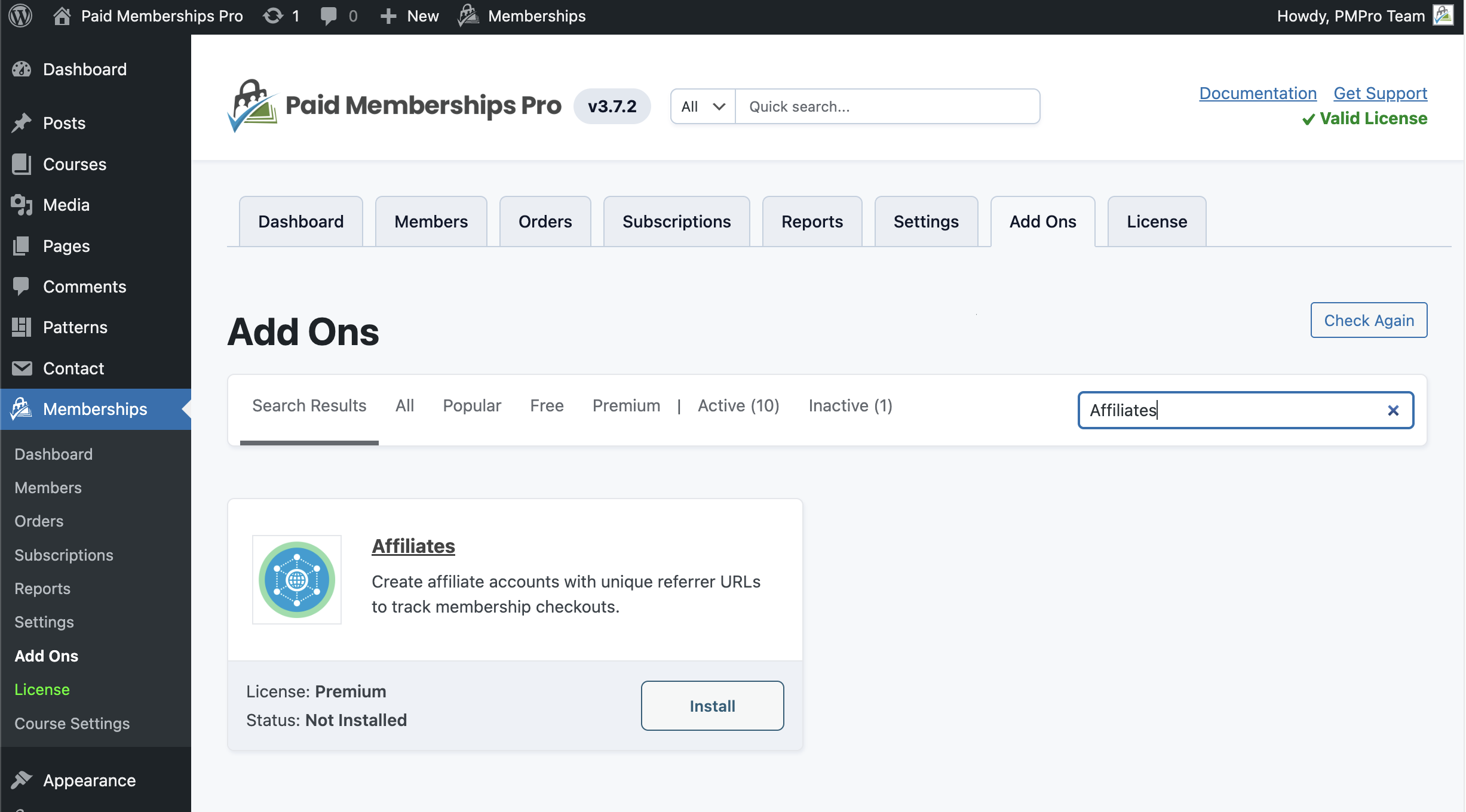
Navigate to Memberships > Add Ons in your WordPress admin. Find Lightweight Affiliate Tracking in the list and click Install Now. Once it is installed, click Activate.
You can also download the Add On from your membership account and install it manually under Plugins > Add New > Upload Plugin.
2. Create a Campaign Affiliate for Each Traffic Source
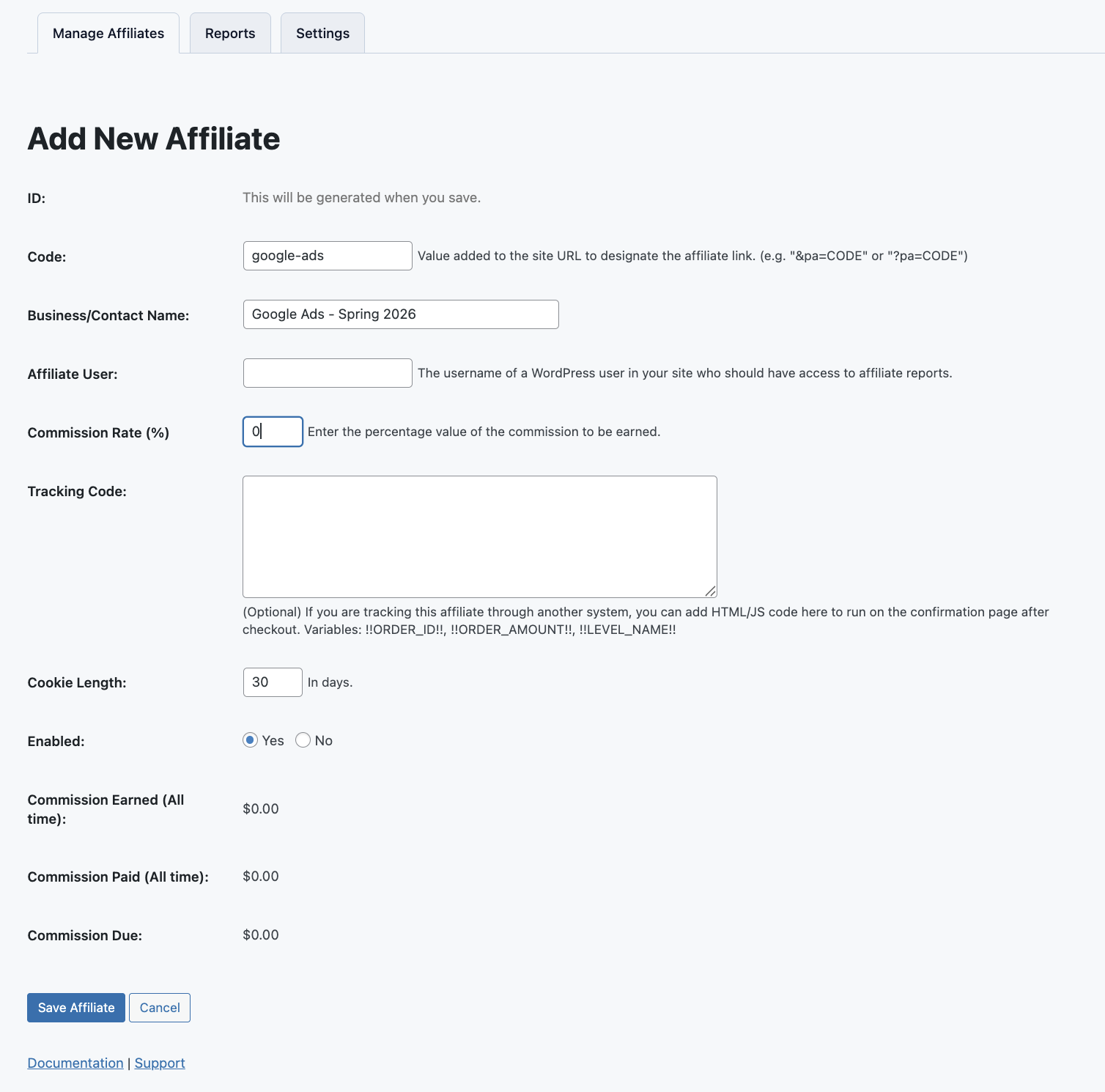
Go to Memberships > Affiliates in your WordPress admin and click Add a New Affiliate.
Fill in the fields as follows. Think of each affiliate as a campaign or traffic source you want to attribute conversions to.
- Code: A short, descriptive identifier that maps to your campaign. Examples:
google-ads,fb-spring-2026,linkedin-q2,email-april-promo. Keep it lowercase and use hyphens for readability. - Business/Contact Name: Use this as your internal label for the campaign. Something like “Google Ads — Spring 2026” or “Meta Lead Magnet Campaign”. This is for your reference only and is not shown publicly.
- Affiliate User: Optional. You can leave this blank since you are not paying a commission to a real affiliate. If you want a team member to be able to view this campaign report on the frontend, assign them here.
- Commission Rate (%): Set to
0. You are not paying a commission. You are just using this for internal attribution. - Tracking Code: Leave this blank.
- Cookie Length: The default of 30 days is right for most paid campaigns. Match this to the typical sales cycle of your offer. If your audience tends to convert within 7 days, use a shorter window. If they research for a month or more, leave it longer.
- Enabled: Yes.
Click Save Affiliate. Repeat this process for each campaign or traffic source you want to track separately.
If you run a lot of campaigns, take a minute up front to think about how granular you want your tracking. We recommend creating one affiliate code per ad platform plus campaign. For example: google-ads-brand, google-ads-prospecting, meta-retarget, meta-cold. Going more granular is fine, but every code you create is a code you have to remember to use.
3. Add Your Affiliate Code to Campaign URLs
Take the destination URL you are sending ad traffic to and append ?pa=YOUR-CODE (or &pa=YOUR-CODE if your URL already has query parameters).
Examples:
https://yoursite.com/membership-checkout/?pa=google-adshttps://yoursite.com/pricing/?pa=fb-spring-2026https://yoursite.com/join/?pa=email-april-promo
Use the tagged URL everywhere that campaign appears: ad platform creative, link-in-bio tools, email CTAs, sponsored content, and so on.
When a visitor clicks the link, the Lightweight Affiliate Tracking Add On reads the pa parameter, sets a first-party cookie called pmpro_affiliate on your domain, and stores the affiliate code. If that visitor checks out within the cookie window you set, the conversion is logged against the affiliate code.
If a visitor lands without an affiliate code, no cookie is set and nothing changes about their checkout experience. This works invisibly in the background.
4. View Your Conversion Data
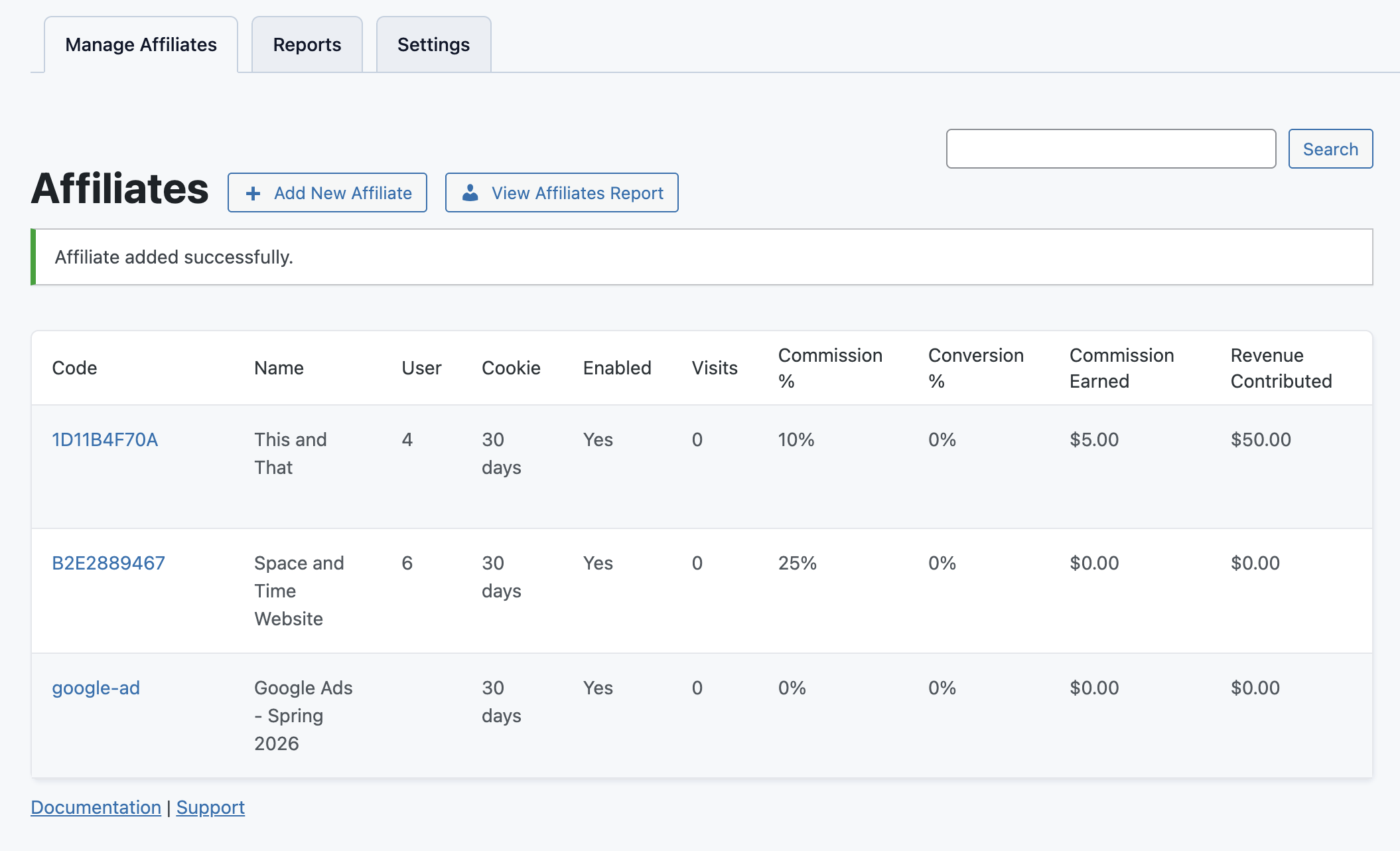
Go back to Memberships > Affiliates in your WordPress admin. The list view shows every affiliate code you have created, the number of referrals (conversions), and the total dollar value of orders attributed to that code.
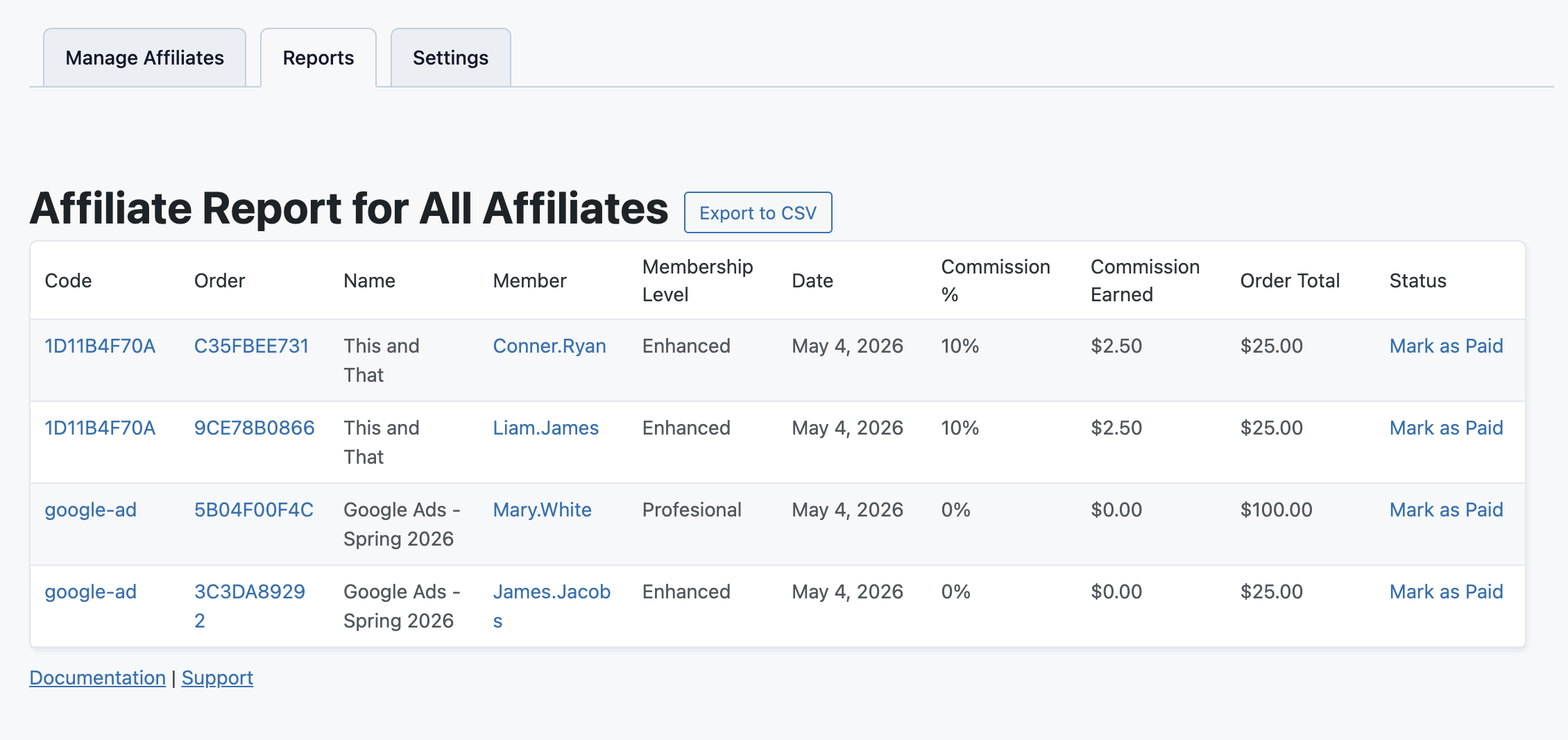
Click into a specific affiliate code to see the individual orders attributed to that campaign. From there you can see:
- The user who completed the checkout
- The membership level they purchased
- The order amount
- The date and time
You can also export the full list to CSV for analysis in a spreadsheet, ad platform import, or data warehouse.
Bonus: Auto-Assign Affiliate Codes from UTM Parameters
If you already use UTM parameters on your campaign URLs (and most marketing teams do), you do not need to re-tag every link. You can auto-assign the matching affiliate code based on the incoming utm_source.
Add the following snippet to your site using the Code Snippets plugin or a custom plugin file. Do not add it directly to a theme’s functions.php file unless you are using a child theme.
How to use it: create affiliate codes in PMPro that exactly match the utm_source values you already use in your campaigns. For example, if your Google Ads URLs include utm_source=google, create an affiliate with the code google. The snippet checks the incoming UTM, looks up a matching enabled affiliate, and sets the first-party cookie. The checkout then logs the conversion automatically.
If you want to extend this to other ad platform click IDs (fbclid for Meta, gclid for Google, li_fat_id for LinkedIn), the same pattern applies. Watch for the parameter, look up a matching code, and set the cookie. We may publish a follow-up post with a more complete version of this snippet.
When This Approach Makes Sense
This setup is most valuable when one or more of these is true for your site:
- You serve an EU, UK, or California audience that is required to see a consent banner.
- You are running paid traffic and want to confirm what your ad platform reports.
- You want a permanent record of campaign attribution that lives in your own database.
- You suspect your GA4 numbers are off but you are not sure by how much.
- You are running test campaigns with small budgets and need exact counts to make decisions.
It is less critical (though still useful) if you have a small audience in a region with low consent banner adoption, or if you are comfortable making decisions on directional GA4 data alone.
This approach does not replace GA4 entirely. GA4 still tells you things first-party affiliate tracking cannot, like which landing pages perform best, where assisted conversions are coming from, and how user behavior differs across traffic sources. Use both. Trust the affiliate data for “how many paying members did this campaign produce.” Use GA4 for “how is the campaign performing across the funnel.”
Frequently Asked Questions
No. The basic setup (install the Add On, create an affiliate, tag your URLs) requires no code. Only the optional UTM auto-assignment snippet involves code, and it is a copy-paste install with the Code Snippets plugin.
No. The Lightweight Affiliate Tracking Add On runs entirely on your own site and does not interact with GA4. You can use both tools at the same time and compare the data.
The cookie set by the most recent click “wins” by default. The first-party cookie is overwritten when a new affiliate code is read from the URL.
Yes. The conversion is logged when the checkout completes, regardless of whether the level is paid or free. The order amount will be 0.00 for free levels.
Yes, but you must configure affiliate commissions for the membership level to apply for both initial checkouts and recurring orders. Recurring commissions will not show up in Google Analytics, though, only in your on-site affiliate reports.
This same workflow works with other affiliate platforms that integrate with Paid Memberships Pro. Start with Lightweight Affiliate Tracking and upgrade if you grow into a real affiliate program.
First-party cookies used for your own analytics generally have a much lower compliance burden than third-party tracking cookies. We recommend reviewing your privacy policy and consulting with a privacy attorney for your specific situation, especially if you operate in the EU.
Wrap Up: Trust Your Own Data
Client-side analytics will always have a gap. Consent banners, browser privacy protections, and ad blockers all chip away at the picture you get from GA4 and ad platform pixels. That is not going to change. If anything, it is going to get more inconsistent as browsers continue to deprecate third-party tracking.
You do not have to be flying blind on which campaigns are working. By creating a few affiliate codes for your ad campaigns and tagging your URLs with ?pa=YOUR-CODE, you get a clean, first-party, consent-friendly conversion record stored in your own database. That gives you the confidence to spend ad dollars and make decisions based on data you actually own.
If you have an active premium membership, you can install the Lightweight Affiliate Tracking Add On today and have your first campaign tagged in under 15 minutes. Pair it with the Google Analytics Integration for the layered view, and trust the affiliate data when the two disagree.

Free Download: The AI-Powered Membership Site Blueprint
Download the free guide: Learn how to plan, build, and grow a membership site using AI as your strategic partner: from buyer persona to launch and beyond.