You raised the price on a level in Paid Memberships Pro. You saved the change, checked your orders, and your existing members are still being billed the old amount. It may look like the price change didn’t take effect. In reality, it worked exactly as intended.
Subscriptions are managed at the payment gateway (Stripe, PayPal, etc.), not in your PMPro database. The level price in PMPro controls what new members pay at checkout. Changing it does not reach back into the gateway and modify subscriptions that are already running.
Before you do anything, read this post. It covers the three options you actually have to adjust pricing for your existing members and explains the tradeoffs each one carries.

What Just Happened
The initial payment field on a PMPro level is the price you charge at checkout. The billing amount field is what is charged on a recurring basis. When a member signs up, PMPro tells the gateway: “Create a subscription that bills this user X dollars every month.” From that moment on, the gateway owns the schedule and the amount. Your PMPro database holds an abbreviated copy of the billing details, but the actual recurring charges happen on the gateway side.
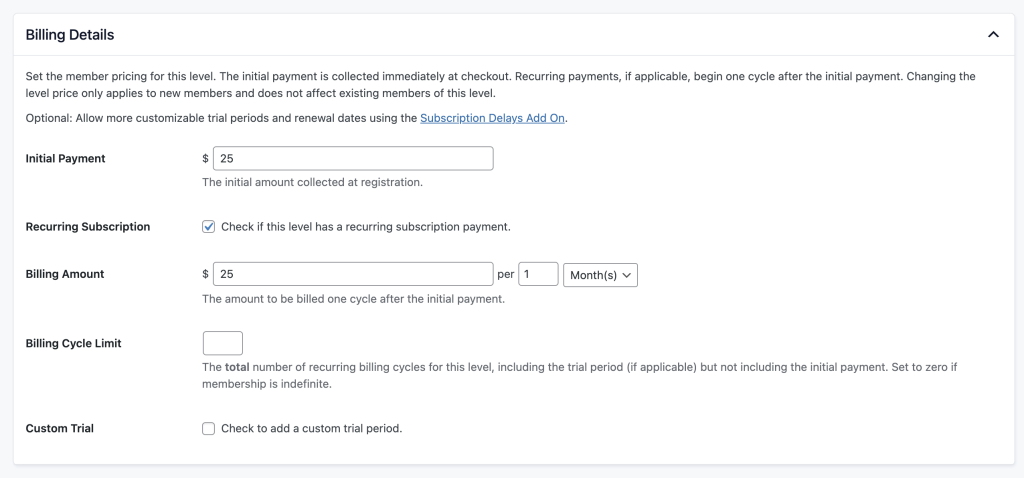
When you edit the level and change the price, you change the checkout amount for new members. You do not change what the gateway is doing for subscriptions that already exist. Stripe is still billing the old amount. PayPal is still billing the old amount. From your members’ banks’ perspective, nothing has changed.
So, what can you do about it? You have three paths.
Your Three Options
- Grandfather existing members at the old price: Do nothing. New members pay the new price. Existing members keep paying what they signed up for.
- Set an expiration date on each existing member and ask them to re-subscribe: This is the cleanest way to actually move everyone to the new price.
- Update existing Stripe subscriptions in place: Technically possible, but risky enough that most sites should not choose this path.
Most membership sites should pick Option 1 or Option 2. Option 3 exists, and we will cover it honestly, but it comes with real chargeback and account-stability risk. Read the warnings carefully before taking this action.
Grandfather Existing Members at the Old Price
Do nothing. This is the model we use at PMPro for our members.
Existing subscriptions keep billing the old price at the gateway, indefinitely, until each member cancels or their card stops working. New checkouts pay the new price.
This is the default, and for most sites it is also the right answer. You avoid the friction of asking long-time members to take action. You avoid chargebacks from members who feel blindsided by a price change. You avoid raising flags with fraud-detection systems that look for unusual charges on cards.
Grandfathering your existing members in their pricing is a feature. Use that to build trust with your members.
There is one situation where grandfathering becomes hard to sustain. You have a large existing member base at a much lower price, and your operating costs have moved well above what those subscriptions cover. At that point, you need to move everyone to the new price. That is what Option 2 is for.
Set Expiration Dates and Have Members Re-Subscribe
This is the recommended approach when you actually need to migrate existing members to a new price. At a high level, the process works as follows:
- Set an expiration date and cancel the subscription for each member that would need to be moved to your current pricing.
- Tell those members in advance that their membership is ending on that date, and that they can resubscribe at the new price.
- When the expiration date passes, members who want to continue go through checkout again at the new price.
How to Cancel Subscriptions and Set an Expiration Date
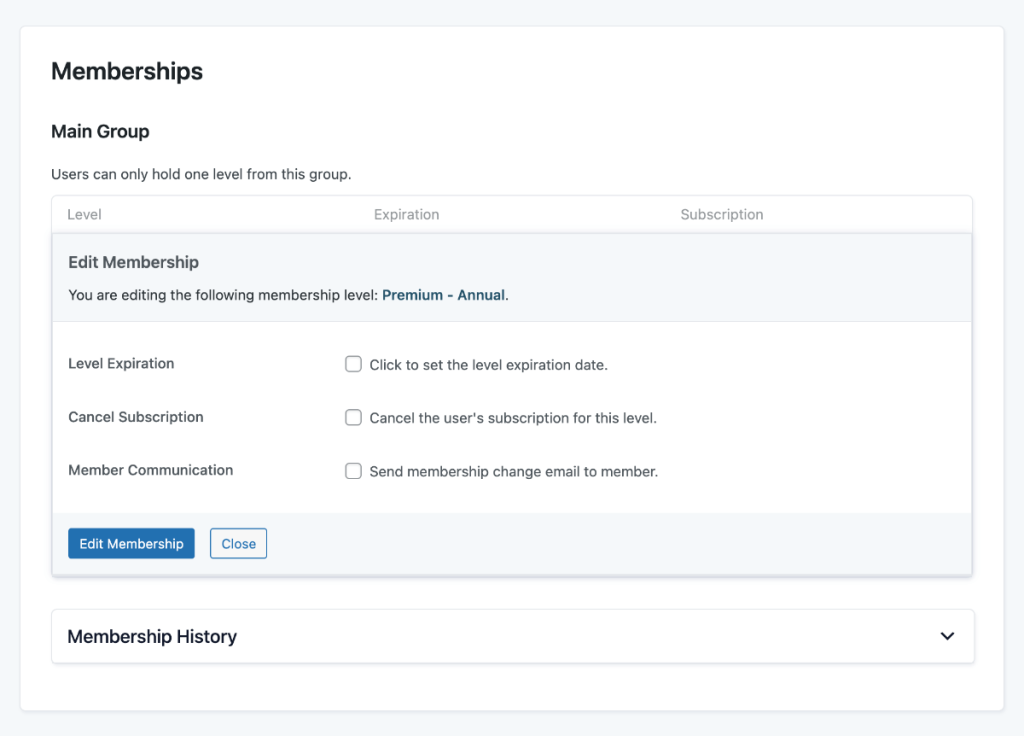
- Go to Memberships > Members > Edit Member in the WordPress admin.
- In the Memberships panel, click Edit Membership.
- Set an expiration date for the membership and cancel the subscription.
- Save the change.
The Cancellation Behavior Trap to Avoid
By default, when a subscription is cancelled at the gateway (in your Stripe or PayPal dashboard), PMPro listens to the gateway’s webhook and cancels the local membership too. The member loses access on their next payment date, which could be sooner than intended.
It can be tempting to log into your payment gateway and cancel a batch of subscriptions as a shortcut to migrate members to the new price. Do not do this. You will cut off access early, your members will email support, and you will lose the controlled handoff that Option 2 is designed for. Let PMPro drive this transition period.
Communicating the Change to Members
This is where the strategy side of the work lives. Send members real notice weeks, not days, before their expiration date. Tell them clearly what is happening, what the new price will be, and exactly what they need to do to continue. Most readers will want to know the renewal link and the deadline more than they want to know your reasoning.
For the full guide on tone, framing, and timing, read The Dos and Don’ts of Raising Prices for Membership Sites. That post covers how to talk about a price change without losing your audience’s trust.
PMPro automatically sends a Membership Expiring reminder email a week before each member’s expiration date, and a Membership Expired email on the day it passes. Customize both to point clearly at the renewal link and to explain the new price. See the Email Templates documentation for how to edit the message body and add merge tags. One week is thin notice for a price migration, so consider the Extra Expiration Warning Emails Add On to send earlier and additional reminders in the weeks leading up to the expiration date.
An Optional Bonus for Existing Members
For monthly subscriptions, consider issuing a discount code with a $0 initial payment and the new recurring amount. Frame it as: renew before the deadline for one free month at the new price. The friction of asking a member to re-enter their card is real, and one free month softens it.
For annual subscriptions, a one-time discount is a smaller gesture against a full-year commitment. Be honest with yourself about whether it actually moves the needle for your situation. Often it does not.
Update Stripe Subscriptions in Place
This option only applies if you are on the Stripe gateway. Even then, it carries enough risk that most sites should pick Option 2 instead. Read this section as a warning first, with the how-to second.
Why This Path Is Risky
- The gateway may decline the new charge: Card issuers and banks watch for unexpected jumps in recurring amounts. A meaningful price increase on a card that has been billed at one amount for years can be flagged and refused.
- Members who were not warned will chargeback: Even members who would have happily accepted the new price with notice may dispute the charge when it shows up unannounced on their statement. A chargeback wave is the single fastest way to get your Stripe account flagged for review or shut down.
- It is Stripe-only: If you are on PayPal, or any other gateway, the in-place subscription edit option is not available. You are looking at Option 2.
Only proceed with Option 3 if all of the following are true:
- You are using the Stripe gateway.
- You have given members substantial advance notice.
- The price increase is moderate. Large jumps will trigger chargebacks even with notice.
- You have accepted that some charges will fail and some members will dispute regardless.
How to Update a Stripe Subscription from PMPro
- Go to Memberships > Members > Edit Member in the WordPress admin.
- Open the Subscriptions panel and click View Details on the active subscription.
- Copy the Subscription Transaction ID (the value beginning with
sub_). - In the Stripe Dashboard, search for that ID and edit the subscription to add the new product price.
- Back in PMPro, use the Sync with Gateway button on the subscription details view to pull the change into your local data.
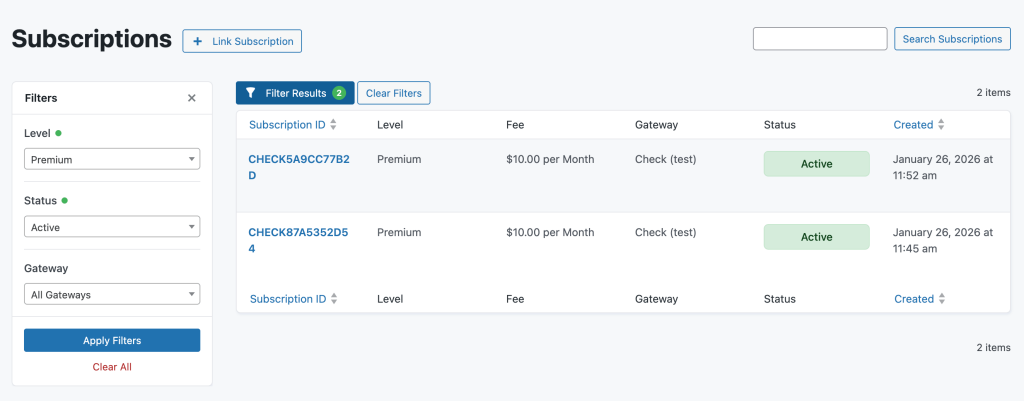
The full walkthrough, including how to disable proration and set the next payment date, lives in the Stripe Subscription Updates documentation.
What About Members Who Do Not Renew
Some members will not renew. They will miss the email, or they will see the new price and decide it is not worth it. That is the cost of Option 2, and it is real.
A few things to soften the edge:
- Customize the expiration emails to lead with the renewal link, not the goodbye. See the Email Templates documentation for how to edit the copy and merge tags.
- Add a grace period so members do not lose access the instant their expiration hits. The Add a Grace Period to a Membership Level recipe shows how to extend the post-expiration window without rebuilding your level structure.
- Set realistic expectations: Your renewal rate at a new price will be lower than your renewal rate at the old one. Plan for it.
Cancelled and expired members are not gone. They can still hear from you. If you have an email list, keep them on it and re-pitch the value of membership when the timing is right.
Quick Reference for Choosing Your Path
- You have a small existing member base and you can afford to keep them at the old price: grandfather them.
- You need everyone on the new price and you want to do it cleanly: Option 2. Set expiration dates and ask members to checkout again.
- You are on Stripe, you have given long advance notice, and the increase is moderate: Option 3 is on the table, but read the warnings.
If you are unsure, pick Option 1. It is the path with the fewest ways to go wrong, and it is the one we recommend to most sites we work with.
What to Do Next
Changing a level price is a small action with a long tail of consequences. The technical steps in PMPro are straightforward. The harder part is deciding who pays what, when those changes take effect, and how you’ll communicate them to your members.
If you are mid-migration and need a second set of eyes, the PMPro community Slack is a good place to ask. Someone has almost certainly done what you are about to do, and they will tell you what they wished they had known before they started.

Free Download: The AI-Powered Membership Site Blueprint
Download the free guide: Learn how to plan, build, and grow a membership site using AI as your strategic partner: from buyer persona to launch and beyond.