By the time your membership site is ready to launch, you have probably created a small village of test members. Dummy email accounts, sandbox orders, a fake discount code or two, maybe a “subscription” you ran through Stripe Test Mode three months ago. None of that should follow you into production.
The catch is that a real membership site is not just a list of WordPress users. Paid Memberships Pro keeps separate records for memberships, orders, and subscriptions, and those records are intentionally preserved when you delete a user. If you only delete test users from the WordPress Users screen, you will still have orphaned orders, subscriptions, and history in your reports.
This guide walks you through a safe, repeatable cleanup process. We will cover what each kind of record is, what gets deleted when you remove a user, how to use the Developer’s Toolkit Add On to wipe test data in one click, and what to do if you cannot install the Add On. There is also a short pre-launch checklist at the end you can run through before flipping the switch.
WordPress Users versus PMPro Members, Orders, and Subscriptions
Before you delete anything, it helps to know what is actually stored where. Paid Memberships Pro layers a few different kinds of records on top of WordPress users.
- WordPress Users: The standard WordPress user account. Lives in the
wp_usersandwp_usermetatables. Every member, customer, administrator, editor, and test account on your site has one of these. - PMPro Members (membership records): A row in the
wp_pmpro_memberships_userstable linking a WordPress user to a membership level, with a status (active, cancelled, expired, admin_cancelled, etc.) and start and end dates. A single WordPress user can have multiple rows here over time… one per level change or renewal. - Membership Orders: Rows in
wp_pmpro_membership_orders. One row per checkout, manual order, or recurring payment. Each order stores the user ID, the level purchased, the amount, the gateway, the gateway environment (sandbox or live), and the transaction IDs. - Subscriptions: Rows in
wp_pmpro_subscriptions(with related metadata inwp_pmpro_subscriptionmeta). These represent ongoing billing agreements at your payment gateway and are how PMPro tracks recurring payments.
In other words, “a member” is not one record. It is a WordPress user, plus a membership row, plus a stack of orders, plus a subscription if they are paying you on a recurring basis. Cleanup needs to think about all four.
What Happens When You Delete a WordPress User
When you delete a WordPress user from Users > All Users, Paid Memberships Pro adds a small section to the Delete User confirmation screen. If the selected users have any membership data, you will see options like this:
- Cancel any related membership levels first: Check this if you want PMPro to cancel the user’s active memberships before deletion. This may also cancel recurring subscriptions at your payment gateway, so do not check it unless that is what you want.
- Delete any related membership history: Check this to also remove the user’s rows from the
wp_pmpro_memberships_userstable.
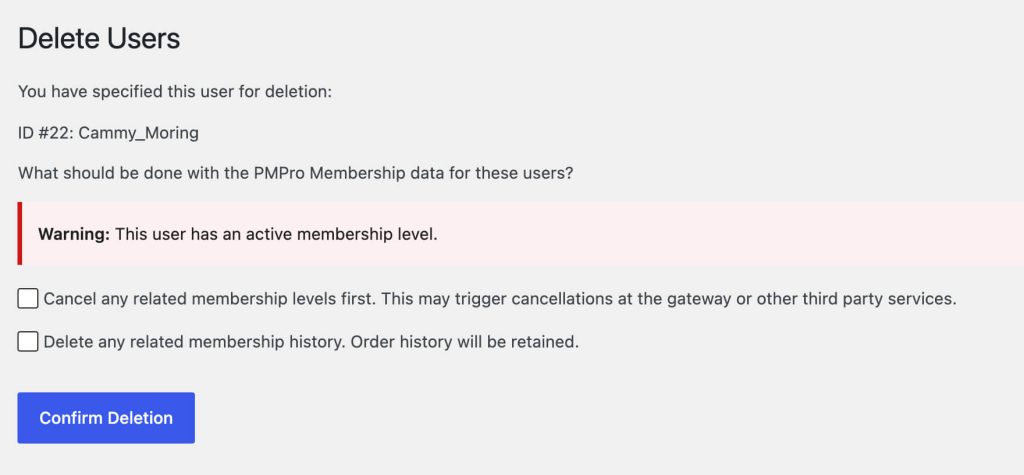
By default, deleting a WordPress user does not delete the user’s order history. PMPro retains orders on purpose so that your sales and revenue reports remain accurate, even after a user is gone. That is great for a live site. It is not what you want on a site you are about to launch with a clean slate.
A few other things to remember:
- Administrators cannot delete their own WordPress account: WordPress will not give you that option in the Users screen. If you are the only administrator and you want to remove your test account, create a second administrator first, log in as that account, then delete the original.
- Be careful with bulk delete: It is easy to select “all users” and forget that staff, your accountant, or a content editor is in the list. Always filter or scan the list before you confirm.
If you have already deleted a few test users without cleaning up their membership data first, do not panic. Their order and subscription records are still in the database, just orphaned from a user. We will clear those out in the next section.
The Recommended Cleanup Workflow
The safest order is to remove membership-related data first, then delete the test users. This avoids leaving orphaned orders or active subscriptions behind, and it makes the WordPress Users screen the last step rather than the first.
If you have the Developer’s Toolkit Add On for Paid Memberships Pro installed, the whole thing is a few checkboxes. If you do not, we have a manual path for you further down.
Step 1: Take a backup
Before you run any cleanup, take a full backup of your site and database. The Developer’s Toolkit scripts use direct database queries and TRUNCATE commands. You cannot undo these changes from the WordPress admin. If you wipe something you meant to keep, only your backup can bring it back.
If you do not already have a backup routine in place, our guide on how to back up your WordPress site walks through the options.
Step 2: Run the Developer’s Toolkit cleanup scripts
Install and activate the Developer’s Toolkit Add On, then navigate to Memberships > Toolkit > Database Scripts in the WordPress admin. You will see a “Database Clean Up Scripts” section with checkboxes for each script.
We recommend running only one script at a time. Check a box, click Run Selected Tools, wait for the success message, then move to the next one. For a clean-slate launch, Delete Member Data does nearly all of the work on its own. Here is what each script does:
- Delete Member Data: This is the one to run for a clean launch. It truncates the membership users, orders, subscriptions, subscription metadata, and discount code usage tables, so every membership record is gone regardless of gateway environment (sandbox and live). It also clears PMPro’s cached sales and membership report data automatically, so those reports read zero right away.
- Delete Test Orders (alternative): Use this instead of Delete Member Data when you want to clear sandbox orders but keep your production data. It removes only orders and subscriptions processed in the sandbox gateway environment, so anything created in live mode is left untouched. Note that it does not remove membership level assignments from
wp_pmpro_memberships_users. It only clears orders and subscriptions. For a brand-new site with nothing but test data, Delete Member Data above is the simpler, more thorough choice. - Reset Membership Settings (optional): Truncates levels, level groups, discount codes, content restrictions, and page assignments. Only run this if you want to start over with your level setup. Most sites do not need this. Your levels are usually part of what you have been building up to launch.
- Reset Options (optional): Deletes a set of
pmpro_options fromwp_options, including saved gateway and billing settings, the stored levels option, and your assigned PMPro page settings. This is a heavy reset for wiping a staging site, not something you want when prepping a launch. It clears configuration you have set up. - Clear Logins Report (optional): Clears the visits, views, and logins reporting data so those reports start fresh. Delete Member Data does not touch this report, so run this separately if you have been browsing the site during testing and want it zeroed.
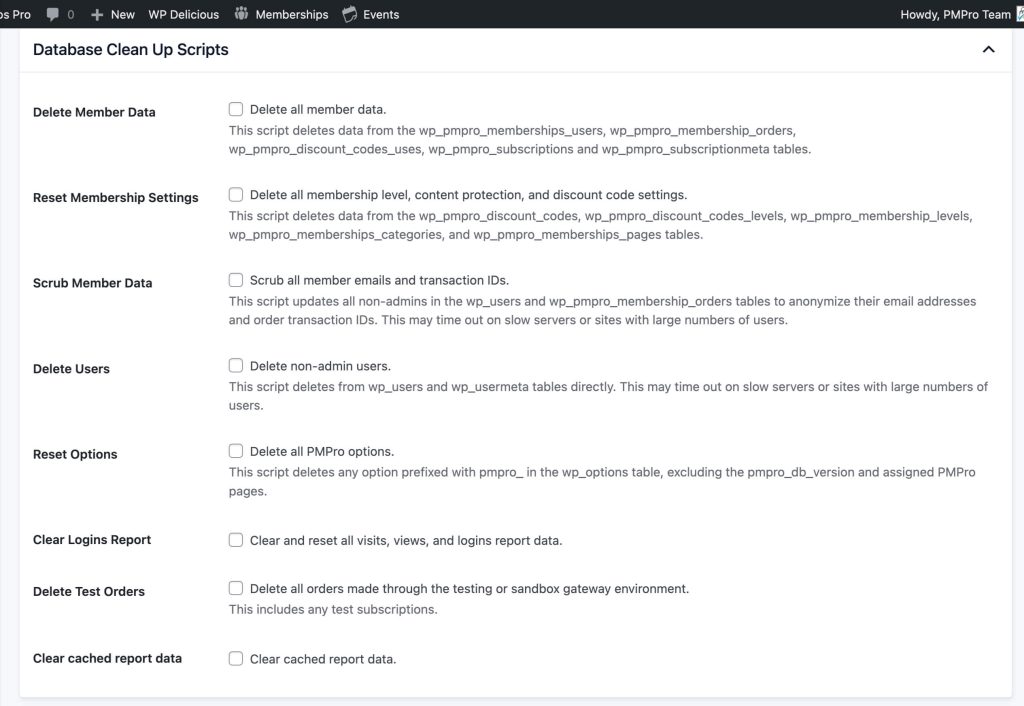
After the scripts run, your wp_pmpro_memberships_users, wp_pmpro_membership_orders, wp_pmpro_subscriptions, wp_pmpro_subscriptionmeta, and wp_pmpro_discount_codes_uses tables will be empty. Your WordPress users are still intact at this point, which is exactly what you want.
Step 3: Delete test users from the WordPress Users screen
Now that the membership tables are clean, head to Users > All Users. You will want to delete every test account while preserving any real WordPress users you need on the live site, such as administrators, editors, authors, support staff, and any pre-launch newsletter signups you have already collected.
A few practical tips:
- Sort or filter by role: Use the role filter to view only “Subscriber” accounts. Your test members almost certainly fall into one of those roles, and your staff almost certainly does not.
- Search by email domain: If your test members used a recognizable email pattern (
@example.com,+test@yourdomain.com,yopmail), search for that domain and bulk delete. - Spot check before bulk delete: Once you are confident the filtered list is only test accounts, select all and choose Delete from the bulk actions dropdown.
When you click “Apply,” WordPress will show the confirmation screen. Because you already cleared the membership tables in Step 2, you will not see the PMPro membership data notice this time. Confirm the deletion and you are done.
If you do see the PMPro notice and want to be thorough, check the “Delete any related membership history” option before confirming.
Cleaning Up Without the Developer’s Toolkit
If you cannot or do not want to install the Developer’s Toolkit Add On, you have two manual options.Both require more care than the Toolkit, and you should only attempt either one after verifying your backup.
Option 1: Delete users one by one through the WordPress Users screen. This works fine for a small number of test accounts. For each user, check both the “Cancel any related membership levels” and “Delete any related membership history” options on the Delete User confirmation screen. This will clear the user’s row from the membership users table. Their order history will still be retained. You can leave those orders if you like (they will be associated with a deleted user ID), or remove them manually via Memberships > Orders.
Option 2: Run direct database queries. If you are comfortable with phpMyAdmin or CLI commands, you can TRUNCATE the same tables the Developer’s Toolkit clears. This is the riskier path. Do not attempt this on a production database, and do not attempt this without a tested backup. The relevant tables are listed in the next section. If a typo would make you nervous, install the Add On instead.
Whichever route you take, the principle is the same: clear the membership tables first, then the users. That keeps your reports clean and avoids orphan records.
Reference: The PMPro Tables That Hold Membership Data
For anyone looking to verify cleanup or run their own queries, these are the tables Paid Memberships Pro uses to store member, order, subscription, and discount code data:
wp_pmpro_memberships_users: One row per membership assignment. Holds level, status, start and end dates.wp_pmpro_membership_orders: All checkout, manual, and recurring orders.wp_pmpro_membership_ordermeta: Metadata attached to individual orders.wp_pmpro_subscriptions: Recurring billing agreements (one row per active or cancelled subscription).wp_pmpro_subscriptionmeta: Metadata attached to subscriptions.wp_pmpro_discount_codes_uses: Records of which user used which discount code on which order.
Your table prefix may be different from wp_ if your install uses a custom prefix. The structure is the same, just check your wp-config.php for the actual prefix.
Pre-Launch Checklist
Run through this list in order on launch day (or the day before, if you can):
- Backup your site and database: Verify the backup is restorable.
- Run “Delete Member Data” in Memberships > Toolkit > Database Scripts. This clears all membership, order, subscription, and discount-usage records in one pass, regardless of gateway environment, and clears the cached sales and membership reports. You do not also need Delete Test Orders (it is a sandbox-only subset of this). Use Delete Test Orders only when you want to keep production orders.
- (Optional) Run “Clear Logins Report” to zero the visits, views, and logins report, which Delete Member Data does not touch.
- Delete test users through Users > All Users. Keep administrators and staff.
- Spot check your reports: Memberships > Reports should show zero (or close to it) across the board.
- Switch your payment gateway to live mode: Confirm API credentials are correct. Do this after the cleanup so you are never sitting in live mode with leftover test data.
- Run a real checkout with your live gateway, using your own card. Then refund and cancel. Confirm the subscription is actually cancelled at the gateway itself, not just in WordPress.
- Remove that live test order. Because it was processed in live mode, “Delete Test Orders” will not catch it. Delete it from Memberships > Orders (and remove the test user or membership if the checkout created one), or re-run Delete Member Data while you still have no real members.
- Confirm you have at least one administrator account and, for security reasons, whose username is not ‘admin’ and whose password is strong.
- Announce launch.
This list is intentionally short. If your site is more complex (private content, event registration, group accounts, custom user fields), you may have additional cleanup of your own to do. The principles still apply: backup first, clear membership data, then clear users.
Frequently Asked Questions
No. Order history is retained by design, so your sales and revenue reports stay accurate after a member leaves. If you want orders gone, you have to remove them yourself — through the Developer’s Toolkit Add On, through the Memberships > Orders screen, or directly in the database.
No. WordPress prevents administrators from deleting their own account. If you need to remove the account you are currently using, promote a second user to administrator, log in as that user, then delete the original.
Their orders and subscriptions are still in the database, just associated with a user ID that no longer exists. Run Delete Member Data (or Delete Test Orders if everything was in sandbox mode) from the Developer’s Toolkit to clear them out.
No. The “Delete Member Data” script wipes PMPro’s local records but does not call out to Stripe, PayPal, or any other gateway to cancel a subscription. If you have real subscriptions you want to cancel at the gateway, do that first through the gateway dashboard or through PMPro’s normal cancellation flow, then run the cleanup.
Take a look at our guide on how to launch a membership site and our walkthrough on how to set up a staging environment. Both pair nicely with this cleanup checklist.
Ready to scrub the test data and launch with a clean slate? Install the Developer’s Toolkit Add On for Paid Memberships Pro and work through the steps above. By the time you are done, your reports will reflect real members only. That’s exactly the position you want to be in on day one.

Free Download: The AI-Powered Membership Site Blueprint
Download the free guide: Learn how to plan, build, and grow a membership site using AI as your strategic partner: from buyer persona to launch and beyond.