Lock a membership level to stop its members from cancelling or changing levels on their own. The lock can last indefinitely, for a set amount of time, or until the member has made a set number of successful payments, which works well for installment plans.
Lock a Membership Level
- Navigate to Memberships > Settings > Levels in the WordPress admin.
- Click the name of the level you want to lock to open the Edit Membership Level screen.
- Expand the Lock Membership Level Settings section.
- Check Lock This Level? to show the unlock options.
- Choose when the lock should be removed, using the settings below.
- Click Save Level.
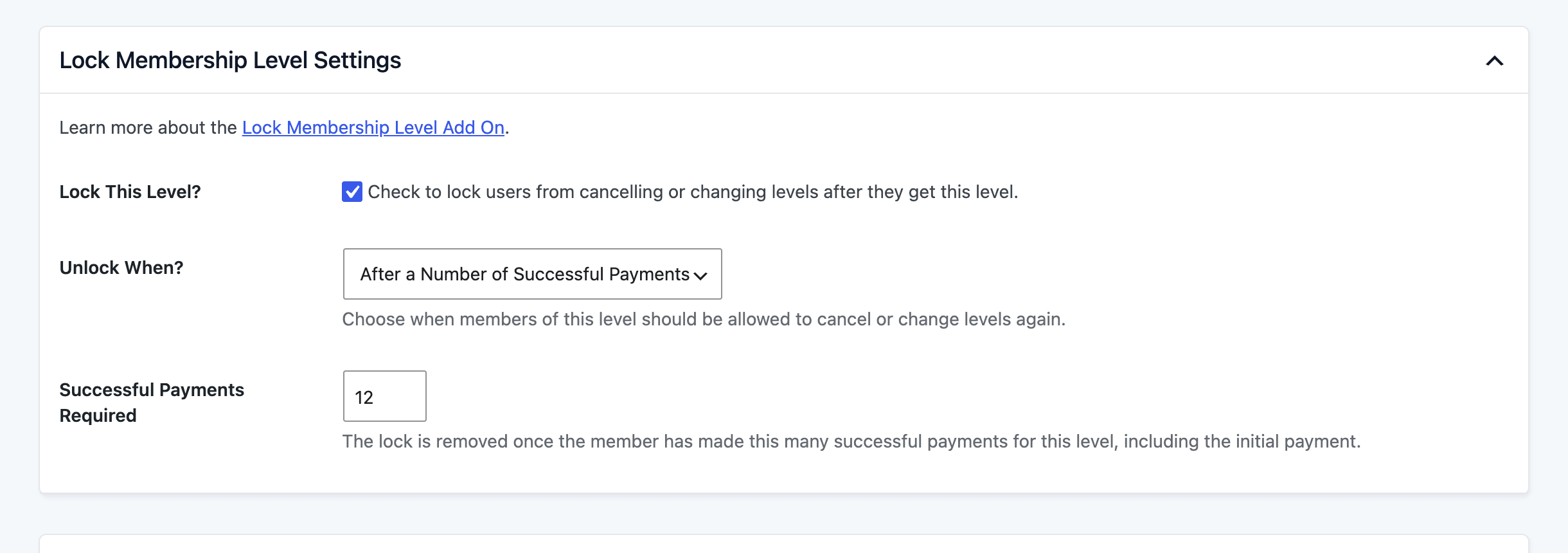
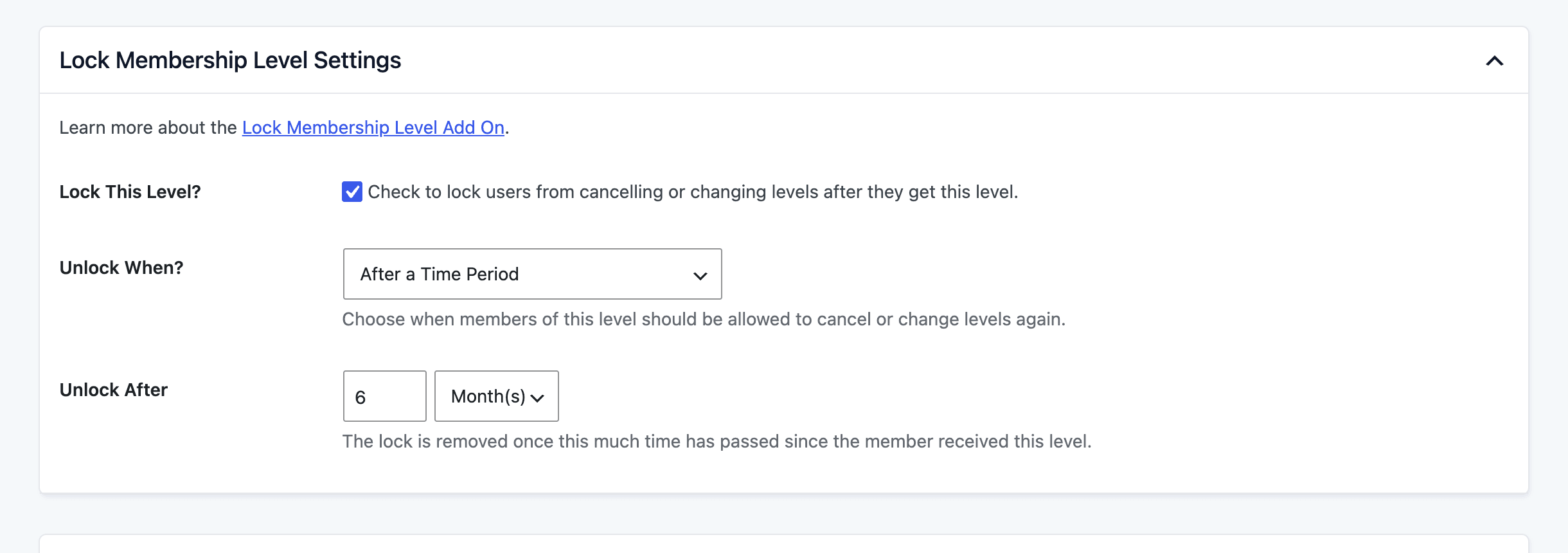
Level Lock Settings
- Lock This Level?: Check to lock members from cancelling or changing levels after they get this level. Unchecked by default.
- Unlock When?: Choose when members of this level are allowed to cancel or change levels again.
- Never: The lock stays in place until you remove it or the member loses the level. This is the default.
- After a Time Period: The lock is removed after a set amount of time.
- After a Number of Successful Payments: The lock is removed once the member has paid for this level a set number of times.
- Unlock After: Shown when you choose After a Time Period. Enter a number and choose Day(s), Week(s), Month(s), or Year(s). The lock is removed once this much time has passed since the member received the level.
- Successful Payments Required: Shown when you choose After a Number of Successful Payments. The lock is removed once the member has made this many successful payments for this level, including the initial payment.
If you choose a time period or payment count but leave the number blank, the level is saved with Unlock When? set to Never.
Lock an Installment Plan Until It’s Paid
Say you sell a course as 10 monthly payments of $50. You want members to stay enrolled until the full price is paid, then let them cancel or change levels freely.
- Set up the level with an initial payment of $50, a recurring billing amount of $50 per month, and a Billing Cycle Limit of 9. The Billing Cycle Limit doesn’t include the initial payment, so this makes 10 payments in total.
- In Lock Membership Level Settings, check Lock This Level? and set Unlock When? to After a Number of Successful Payments.
- Set Successful Payments Required to 10.
After the 10th successful payment, the lock is removed and the member can cancel or change levels again.
Which Payments Count
- Only orders for this level with a status of Success and a total greater than zero are counted. A free trial or $0 initial payment doesn’t count toward the total.
- The checkout payment for the level counts, along with renewal payments made during the member’s current membership. Payments from an earlier membership in the same level don’t count.
- The payment count is checked each time the lock is checked. If a counted order is later refunded or deleted, the count drops and the lock applies again until the member reaches the required number.
When Level Locks Are Added and Removed
- The lock is added to the member’s account when they receive the level, whether through checkout or when an administrator gives them the level.
- The level’s lock settings are copied to the member at that moment. If you change the level’s lock settings later, members who already hold the level keep the lock they were given.
- When the member loses the level for any reason (expiration, an administrator removes it, or it’s replaced by another level), the lock for that level is deleted.
Get Support From Our Team of Experts
Have a question about how to use this feature? Our Support Page outlines three ways to get support.
Our Max plans include hands-on help customizing your membership site and implementing new features. Upgrade to PMPro Max now »
Last updated on November 12, 2026

