Locked members can still log in and use their membership as usual. What changes is what they can do with it: the Membership Account page shows that the membership is locked, and pages for cancelling or changing levels send them to the Membership Locked page instead.
Membership Account Page
Each locked membership shows a message on its card in the My Memberships section, and the Cancel, Change, and Renew links are removed from that card. Other links, such as Update Billing, stay in place.
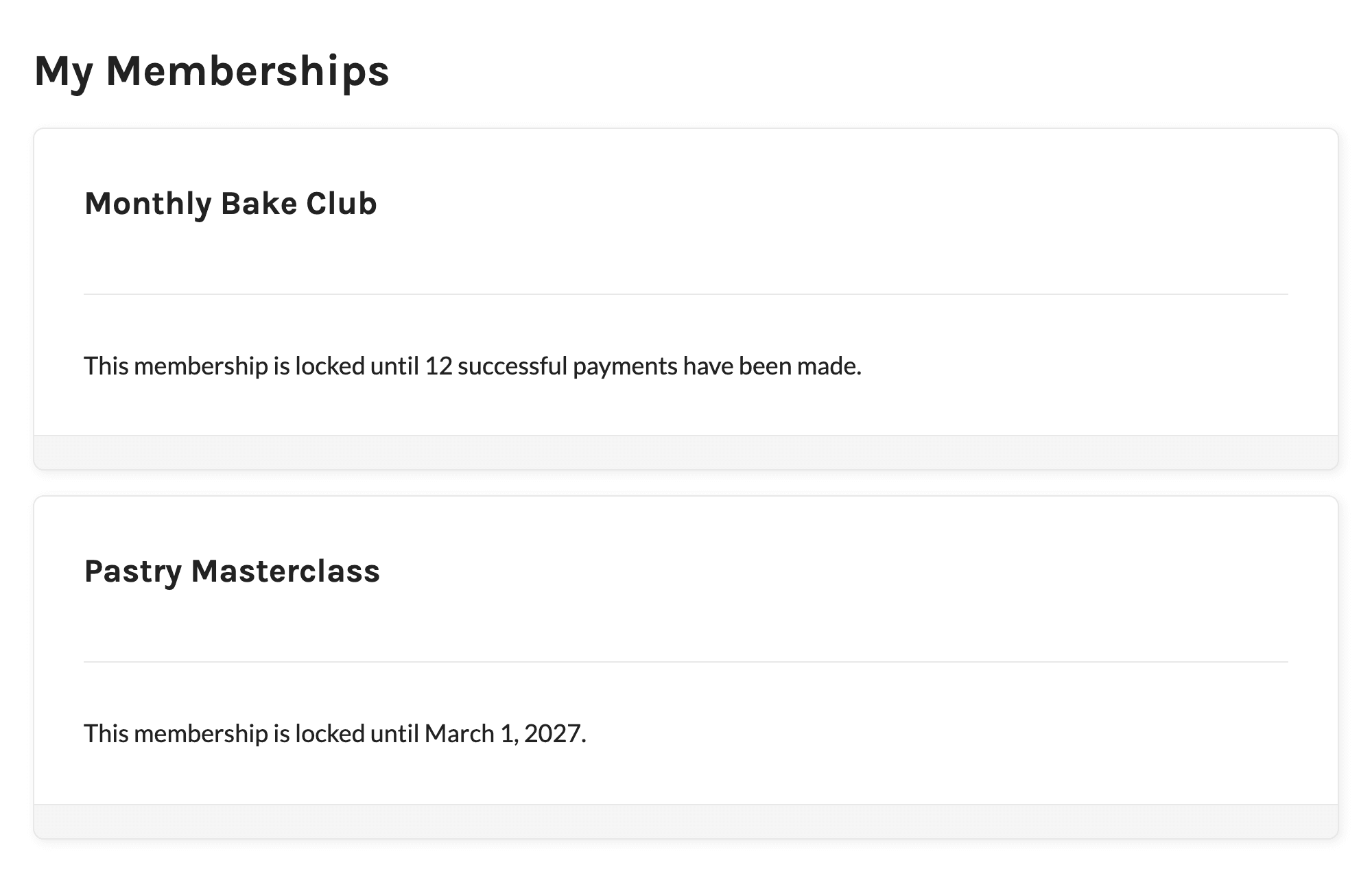
The message depends on how the lock ends:
- Payment-Based Lock: “This membership is locked until [number] successful payments have been made.”
- Date or Time Period Lock: “This membership is locked until [date].” The date uses the date format from your WordPress general settings.
- Lock With No Expiration: “This membership is locked and cannot be changed.”
If a member has an All Levels lock but no active membership, there’s no level card to show it on. The locked message appears at the top of the Membership Account page instead.
What a Locked Member Can’t Do
What’s blocked depends on whether the member has a lock on all levels or on one specific level.
| Action | All Levels Lock | Specific Level Lock |
|---|---|---|
| View the Membership Levels page | Blocked | Allowed |
| Cancel a membership | Blocked for every level | Blocked for the locked level, including “cancel all” |
| Check out for a level | Blocked for every level | Blocked when the checkout would replace the locked level |
| Use other membership features, such as members-only content | Allowed | Allowed |
For a specific level lock, a checkout replaces the locked level when the new level is in the same level group and that group only allows members to hold one level at a time. If the group allows multiple levels, the member can’t check out for the locked level again. Checkouts for levels in other groups are allowed.
Redirects and Error Messages
When a locked member visits a page for a blocked action, the Add On redirects them to the Membership Locked page, which explains which membership is locked.
The Add On also checks locks when a cancellation or checkout is submitted, so a member can’t get around the lock with a direct link or a saved form. If they try, the request stops with one of these messages:
- Cancellation: “This membership is locked and cannot be cancelled. Please contact the site administrator for assistance.”
- Checkout: “This membership is locked and cannot be changed. Please contact the site administrator for assistance.”
Get Support From Our Team of Experts
Have a question about how to use this feature? Our Support Page outlines three ways to get support.
Our Max plans include hands-on help customizing your membership site and implementing new features. Upgrade to PMPro Max now »
Last updated on November 12, 2026

