Lock a single member from the Edit Member screen to stop them from cancelling, changing, or purchasing memberships. This is useful for members who repeatedly purchase and cancel, or when you’ve agreed to a custom term with one member.
Add a Lock to a Member
- Navigate to Memberships > Members in the WordPress admin and find the member.
- Hover over their username and click Edit Member.
- Click Locked Memberships in the sidebar to open the panel.
- Click Add/Update Lock.
- Choose the Membership Level and Lock Expiration using the settings below.
- Click the Add/Update Lock button at the bottom of the form to save the lock.
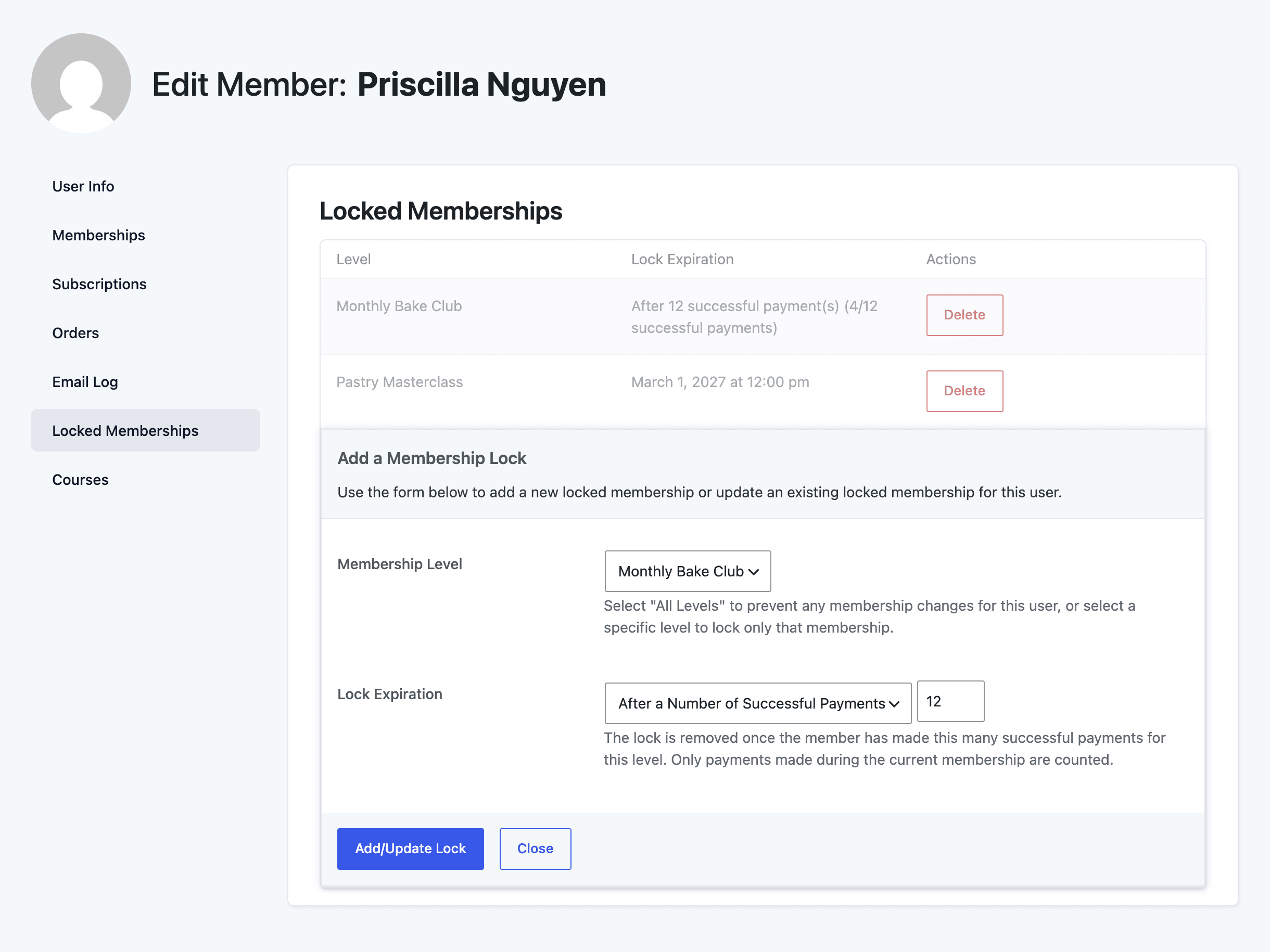
Member Lock Settings
- Membership Level: Choose All Levels to prevent any membership changes for this member, or choose one of the member’s current levels to lock only that membership.
- Lock Expiration: Choose when the lock is removed.
- Never: The lock stays in place until you delete it. This is the default.
- Specific Date: Choose the date and time the lock is removed, in your site’s time zone. The field is pre-filled with a date one year from today.
- After a Number of Successful Payments: Enter the number of successful payments the member must make before the lock is removed. Only payments made during the member’s current membership are counted.
A member can have one lock per level, plus one lock for All Levels. If you add a lock for a level that’s already locked, the new settings replace the existing lock. You can combine locks when needed. For example, lock All Levels for 12 months so the member can’t buy anything new, and also lock one specific level with no expiration.
View, Update, or Delete a Member’s Locks
The Locked Memberships panel lists every lock on the member’s account, with the level and the lock expiration.
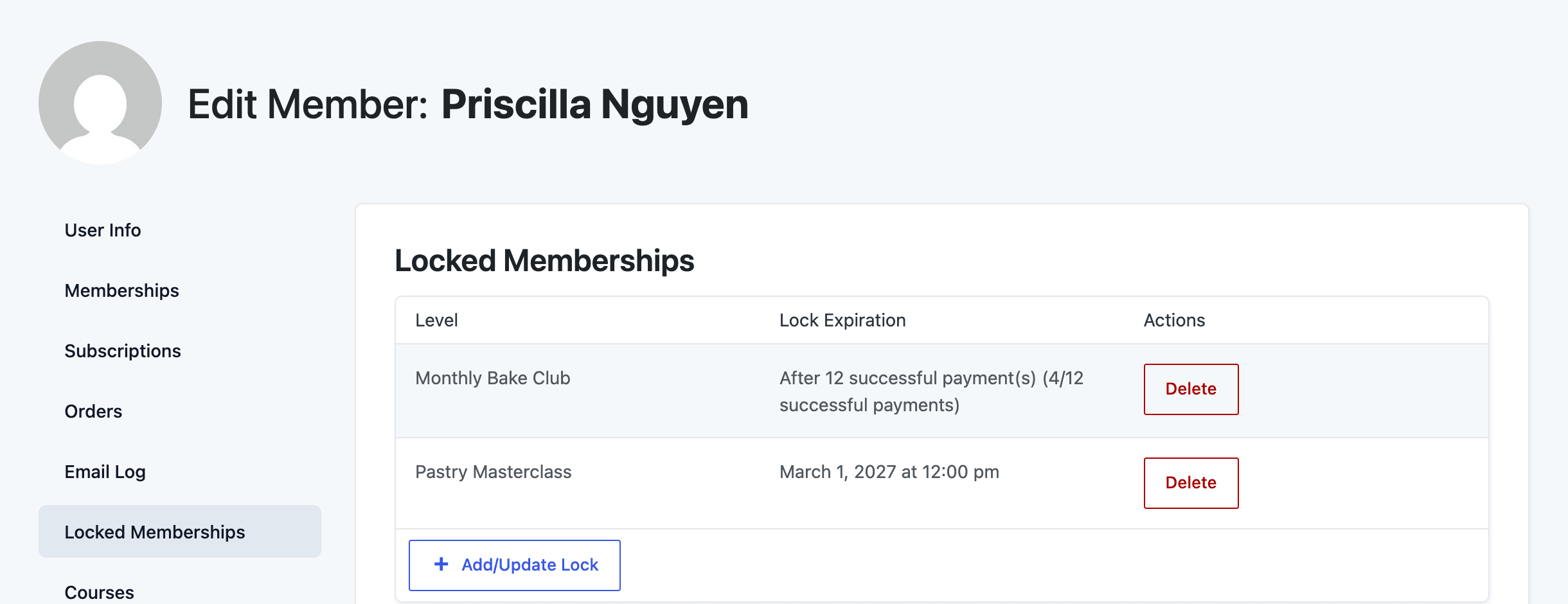
- Level: The locked level, or All Memberships for a lock on all levels. A Membership Ended tag means the member no longer holds that level.
- Lock Expiration: Never, the date and time the lock expires, or the payment progress for a payment-based lock (for example, “After 12 successful payment(s) (4/12 successful payments)”). An Unlocked tag means the member has made enough payments and the lock no longer applies.
- Actions: Click Delete to remove the lock right away.
To change a lock, click Add/Update Lock, choose the same level, and enter the new expiration settings.
When you add a payment-based lock to an existing member, check the payment progress shown in this panel to confirm the count is what you expect.
How Member Locks End
- Date-based locks are deleted once the date passes.
- Payment-based locks stay on the account but stop applying once the payment count is reached. If a counted order is refunded or deleted, the lock applies again.
- A lock on a specific level is deleted when the member loses that level.
- An All Levels lock is not tied to a level, so it stays in place even if the member has no membership. While it’s in place, the member can’t purchase any level.
View All Locked Members
- Navigate to Memberships > Members in the WordPress admin.
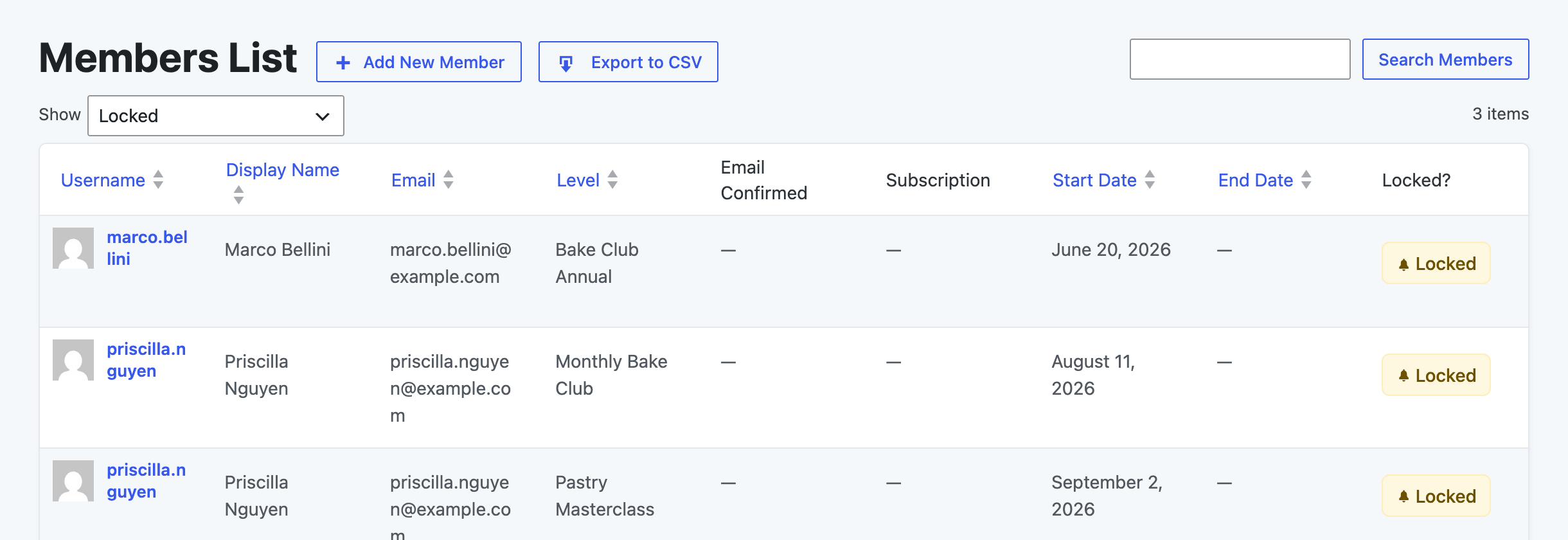
- Select Locked from the Show dropdown.
The Members list also has a Locked? column on every view. It shows a Locked tag on each row where that membership is locked, either by a lock on that level or an All Levels lock.
Get Support From Our Team of Experts
Have a question about how to use this feature? Our Support Page outlines three ways to get support.
Our Max plans include hands-on help customizing your membership site and implementing new features. Upgrade to PMPro Max now »
Last updated on November 12, 2026

