Lock data is included when you export your Members list to CSV, and you can add locks to members in bulk with the Import Members From CSV Add On. This is useful when you migrate members from another platform or move locked members between sites.
Table of contents
Export Locked Members
Navigate to Memberships > Members and click Export to CSV. Learn more about exporting members. To work with only locked members, filter the exported file on the lockedmember column in your spreadsheet app.
The Add On adds three columns to the export. Each row in the export is one membership, so a member with more than one level has a row per level.
| Column | Value |
|---|---|
lockedmember | 1 if the membership in this row is locked, either by a lock on that level or an All Levels lock. Blank if it’s not locked. |
lockedmemberexpiration | The date and time the lock expires, in your site’s time zone (for example, 2027-03-01 12:00:00). Blank if the lock never expires or is payment-based. |
lockedmemberpayments | The number of successful payments required to unlock. Blank if the lock isn’t payment-based. |
Import Locked Members
The Import Members From CSV Add On can add a lock to each imported membership. Use version 1.2 or later, which includes the field mapping screen.
- Add the lock columns to your CSV file, along with a
membership_idcolumn for the level you’re importing. - Navigate to Users > Import Members in the WordPress admin, choose your file in Import File (.csv), and click Import. See How to Import Members for the other import options.
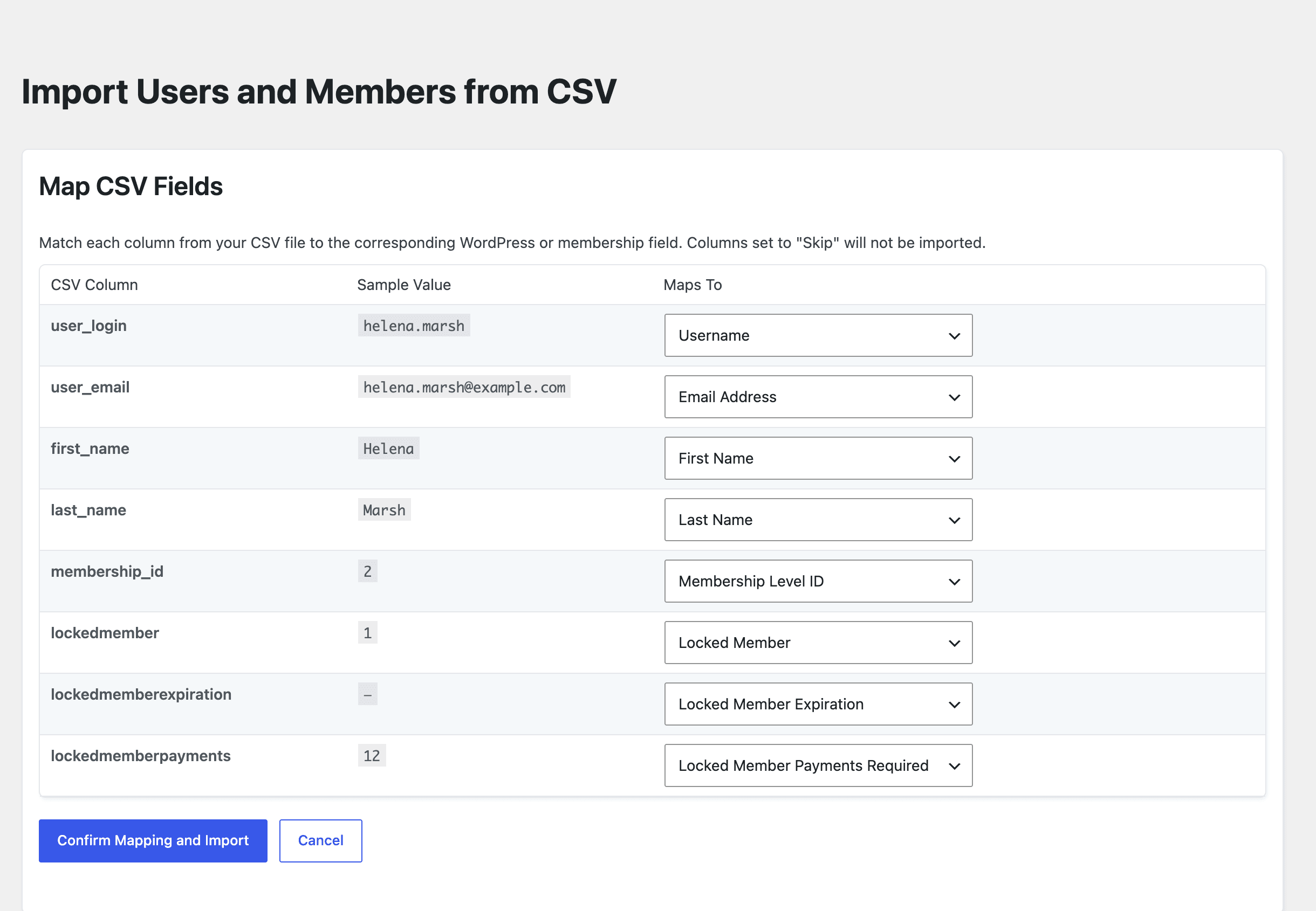
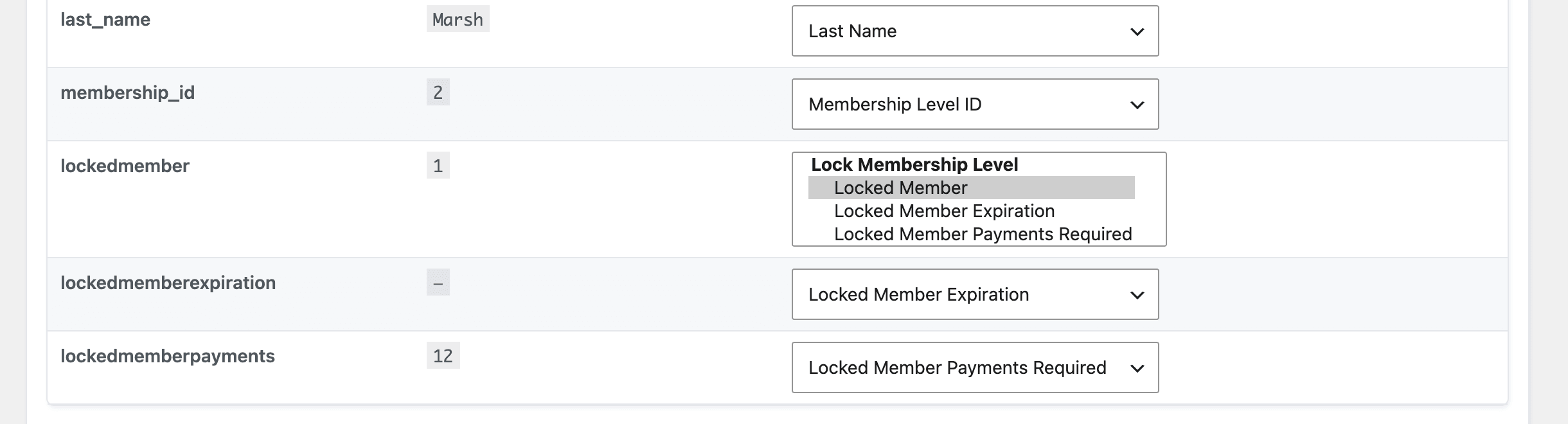
- On the Map CSV Fields screen, check the Maps To dropdown for each lock column. Columns named
lockedmember,lockedmemberexpiration, andlockedmemberpayments(the same headers as the export) are mapped automatically. For other column names, choose the matching field from the Lock Membership Level group: Locked Member, Locked Member Expiration, or Locked Member Payments Required. - Click Confirm Mapping and Import.
Import Field Values
- Locked Member: Enter
1to lock the membership level imported in that row. Leave it blank to skip the lock. The lock is added to that specific level, not to all levels. - Locked Member Expiration: Optional. The date and time the lock expires, in your site’s time zone, such as
2027-03-01 12:00:00. Leave it blank for a lock that never expires. - Locked Member Payments Required: Optional. The number of successful payments required to unlock. If you fill in both this column and the expiration, the payment count is used and the expiration is ignored.
Here’s an example file that locks one member until 12 payments are made and another until a set date:
user_login,user_email,membership_id,lockedmember,lockedmemberexpiration,lockedmemberpayments
priscilla.nguyen,priscilla.nguyen@example.com,2,1,,12
marco.bellini,marco.bellini@example.com,5,1,2027-03-01 12:00:00,
Get Support From Our Team of Experts
Have a question about how to use this feature? Our Support Page outlines three ways to get support.
Our Max plans include hands-on help customizing your membership site and implementing new features. Upgrade to PMPro Max now »
Last updated on November 12, 2026

