When a locked member tries to cancel or change their membership, the Add On redirects them to a Membership Locked page that explains why. Set up this page first, before you lock any levels or members.
Assign the Membership Locked Page
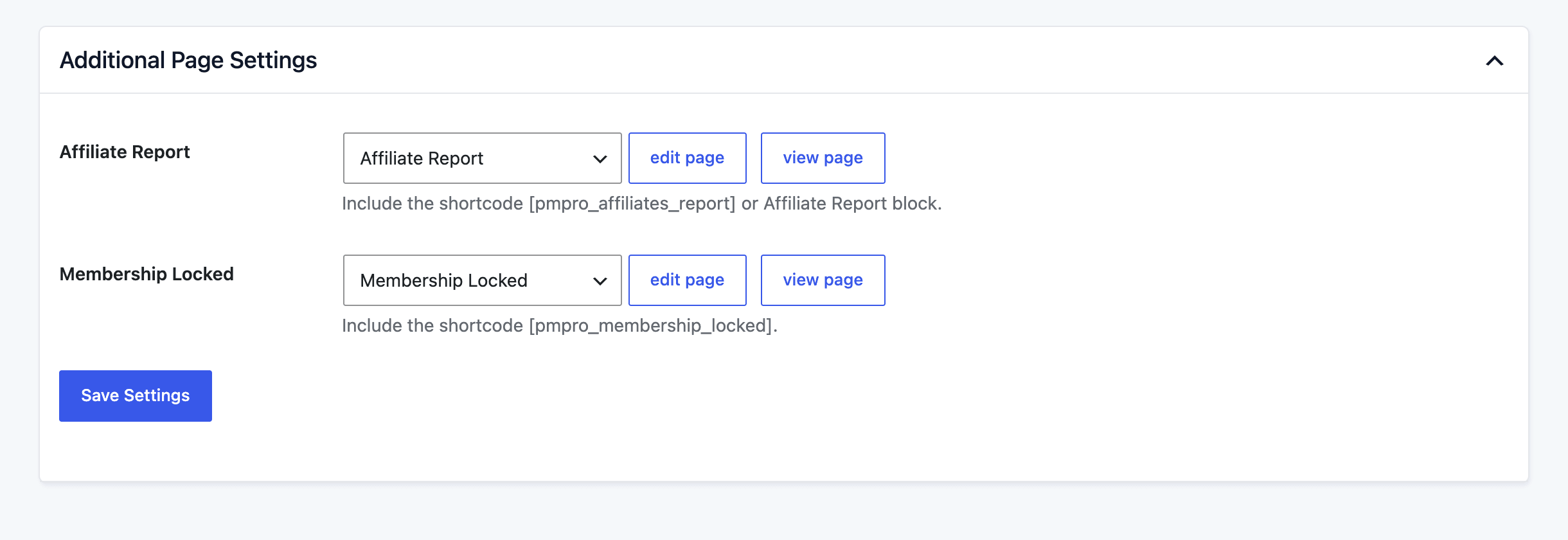
- Navigate to Memberships > Settings > Pages in the WordPress admin.
- Scroll to the Additional Page Settings section.
- Next to Membership Locked, click Generate Page to create a new page with the
[pmpro_membership_locked]shortcode already in place. Or, choose an existing page from the dropdown. - Click Save Settings.
The page should include the [pmpro_membership_locked] shortcode. The shortcode shows a message telling the member which membership is locked. You can add your own content above or below it, such as how to contact you if they need help with their account.
Shortcode Attributes
The [pmpro_membership_locked] shortcode accepts two optional attributes.
| Attribute | Accepted Values | Default | Description |
|---|---|---|---|
message | Any text | Blank (uses the default message) | Replaces the default message. The text is shown as plain text, so HTML tags are not rendered. |
account_link | 1 or 0 | 1 | Shows a “Return to Your Account” link below the message when the member holds a membership level. Set to 0 to hide the link. |
For example, to show your own message and hide the account link:
[pmpro_membership_locked message="An administrator has locked changes to your membership account." account_link="0"]
Default Messages
If you leave out the message attribute, the shortcode picks a message based on what the member tried to do:
- Specific Level Locked: “Your [Level Name] membership level is locked. You are not allowed to change that membership level.”
- All Levels Locked: “Your membership levels are locked. You are not allowed to change your membership levels.”
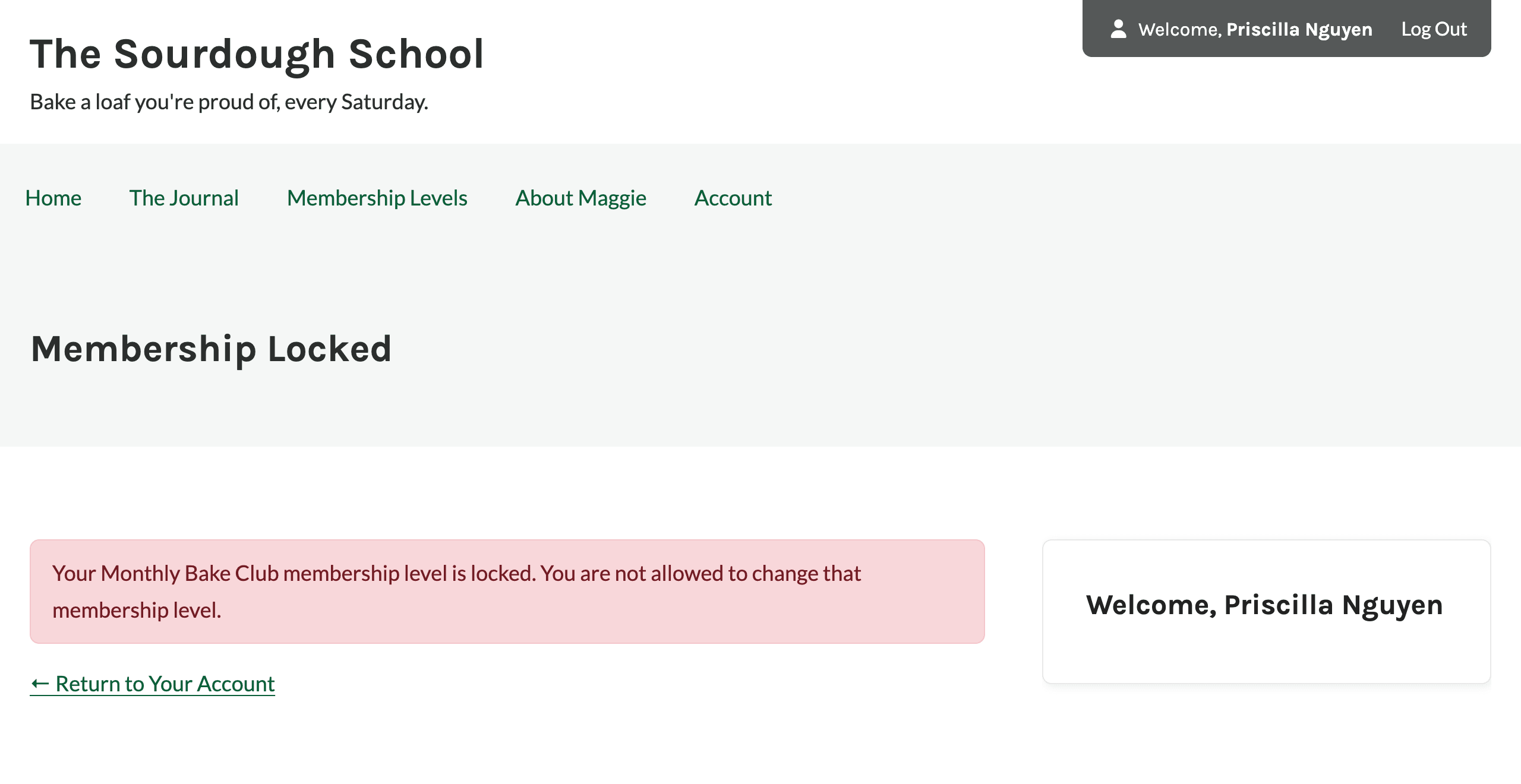
If You Don’t Assign a Page
Locks still work without a Membership Locked page. Locked members are sent to the Membership Account page instead, with the locked message shown at the top. If you don’t have a Membership Account page either, they’re sent to your site’s home page with no message.
Get Support From Our Team of Experts
Have a question about how to use this feature? Our Support Page outlines three ways to get support.
Our Max plans include hands-on help customizing your membership site and implementing new features. Upgrade to PMPro Max now »
Last updated on November 12, 2026

