A WordPress membership site is a living thing. You can’t set it up once, walk away, and expect it to look the same a year later. Plugins update. Gateway APIs change. Team members come and go. Members move, get new credit cards, cancel, and resubscribe. Things drift.
The good news is that most of what goes wrong on a membership site is preventable with a focused maintenance pass once a year. The bad news is that almost nobody does it… until something breaks loudly enough to force the conversation.
This guide is the checklist we use ourselves. It came out of our Open Office Hours session on essential yearly maintenance, and it’s organized into three buckets:
- Critical: Things that protect revenue and security
- Optimization: Things that reduce clutter and future-proof your site
- Revenue and Access: Things that align what you sell with what your site actually does
If you do nothing else this year, do the Critical section. The rest is gravy that pays back over time.
Table of contents
Video: Essential Yearly Maintenance for PMPro Sites
Critical: Protect Your Revenue and Security
1. Verify Your Backups (All Three Parts)
Backups are the most-claimed and least-tested feature on most membership sites. A backup plan has three parts, and you need all three:
- Backups are running. Confirm with your host or developer. Don’t assume.
- Backups include the right data. With Paid Memberships Pro, your database is where everything lives: orders, subscriptions, member history, level configurations. Make sure your database is backed up at minimum daily.
- You know how to restore. This is the part most people skip. Plenty of site owners have a backup plugin running, but they have never restored from one. Find out how that process works before you need it.
A real example: one of our team recently went to bulk-update expiration dates on a site using Import Members from CSV. Before she ran it, she checked: Is the database backed up? Can I roll this back if it goes wrong? That’s the right instinct. Always run a manual backup before any bulk operation: imports, expirations, plugin updates, level changes.
If you’re a PMPro Max customer, daily backups are included and we know exactly what data needs to be in them.
2. Test Your Payment Gateway End-to-End
Gateway settings are worth checking more than once a year. Once a year is the floor, not the goal. Run through this list:
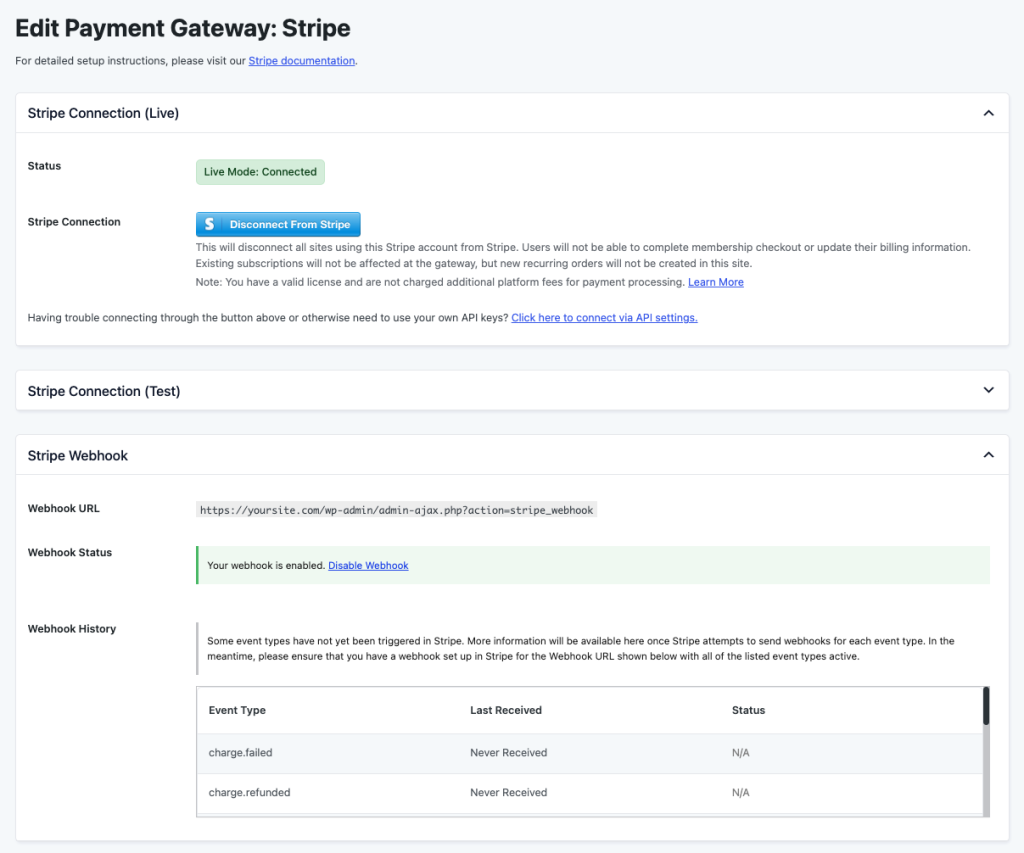
- Connection is valid. PMPro will usually display an error if something is off, but eyeball the gateway settings page anyway.
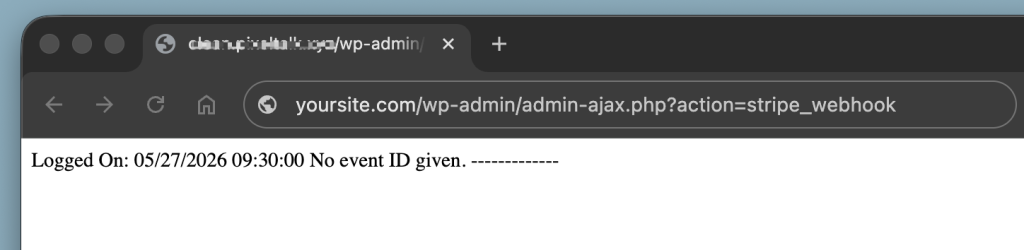
- Webhooks are reachable. Webhooks are how your gateway tells your site “this person paid.” If you’ve moved hosts, added a security plugin, or changed anything server-side, they can break silently. Here’s a quick test:
- Copy the webhook URL from your Stripe gateway settings and paste it in your browser. If you get a valid response, it’s accessible.
- If you get a security block, hosting firewall, or error page, your gateway can’t reach your site. This is exactly the symptom one of our customers saw recently when users were getting created at checkout but membership levels weren’t being assigned. If that’s happening on your site, here’s how to read your Stripe webhook information and fix the missing events.
- You’re in live mode. It happens more than you’d expect: someone launches a site and forgets to flip the switch out of test mode.
- You’ve done a real, live transaction recently. Test mode and live mode are not always identical. Create a $1 discount code, use it, and complete a real checkout end-to-end. Free checkouts don’t actually test your gateway connection.
If you’re still on a deprecated gateway (older PayPal integrations, legacy Authorize.net), this is the year to migrate. We have documentation on transitioning members to a new gateway without disrupting active subscriptions.
3. Review Your Custom Code and Code Recipes
If you’ve added custom code to your site, through a custom plugin, Code Snippets, or (please don’t) directly in your theme, review it once a year.
PMPro updates can change the hooks or filters a recipe relies on. Recipes that touch checkout, pricing, taxes, roles, or emails are especially worth checking. If a recipe came from our support team, compare what’s installed on your site against the latest version we have on file.
A few habits that pay back:
- Always leave comments. Explain what the code does and why. Future-you will be grateful. So will whoever inherits the site.
- Document seasonal recipes. One of our community members runs a quilting guild that uses a code recipe to handle a seasonal pricing structure. This code turns on in June and turns off in January. That’s exactly the kind of thing that has to live in an SOP, because if the person who knows about it is unavailable, the site quietly does the wrong thing for a season.
- Don’t put customizations in your theme. They disappear when you update or switch themes.
Critical: Audit Your Member Accounts
4. Users Are Not the Same as Members
In PMPro, a user is created the moment someone hits checkout, even if they never complete the transaction. Over time, you might have significantly more users than active members. That’s normal. It’s also a liability if you don’t review it.
A few things to check:
- Old admin access. Former developers, support techs, board members, employees. Anyone who used to need admin access and no longer does. Don’t delete them, change their role. Drop them to Subscriber (or no role) instead. Deleting users is permanent in WordPress, there is no trash can.
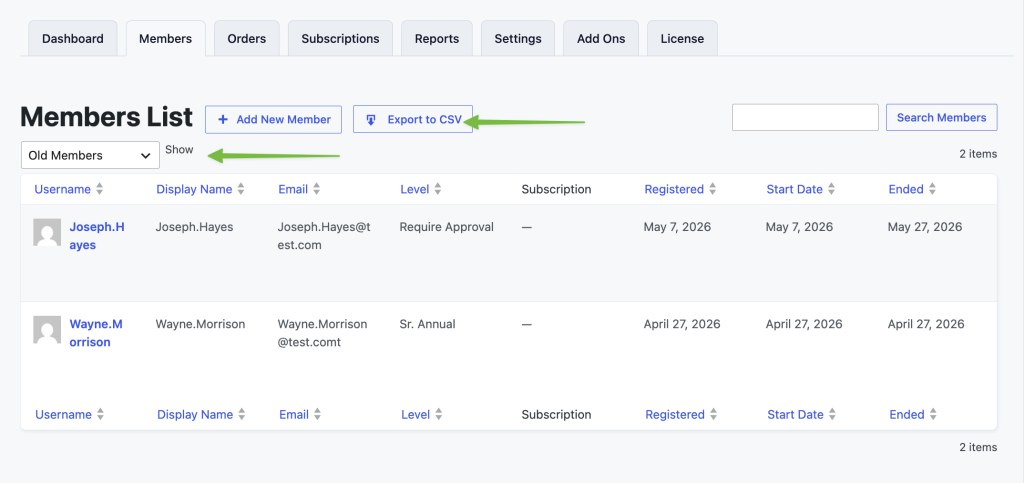
- Users with no membership history. If someone has no orders, no membership history, and no reason to be there, you may want to remove them. But again: deleting is permanent. If there’s any chance you’d want to reach out for a win-back campaign later, export them first (Members > Filter Old Members or Expired Members > Export).
5. Clean Up Spam and Abandoned Checkouts
PMPro flags a category of users called Potential Spam Checkouts. These are people who started checkout, bounced to the gateway, and never came back. You can review and bulk-delete these from the Users screen.
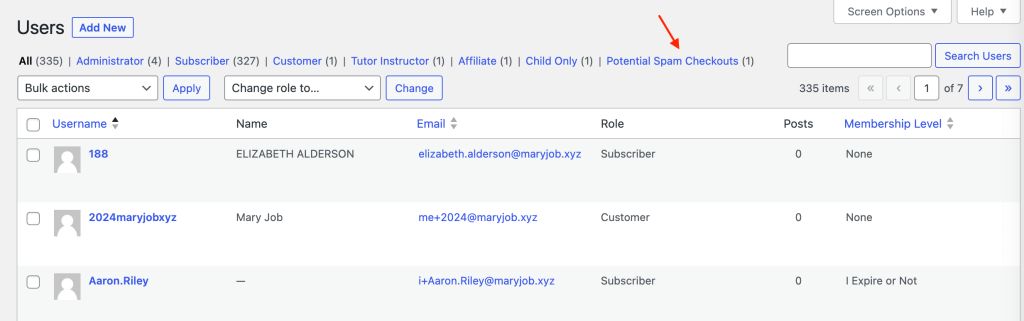
While you’re there, the Users screen also lets you bulk-reset passwords or bulk-change roles. One member of our team recently used the bulk password reset on 184 users in a single click. It’s a fast way to do an annual security refresh without writing a single email.
6. Review Your Membership Manager Roles
If you use the Membership Manager Add On to give a non-admin team member access to your member list and orders, audit that list every year.
This matters most for clubs and associations where roles rotate. The treasurer who needed access last year may not be the treasurer this year. Membership Manager lets you give the right people just enough access to handle membership tasks without unlocking the whole admin, but only if the assignment list is current.
Optimization: Reduce Clutter and Future-Proof
7. Audit Your Plugins
You don’t need fewer plugins. You need the right plugins. Three things to check:
- Deactivate and delete plugins you no longer use. Some PMPro Add Ons have been replaced by core functionality. Two specific examples to look for: Add Members from Admin (now built into PMPro core) and Recurring Emails Add On (now part of core). PMPro will flag these. Delete them (you don’t need them).
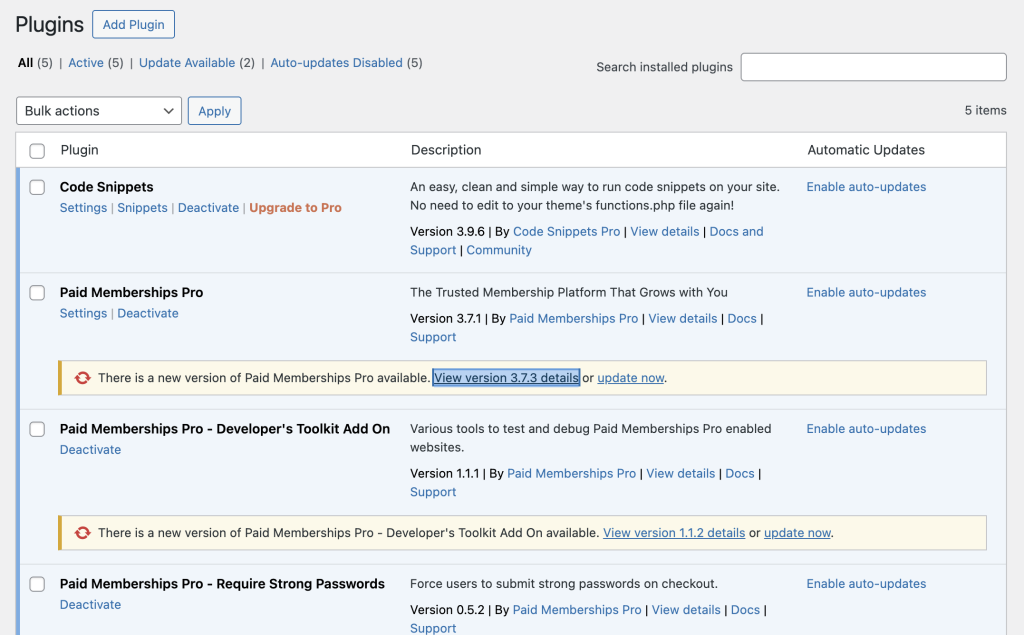
- Update everything, but read the changelog first. Click the “View version details” link before you update. This is how you catch the small changes that matter, like the recent PMPro update that shifted discount code expirations from 12:00 a.m. to 11:59 p.m. (a small fix that matters a lot if you’re building campaigns around expiration dates).
- Watch for compatibility flags. If a plugin says it hasn’t been tested with your current version of WordPress, that’s worth investigating before you update further.
8. Inventory Your Discount Codes
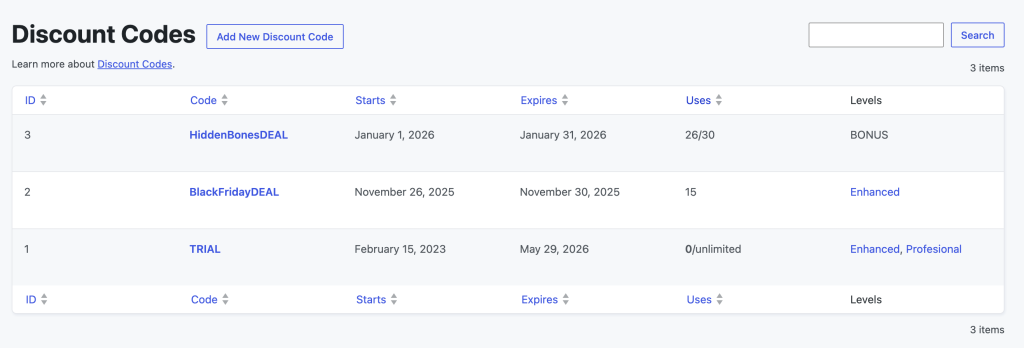
Walk through your discount codes and ask:
- Do any need updating (new price, new expiration, more uses)?
- Are there old codes that should retire? Set an expiration date, don’t delete it.
9. Review Your Reports and Trends
Your PMPro dashboard includes built-in reports on signups, cancellations, and revenue. Two reports worth opening at year-end:
- Sales and Revenue: Year-over-year is where you see the patterns: which months drive signups, which months you bleed cancellations, where churn quietly accelerated.
- Views and Visits: Per-member login frequency. Members who haven’t logged in in months are your churn risk; members who log in heavily are your retention story. Both are useful for re-engagement campaigns and for testimonial outreach.
If you have leftover test data from before launch, the Developer Toolkit Add On includes scripts to clean it up safely. Always run a backup first.
Related: Reports Documentation
10. Update the Small Site Settings That Drift
Two fast checks that take five minutes total:
- Copyright footer: Most themes handle this dynamically, but some hardcode the year. If yours still says 2025 in 2026, fix it.
- Timezone: Navigate to Settings > General > Timezone. Your timezone affects when memberships expire, when emails fire, and how dates display to members. If it’s off, everything time-sensitive on your site is slightly wrong.
Revenue and Access: Align What You Sell With What Your Site Does
11. Review Membership Levels and Pricing
Walk through every level once a year:
- Is the price still right? January is a natural time to raise prices on new signups. Important caveat: changing a level’s price in PMPro only affects new signups, not existing active subscriptions. To change existing subscription pricing, you have to do it at the gateway level, and we generally recommend offering legacy prices to existing members. It’s a strong retention signal, and it sidesteps a lot of awkward email conversations.
- Trial periods, billing cycles, expiration rules. Are they still what you want them to be?
- Level descriptions. Are they up to date with what’s actually included today?
Then walk through the checkout as a non-logged-in visitor. Use a $1 discount code so you’re testing the real gateway flow, not a free transaction. Watch for anything that looks off: a missing field, broken styling, a confusing label. Updates from the previous year may have shifted something subtle.
12. Audit Subscriptions and Orders
Pull up your Subscriptions and Orders tables. A few statuses are worth attention:
- Subscriptions in “error” status: Almost always a failed payment. Reach out to those members directly.
- Token orders: Someone started checkout, bounced to the gateway, and never returned. The Abandoned Cart Add On automates the follow-up email sequence for these.
- Pending pay-by-check orders: Common for clubs and associations that collect dues at meetings. Make sure those have been manually marked paid after the meeting.
- Mismatched subscriptions: If a member’s subscription is tied to a level that no longer matches their current level (because you upgraded or moved them), edit the subscription to reconnect it. Otherwise you’ll see error states even though everything is technically fine at the gateway.
How to Process a Refund the Right Way
The refund flow has improved a lot in the last year. The right place to do it now is from the member’s edit screen:
- Go to Members > Edit Member.
- Click the Memberships tab.
- Choose Change Membership, then pick a level (often a free level if you’re canceling entirely).
- Tick the Refund option and let it cancel the subscription in the same step.
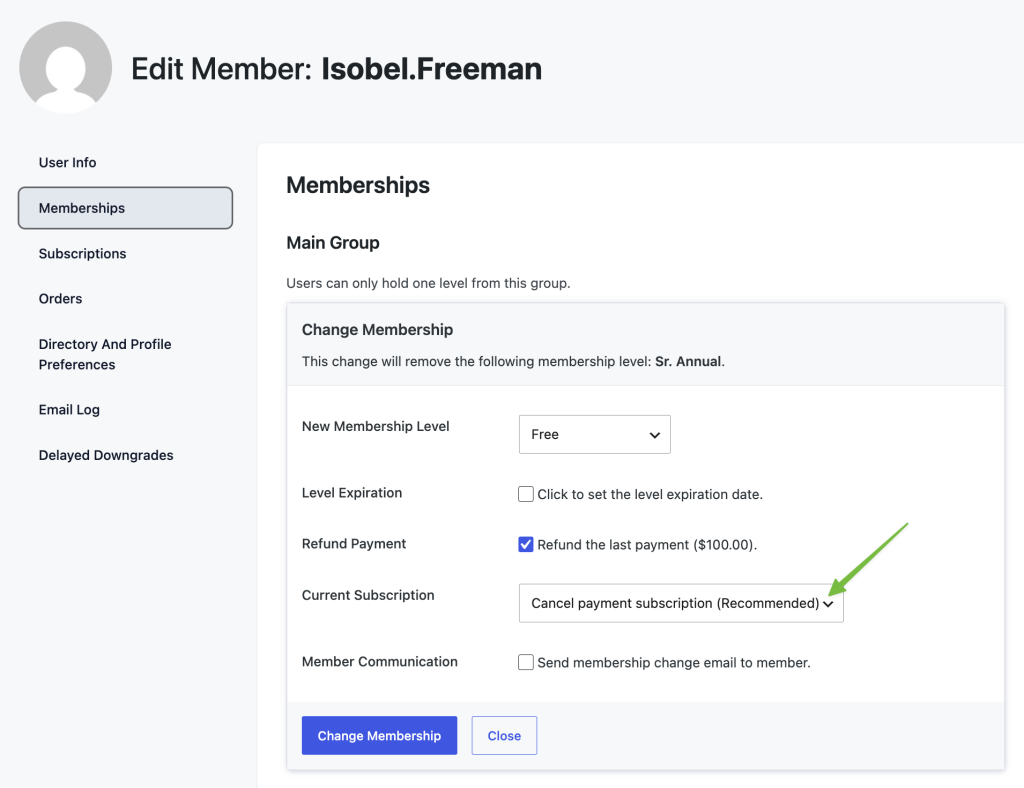
This handles three things at once: the level change, the refund, and the subscription cancellation. One gotcha: Stripe limits how far back in time you can issue a refund through the API. If you’re outside that window, the refund option won’t appear, and you’ll need to handle it manually in the Stripe dashboard.
After any refund, always verify it landed in the gateway. Copy the subscription ID, check the customer record in Stripe (or PayPal), and confirm the refund actually processed. PMPro will say it’s done; gateway truth is the truth that matters.
When to Use Sync With Gateway
If your webhooks were broken for a stretch and you’ve since fixed them, the Sync With Gateway button on a subscription will pull the next payment date from the gateway and update PMPro. It will not recreate missed orders, those have to be created manually, but it will line up your records with what the gateway actually knows.
13. Review Your Email Templates
Go to Memberships > Settings > Email Templates and walk through every template:
- Are the right ones enabled? Some sites disable admin notifications on certain events (like every email change) to cut noise. Make sure your enabled set still matches what you want.
- Is the wording still accurate? Watch for outdated dates, expired offers, retired policies, and references to plans you no longer sell.
- Have you set a global header and footer? PMPro lets you add a logo or branded header to every email from one place. Most sites we look at haven’t taken advantage of this yet.
A few related practical notes:
- Activate Email Logs: Email logs in PMPro record every email sent by your membership system. It’s an invaluable record when a member says “I never got that email” or when you’re troubleshooting why one specific transactional message isn’t landing.
- Differentiating new-member from renewal-member emails. This is one of the most-asked questions we get. By default, PMPro sends the same checkout email to first-time and renewing members. There’s a code recipe to send a different email on renewal (reach out to support if you want the link).
- Bulk expiration email volume. If your membership model has every member expiring on the same day (common for clubs and associations), you can fire hundreds of expiration emails in a short window. PMPro uses Action Scheduler to batch these, which spreads the load across the day rather than all at noon. But your email-sending setup also has to keep up. If you’re on a cheap shared host without an SMTP service, hundreds of simultaneous emails will get throttled or rejected. Use a transactional email service for any site with serious volume.
14. Audit Your Access Rules
Finally, do a spot-check of your content restrictions. There are more than two dozen ways to restrict content in PMPro, and they’re stored in different places, which means there’s no single screen that shows you everything at once. Check:
- Membership level-based taxonomy restrictions: Set on the level itself or per category and tag.
- Per-page or per-post Require Membership settings. Set on individual content.
- Content Visibility blocks in the Block Editor. Stored on the post, not the level.
- Membership shortcode wrappers. Stored inline in content.
If you’ve added a new membership level this year and want it to inherit the same restrictions as an existing level, the Developer Toolkit’s Copy Restrictions script handles posts and pages in one click. (It does not update Content Visibility blocks; those are stored differently and need manual review.)
Documentation and SOPs
If you take one thing away from this list, take this: document how your site works.
If you’re the only person who knows how everything is wired together, your membership is one bad day away from being in real trouble. We work with an association whose long-time president passed away unexpectedly, and we are still (over a year later) untangling domain access, login credentials, and a handful of important customizations that lived only in her head.
This is not a hypothetical. It’s the most preventable, most expensive failure mode we see. Document:
- How to process a refund
- How to add a member manually
- What every discount code is for
- What custom code is running and why
- Who has access to what (hosting, domain, gateway, email service, social accounts)
- Which seasonal recipes turn on and off, and when
- How to restore from a backup
Update SOPs throughout the year, not once a year. The annual maintenance pass is when you fix the gaps you find.
The Quick-Reference Checklist
Critical: Revenue and Security
- ☐ Backups run, include the database, and you know how to restore
- ☐ Payment gateway connection is valid and in live mode
- ☐ Webhooks are reachable (browser test passes)
- ☐ $1 live checkout test completed end-to-end
- ☐ Code recipes reviewed for obsolescence and seasonal recipes documented
- ☐ Old admin access revoked or downgraded
- ☐ Spam/abandoned checkout users cleaned up
- ☐ Membership Manager roles reassigned to current team
Optimization
- ☐ Deprecated and unused plugins deactivated and deleted
- ☐ All plugins updated (changelogs reviewed)
- ☐ Discount codes inventoried (expired, not deleted)
- ☐ Reports reviewed (signups, cancellations, revenue, views/visits)
- ☐ Copyright footer current
- ☐ Timezone correct
Revenue and Access
- ☐ Membership level pricing reviewed
- ☐ Checkout flow tested as a logged-out visitor with a $1 discount code
- ☐ Subscriptions in error status followed up on
- ☐ Token and pending orders addressed
- ☐ Email templates enabled, accurate, and on-brand
- ☐ Mail logging plugin installed
- ☐ Content restrictions audited (levels, pages, blocks, shortcodes)
- ☐ SOPs and internal documentation up to date
A little annual maintenance protects the revenue you’ve already worked hard to build. It also keeps your members having the experience you intended: the one they signed up for.
If you’d rather watch this walked through with screen shares and live questions, the full Open Office Hours session is on YouTube. And if you have questions about any specific step, our support team and the broader PMPro community are here to help.

Free Download: The AI-Powered Membership Site Blueprint
Download the free guide: Learn how to plan, build, and grow a membership site using AI as your strategic partner: from buyer persona to launch and beyond.