
MailerLite is an email marketing platform for building campaigns, automations, and landing pages, with subscribers organized into groups.
This integration subscribes and groups your Paid Memberships Pro members in MailerLite. When a member’s level changes, the plugin automatically updates their groups to match their current membership status.
- Subscribe members to MailerLite when they join your site.
- Assign one or more MailerLite groups to each membership level.
- Remove groups automatically when a member changes, cancels, or expires from a level.
- Honor your MailerLite double opt-in settings, or subscribe members immediately.
- Sync subscriber data and groups when a member’s profile is updated.
- Process updates in the background with Action Scheduler to keep checkout fast.
Installation
You must have the Paid Memberships Pro plugin installed and activated to use this Add On.
- Navigate to Memberships > Add Ons in the WordPress admin.
- Locate the Add On and click “Install Now“.
- Or, to install this plugin manually, download the .zip file above.
- Upload the compressed directory (.zip) via the Plugins > Add New > Upload Plugin screen in the WordPress admin.
- Activate the plugin through the Plugins screen in the WordPress admin.
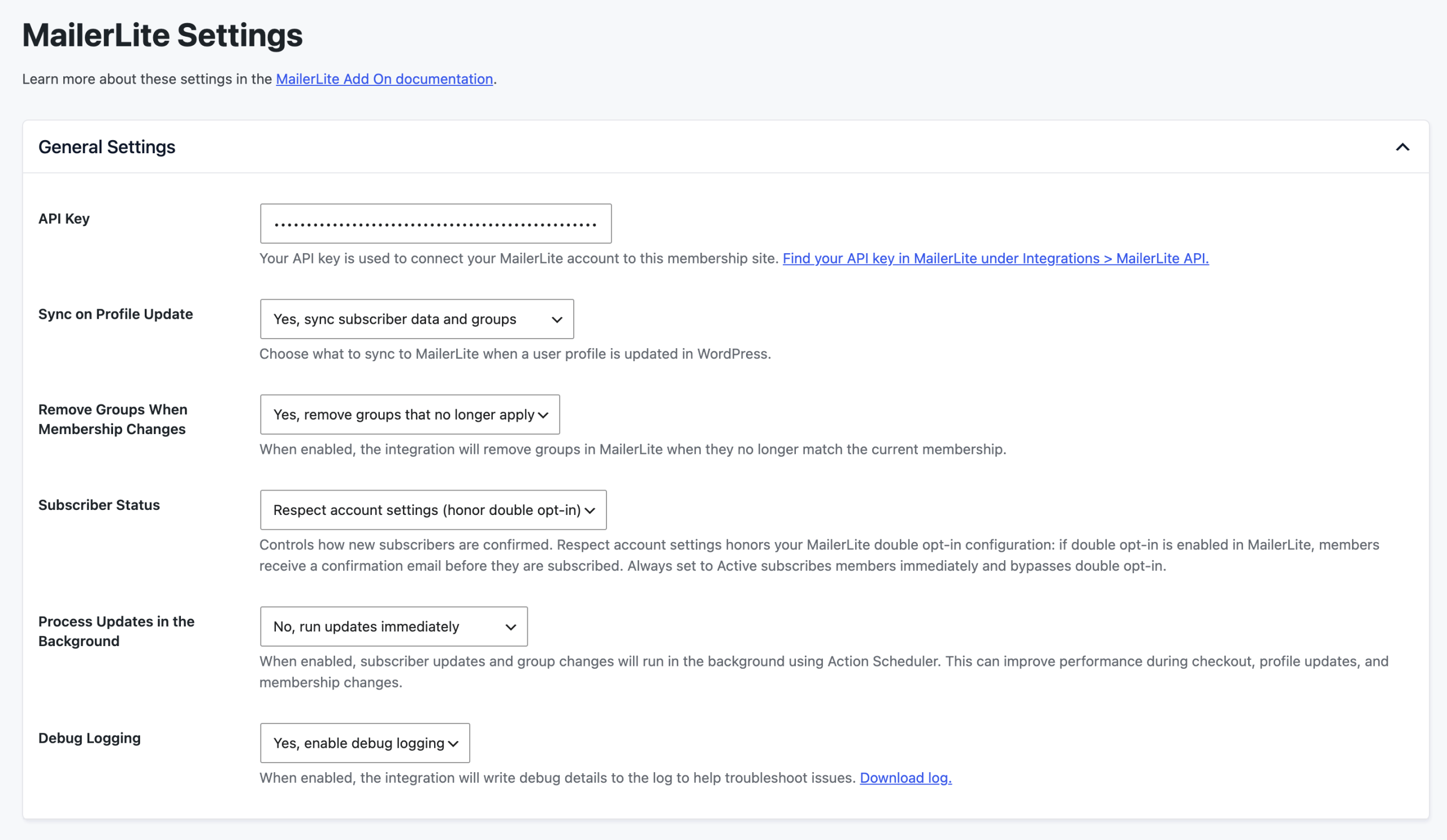
General Settings
- Navigate to Memberships > MailerLite in the WordPress admin.
- Enter your API Key. You can find this in your MailerLite account under Integrations > MailerLite API.
- Configure the additional settings as needed (see below).
- Click Save Changes.
API Key
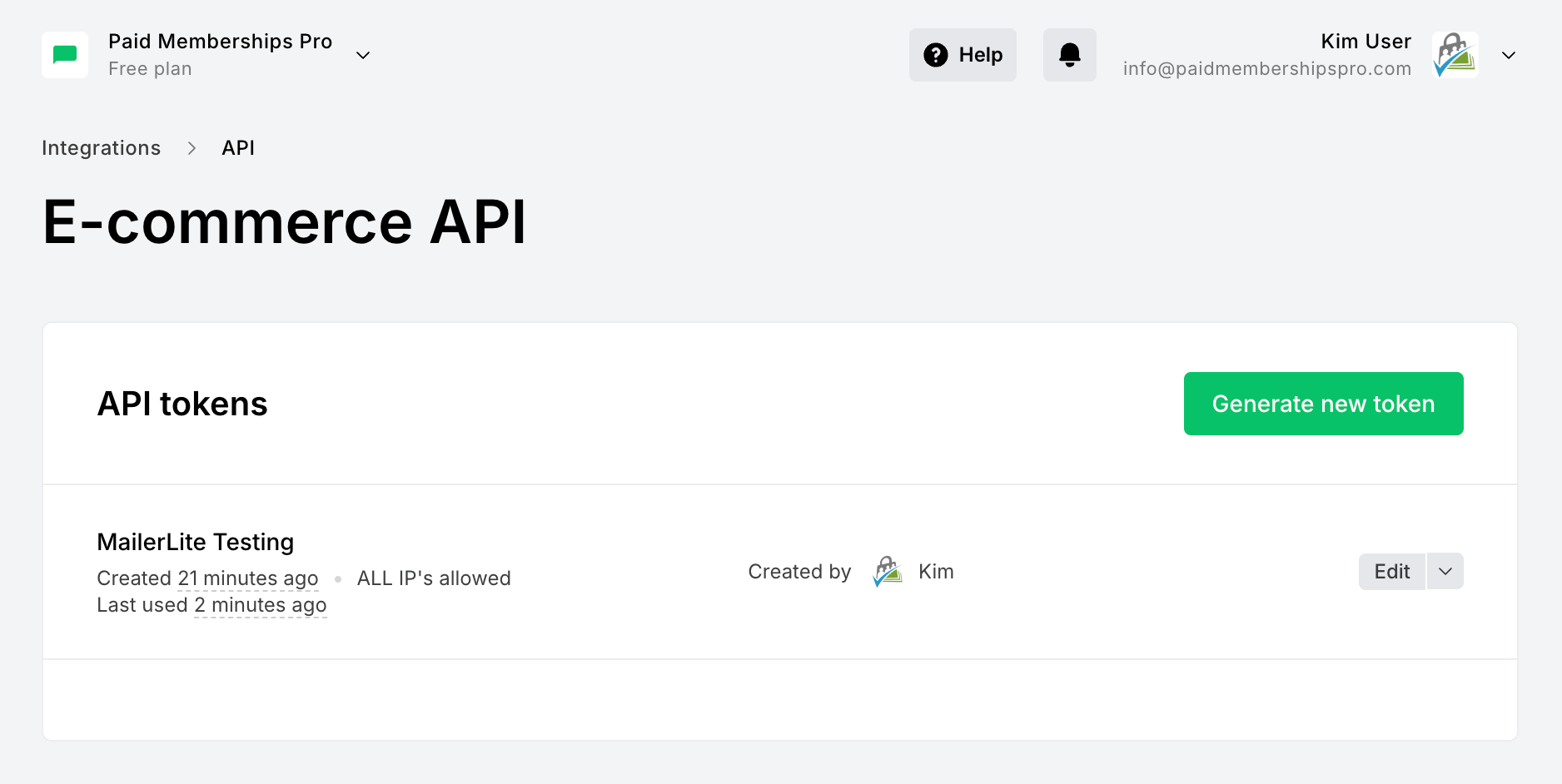
Your API key connects your MailerLite account to this membership site. In MailerLite, go to Integrations > MailerLite API and generate a new token, then paste it into the API Key field.
Sync on Profile Update
Choose what to sync to MailerLite when a user profile is updated in WordPress:
- Yes, sync subscriber data and groups: Updates the subscriber’s information and recalculates their groups based on current membership levels.
- Yes, sync subscriber data only: Updates the subscriber’s information (name and email) without modifying groups.
- No, do not sync anything on profile update: Disables syncing when profiles are updated. Groups are still updated when membership levels change.
Remove Groups When Membership Changes
Controls whether the integration removes groups in MailerLite when they no longer match a member’s current membership level. This keeps your MailerLite groups accurate as members change, cancel, or expire.
- Yes, remove groups that no longer apply (default): Groups are added when a member gains a level and removed when they lose it.
- No, never remove groups: Groups are only added, never removed. Use this if you want to preserve a history of membership levels in MailerLite.
Only groups that you assign to membership levels are managed by the integration. Groups added to subscribers through other means (directly in MailerLite, other integrations, and so on) are never removed.
Subscriber Status
Controls how new subscribers are confirmed when they are added to MailerLite:
- Respect account settings (honor double opt-in) (default): Honors your MailerLite double opt-in configuration. If double opt-in is enabled in MailerLite, members receive a confirmation email before they are subscribed.
- Always set to Active (bypasses double opt-in): Subscribes members immediately and bypasses double opt-in.
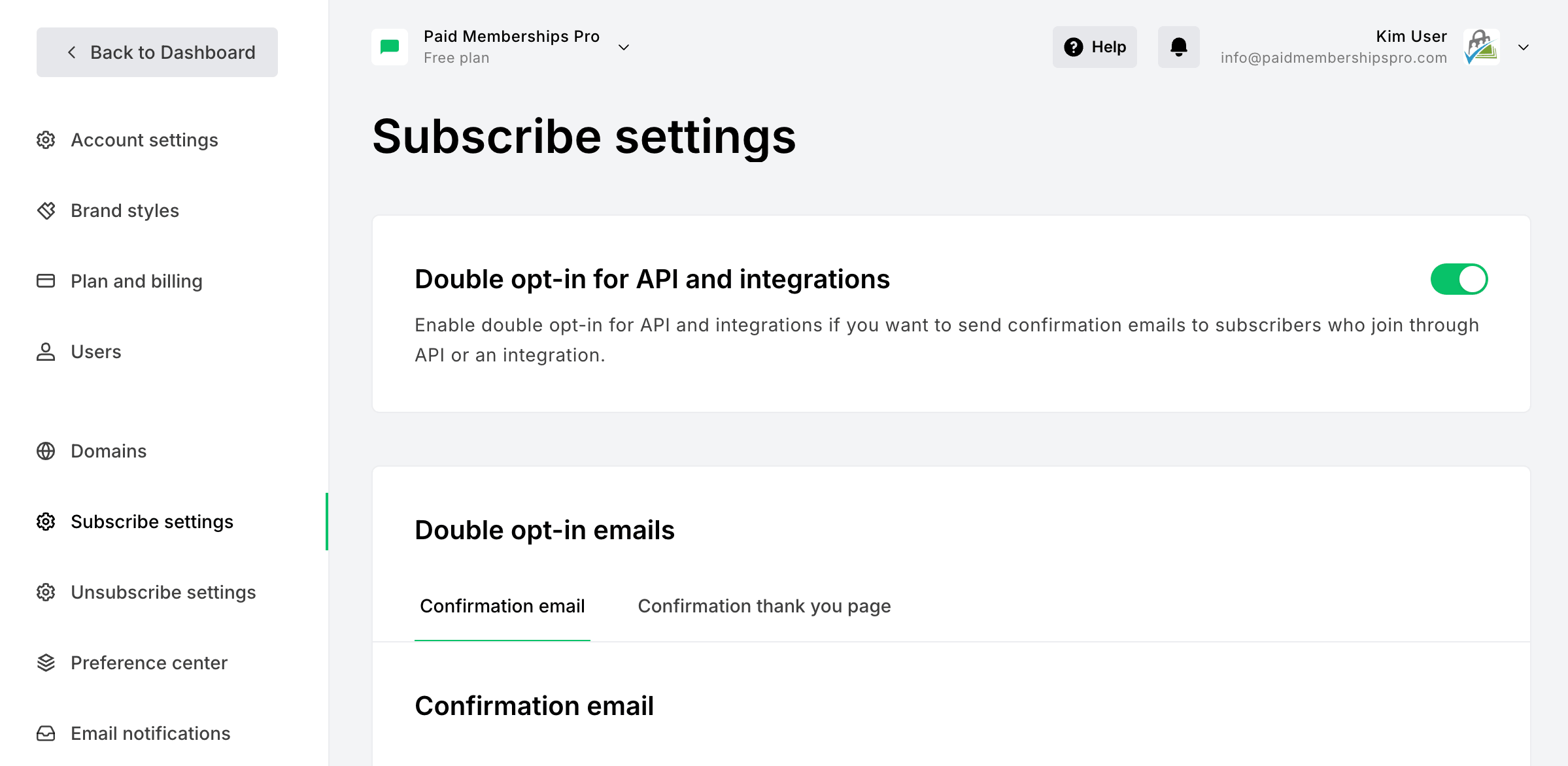
Your double opt-in setting lives in MailerLite under Account settings > Subscribe settings > Double opt-in for API and integrations. When this is on and the integration is set to respect account settings, members must confirm their email before MailerLite marks them active.
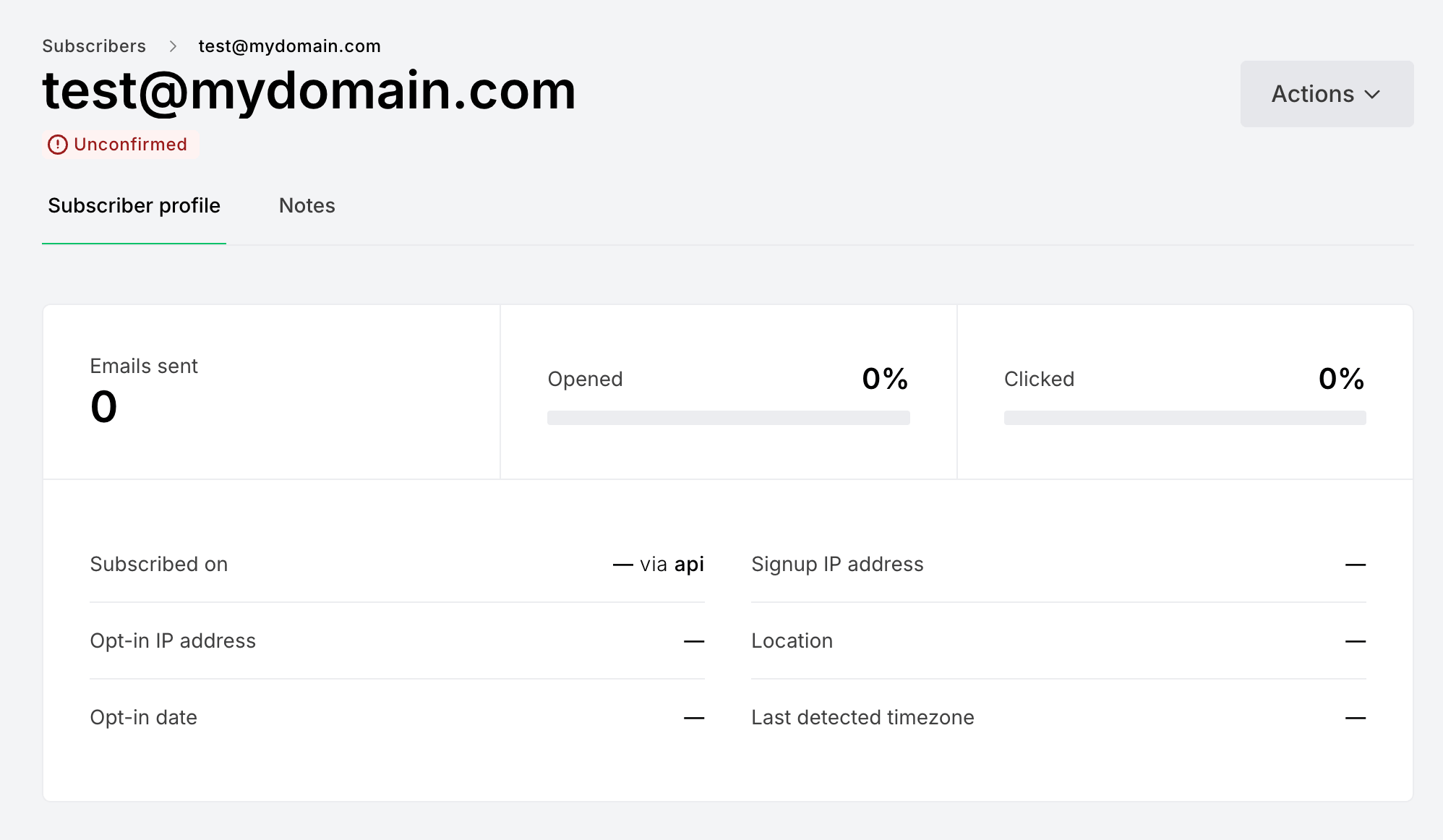
With double opt-in active, a member who has not yet confirmed appears as Unconfirmed in MailerLite until they click the confirmation link.
Process Updates in the Background
When enabled, subscriber updates and group changes run in the background using Action Scheduler. This can improve performance during checkout, profile updates, and membership changes.
- Yes, run updates in the background (default): Recommended for most sites, especially those with high traffic or frequent membership changes.
- No, run updates immediately: Updates are processed synchronously. Use this for debugging or if you need immediate updates in MailerLite.
Debug Logging
When enabled, the integration writes debug details to an access-protected log file to help troubleshoot issues. Once enabled, a link to download the log file appears in the settings.
For most sites, keep debug logging off unless you are actively working through an issue.
How to Assign Groups to a Membership Level
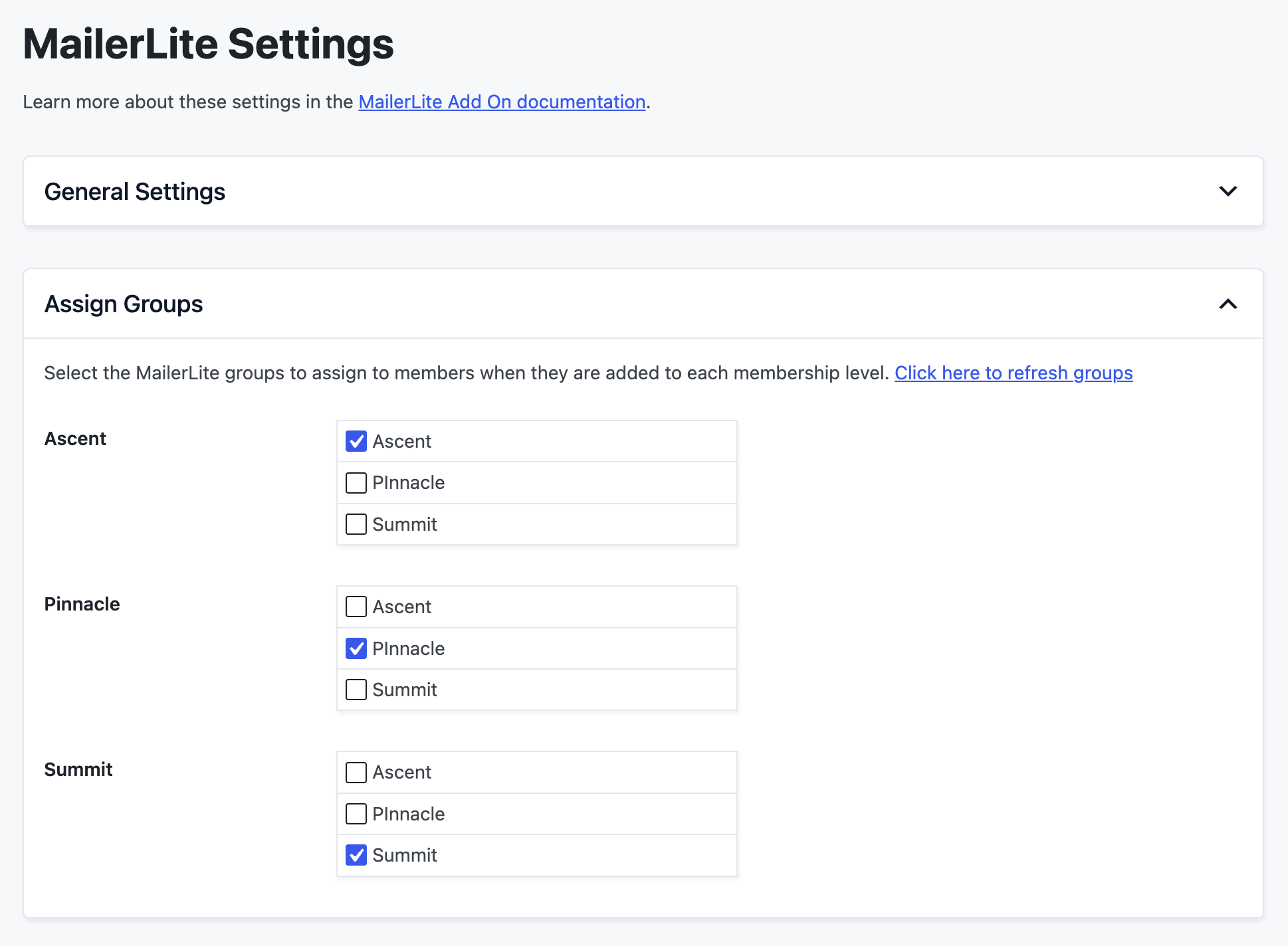
After you save your API key, the Assign Groups section appears with a list of all your membership levels.
- Navigate to Memberships > MailerLite in the WordPress admin.
- In the Assign Groups section, you will see a list of all your membership levels.
- For each level, select one or more groups from the checkbox list. You can assign multiple groups to a single level.
- Click Save Changes.
As new members join your site, the selected groups are assigned to that subscriber in your MailerLite account.
How Group Management Works
- When a member gains a level: The groups assigned to that level are added to the subscriber in MailerLite.
- When a member loses a level: If “Remove Groups When Membership Changes” is enabled, the groups assigned to that level are removed from the subscriber.
- Multiple levels: If a member has multiple membership levels, they have all groups from all of their active levels.
How to Import Existing Members into MailerLite
This integration does not run an update on all of your existing members. To add existing members to your MailerLite account, prepare and upload a CSV file.
Before you begin, review MailerLite’s documentation on How to Import Subscribers.
Step 1: Export Your Members
- Navigate to Memberships > Members.
- Export the full members list, or filter it to the members you want to import into MailerLite.
Step 2: Prepare Your CSV
- In a spreadsheet program, keep the columns MailerLite needs, at minimum, Email and Name. Remove any columns you do not want to import.
- Use the
membership_levelcolumn to decide which group each member belongs to, then remove it before importing. - Save the file as a .csv.
Step 3: Import into MailerLite
- In MailerLite, go to Subscribers and start an import.
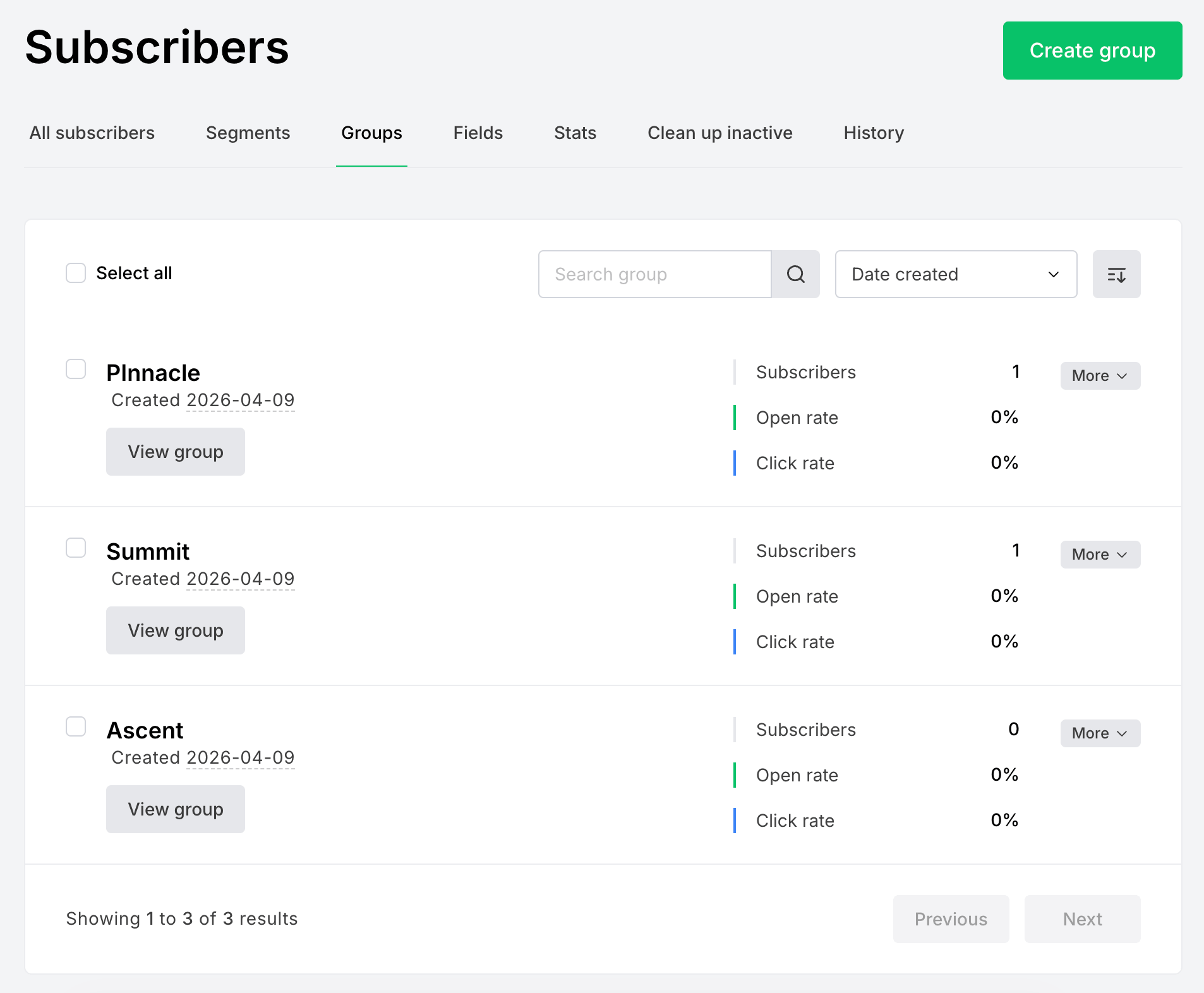
- Upload your CSV and assign the imported subscribers to the group that matches their membership level.
Action and Filter Hooks
apply_filters( 'pmpromailerlite_subscriber_data', array $subscriber_data, WP_User $user, array $levels );
Filter the subscriber data before it is sent to MailerLite.
apply_filters( 'pmpromailerlite_controlled_group_ids', array $controlled_group_ids );
Filter which MailerLite group IDs are managed by Paid Memberships Pro. Only groups in this list are removed when a member loses a level.
apply_filters( 'pmpromailerlite_log_file_path', string $log_file_path );
Filter the file path used for the integration debug log.
do_action( 'pmpromailerlite_sync_subscriber_for_user', int $user_id, bool $update_groups );
Runs when a user’s MailerLite subscriber record is synced.
Screenshots
Navigate to Memberships > MailerLite in the WordPress admin to configure your API key and general settings.
Assign Groups to Membership Levels
After you enter your API key, the Assign Groups section displays all membership levels with checkboxes to select one or more groups for each level.
Frequently Asked Questions
In MailerLite, go to Integrations > MailerLite API and generate a new token, then paste it into the API Key field on the MailerLite settings page in WordPress.
Yes. When Subscriber Status is set to “Respect account settings,” the integration honors your MailerLite double opt-in configuration, so members receive a confirmation email before they are subscribed. Choose “Always set to Active” to subscribe members immediately and bypass double opt-in.
Yes. You can assign as many MailerLite groups as you like to each membership level.
Members with multiple levels have all groups from all of their active levels. When they lose a level, only the groups specific to that level are removed (if group removal is enabled).
Only if “Remove Groups When Membership Changes” is set to “Yes.” If set to “No,” groups are preserved even after a membership ends.
No. The integration syncs a member when their membership level changes or their profile is updated. To add members who already exist on your site, import them into MailerLite with a CSV file.
This is a Free Add On.
Create a free account or log in to gain access to downloads and documentation.

