A creator running an affiliate program asked us a great question on the support forum recently. They wanted their top affiliate’s audience to get a small thank-you discount when they checked out through that affiliate’s link, not a public sale code the affiliate had to remember to mention.
Paid Memberships Pro already supports this, with no extra plugin, no code recipe, and no setting to flip. The behavior is built into the Lightweight Affiliate Tracking Add On. Here is how to set it up, what your customer sees, and a couple of edge cases to know about.
How the Automatic Discount Works
PMPro stores affiliate codes and discount codes in two separate places, but it looks them up using the same value. The Affiliates Add On takes advantage of that overlap.
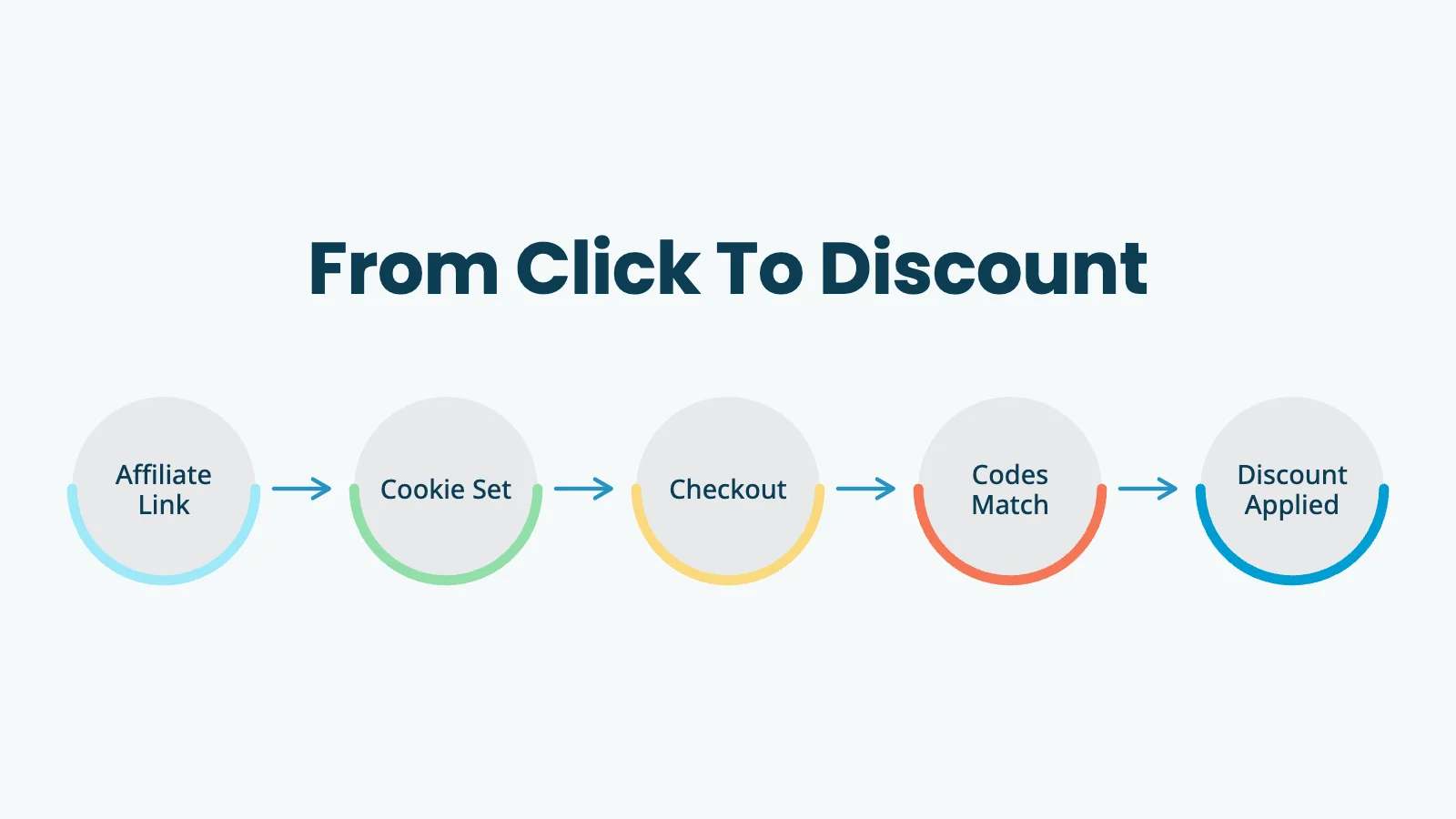
When a visitor lands on your site through an affiliate link like yoursite.com/?pa=KAYLA10, the Add On sets a cookie with the affiliate’s code. When that visitor reaches checkout, PMPro asks one extra question: is there a discount code with the value KAYLA10? If a discount code by that exact name exists and applies to the level being purchased, it is set as the default for the order.
That is the entire mechanism. You create one discount code with the same value as one affiliate code. From there, the discount applies automatically every time someone uses that affiliate’s link. Affiliate codes are flexible that way. The same field also doubles as campaign attribution if you create a code for each ad or traffic source.
When to Use an Affiliate-Exclusive Discount
A few real-world cases where this setup pays off:
- Influencer partnerships: A YouTuber gets a unique code their viewers can use for a discount, and they earn a commission on every sale. Both directions are tracked from one identifier.
- Course-to-membership funnels: A partner running an adjacent course can give their students 15% off your membership without you needing to publish that discount anywhere on your site.
- VIP referrals: Long-time members who refer friends get to feel a little special. Their referrals see a personal discount instead of the same code everyone else sees on your homepage.
- Closed community launches: When you launch a new tier inside a private community first, you can route the launch link through a “founder” affiliate code that doubles as a launch discount.
The common thread is that you want the referral tracking and the discount tied together, so one action on the customer’s side produces two outcomes for you: a tracked referral and an applied discount.
Step 1: Find or Create the Affiliate Code
You’ll need the Lightweight Affiliate Tracking Add On active and at least one affiliate code already set up. If you haven’t done that yet, the Managing Affiliates with Paid Memberships Pro post covers the basics.
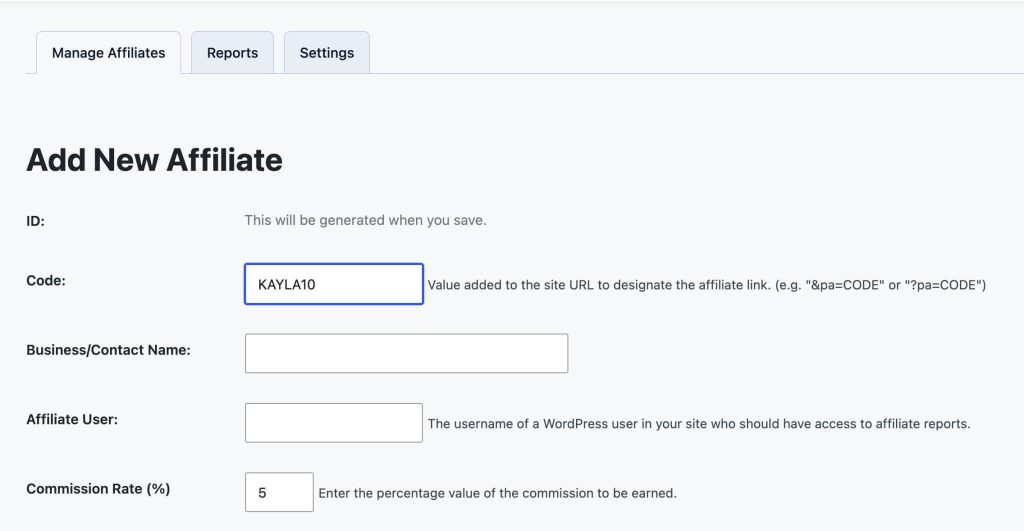
In your WordPress admin, go to Memberships > Affiliates. Either pick an existing affiliate or click “Add New Affiliate” to create one.
The field that matters here is Code. This is the value that goes into the ?pa= parameter on the affiliate’s referral links. Pick something readable, unique, and easy for the affiliate to share aloud or paste into an email. We will reuse this value verbatim in the next step.
A few patterns we see work well:
- The affiliate’s first name plus a number (“KAYLA10”)
- A short branded phrase (“BOOKCLUB”)
- A campaign name plus the year (“LAUNCH2025”)
Step 2: Create a Discount Code With the Same Value
Now go to Memberships > Settings > Discount Codes and click “Add New Discount Code”.
In the Code field, type the exact same value you used for the affiliate code. This is the only field that has to match. Everything else (start date, expiration, levels, initial payment discount, billing amount discount) is configured exactly like any other Paid Memberships Pro discount code.
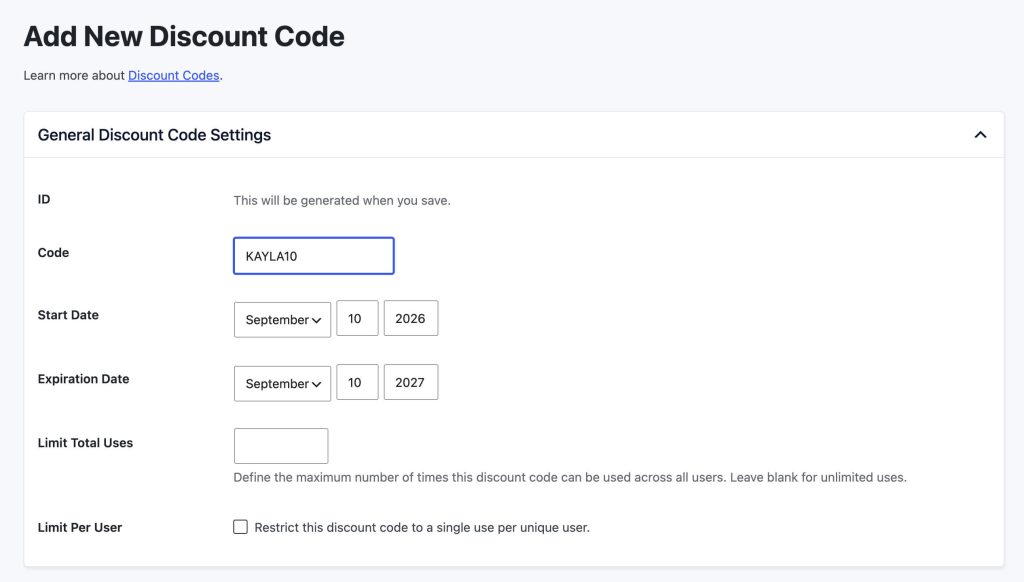
A few setup tips:
- Apply the discount to every level your affiliate can sell: If the discount code does not include the level the visitor is buying, the discount will not apply, even though the affiliate is still credited for the sale.
- Use a generous expiration window or no expiration: Affiliate links can live in old YouTube descriptions and email footers for a long time.
- Set the uses limit thoughtfully: The default of “unlimited” is usually right for affiliate-exclusive codes, since the whole point is that anyone using that affiliate’s link gets the discount.
Save the code. That is the entire setup.
Step 3: Test the Link
Open the affiliate’s link in an incognito or private browser window and walk through checkout. Confirm the discount applies automatically and the affiliate is credited in the order details before you send the link to anyone.
What Your Customer Sees at Checkout
Walking through this from the customer side helps explain the behavior to your affiliate partners.
- A customer clicks the affiliate’s link, for example
yoursite.com/levels/?pa=KAYLA10. - The Affiliates Add On reads the
paparameter and sets thepmpro_affiliatecookie for the number of days you configured on that affiliate. - The customer picks a level and clicks through to the checkout page.
- Paid Memberships Pro finds the cookie, looks up a discount code with the matching value, and, if it exists and applies to that level, fills in the discount code field with that value before the page renders.
- The order summary shows the discounted price. The customer sees the discount applied without ever knowing the code.
The discount code field is pre-filled, not hidden. A curious customer can see it. That is fine for most affiliate programs, but if you want to hide it entirely, see our 9 Ways to Customize Discount Codes With Paid Memberships Pro post for the snippet to remove the field from view.
Edge Cases to Know About
A handful of small details will save you support tickets.
- Case sensitivity: The lookup is not case-sensitive at the database level. An affiliate code of
KAYLA10will match a discount code ofkayla10orKayla10. Pick one casing convention and stick with it for clarity, but if you mistype, the match will still work. - The discount code must be valid for the level being purchased: If the discount code is restricted to your “Premium” level and the customer is buying “Basic”, the discount silently does nothing. The affiliate is still credited for the sale.
- Expired or used-up codes are ignored: If your discount code has expired or hit its uses limit, the affiliate link continues to track the referral, but no discount is applied. The customer will not see an error.
- A manually entered discount code wins: If the visitor lands through an affiliate link and then types a different discount code into the checkout field themselves, their manual code takes precedence. This matters when you run a sitewide promotion at the same time as your affiliate program. Your affiliates do not automatically benefit from it, but their referrals still get tracked.
- The reverse also works: If a visitor enters the affiliate code as a discount code at checkout (without ever clicking the affiliate link), Paid Memberships Pro will set the affiliate cookie too. This is useful for affiliates who promote in places where a URL parameter is awkward to share, like a podcast.
Set Up Your First Affiliate Discount
If you are already running an affiliate program through the Lightweight Affiliate Tracking Add On, this is a five-minute upgrade. Pick one of your active affiliates, create a discount code with their exact code value, and watch the next referral come through with the price already adjusted.
If you have not started an affiliate program yet, the Managing Affiliates with Paid Memberships Pro post is a good place to start. The Lightweight Affiliate Tracking Add On is included with every paid Paid Memberships Pro plan, so you may already have access.
Small, well-targeted discounts move the needle on conversion more reliably than big public sales. Tying that discount to your affiliate network is one of the quieter, more powerful ways to do it.

Free Download: The AI-Powered Membership Site Blueprint
Download the free guide: Learn how to plan, build, and grow a membership site using AI as your strategic partner: from buyer persona to launch and beyond.