You have decided to leave Substack. Maybe the platform changes finally pushed you over the edge, maybe you want to keep more of your revenue, or maybe you are tired of pouring traffic into a brand that is not yours. Whatever the reason, you are ready to own your newsletter on a stack you control.
For most newsletters, the move from Substack to WordPress and Paid Memberships Pro (PMPro) is a weekend project. You already have the writing part down. The subscriber part has one real gotcha. Your paid subscribers’ payment data lives in Substack’s Stripe account, not yours.
This guide walks you through the full migration: what to export from Substack, how to set up PMPro, how to bring your free and paid subscribers over without losing the people who pay you, and how to handle the cutover so nothing falls through the cracks.
If you are still deciding whether to make the move, read Paid Memberships Pro vs. Substack first. Then come back here and we will get to work.
Table of contents
- Before You Start: What You Can and Cannot Migrate Cleanly
- Step 1: Set Up PMPro First
- Step 2: Export Everything From Substack
- Step 3: Import Your Content Into WordPress
- Step 4: Move Your Free Subscribers
- Step 5: Handle Your Paid Subscribers Carefully
- Step 6: Cut Over and Announce the Move
- Frequently Asked Questions
- Own Your Audience for Good
Before You Start: What You Can and Cannot Migrate Cleanly
Set your expectations up front. Some pieces of your Substack newsletter move with zero friction. Others take real work. A few do not move at all and will need to be rebuilt.
What moves cleanly:
- Your post content (titles, body, dates, basic metadata)
- Your free subscriber email list
- Your paid subscriber email list (the addresses, not the payment methods)
- Your archive of past issues
What moves with friction:
- Paid subscriber payment method: This is the big one. Substack charges subscribers through its own Stripe account, so payment methods do not export with your CSV. Plan on one or both of these paths:
- Ask paid subscribers to re-subscribe through PMPro on your own Stripe account, and/or
- Carry over their access in PMPro through the end of their current Substack billing period and collect a payment method before renewal.
- Embedded media (images, audio, video) and public comments: The WordPress Substack Importer can bring over posts and images, and it can import comments on publicly accessible posts. Still spot-check media, embeds, and comments after import. Paywalled or private discussion does not move cleanly.
What does not move at all:
- Substack-specific features like Notes, Chat, and recommendations
- Your Substack URL’s existing SEO authority (you will set up redirects to preserve what you can)
- Private or paywalled discussion history and other Substack-native conversation features
What you will rebuild:
- The design and branding of your site
- Your sign-up flow and pricing page
- Your about page and archive layout
- Any automated welcome emails or sequences
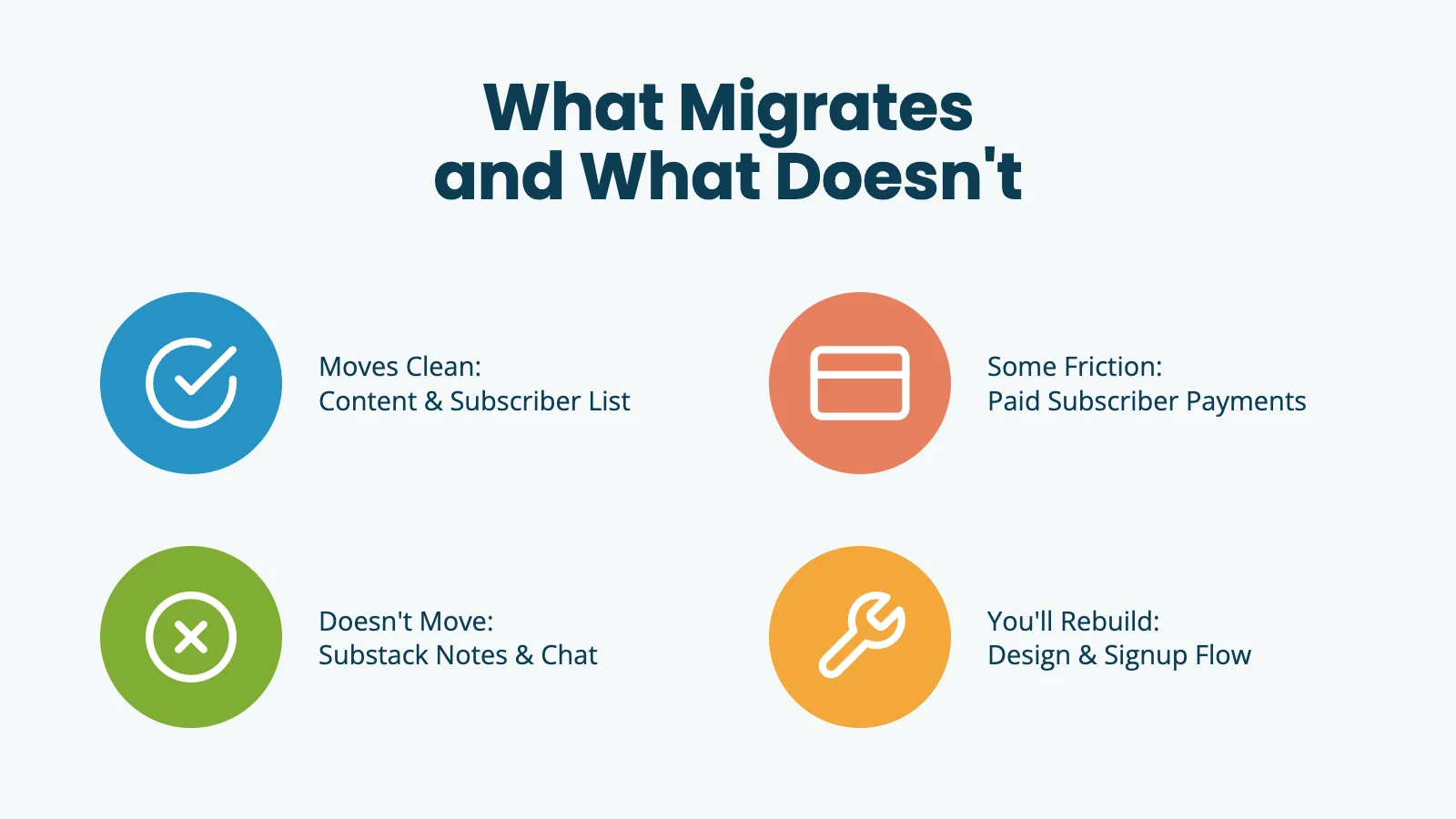
None of these should be dealbreakers. They are just things you should plan for instead of discovering at midnight on launch day.
Let Us Handle It: Migration with PMPro Max
If doing this yourself feels overwhelming, PMPro Max includes hands-on migration support as part of the service. We handle the move from these platforms and many others, with the goal of getting you up and running on PMPro with as little disruption to your business as possible.
Here’s our honest commitment on what that looks like:
- When we can preserve your active member subscriptions, we will. For most WordPress-to-WordPress migrations and some gateway-to-gateway transitions, your members keep paying without interruption and without needing to re-enter their billing info.
- When we can’t preserve subscriptions, we’ll be upfront about it and give you a clear plan. Some platforms (WooCommerce Subscriptions, most SaaS tools) create subscriptions in ways that can’t be transferred to another system, even with the same payment gateway. In those cases, we’ll help you set appropriate expiration dates, craft the member communication, and use PMPro’s renewal flow to bring members back into an active subscription on the new platform.
- Either way, you keep your members and your revenue. The goal isn’t just to move data, it’s to land you on a membership platform built for where your business is going, not where it started.
Step 1: Set Up PMPro First
The single most important rule of this migration: do not cancel Substack until your new site is ready to receive subscribers. Build the new site, test it, then cut over.
Get hosting and install PMPro
You need a WordPress site to migrate to. If you do not have one yet, start with reliable managed WordPress hosting. Our hosting guide covers the providers we recommend and what to look for.
Once WordPress is installed, download Paid Memberships Pro and run through the Initial Setup Wizard. The wizard creates the required frontend pages (Membership Levels, Checkout, Account, etc) and walks you through the rest of the configuration.
Choose your email platform
A newsletter needs an email tool. PMPro is your membership and access layer. It is not the thing that actually sends your weekly issues. You have two main paths:
- Send from WordPress with MailPoet: The MailPoet Integration is a great fit if you want everything to live inside your site. You compose, send, and report from the WordPress admin.
- Use a third-party email marketing service: Mailchimp and Kit (formerly ConvertKit) are the two most common destinations for newsletter creators leaving Substack. Both have native PMPro integrations that automatically sync your members into the right list or tag when they sign up, upgrade, or cancel.
Set up your membership levels
In Memberships > Settings > Levels, add a new level for each tier you offer on Substack. You may have already created a free and/or paid level via the Setup Wizard. A typical newsletter migration looks like:
- Free: A no-cost level for your free subscribers.
- Paid Monthly: Mirror your current Substack monthly price. You can adjust it later.
- Paid Annual: Mirror your current Substack annual price.
- Founding Member: If you offered one on Substack, recreate it.
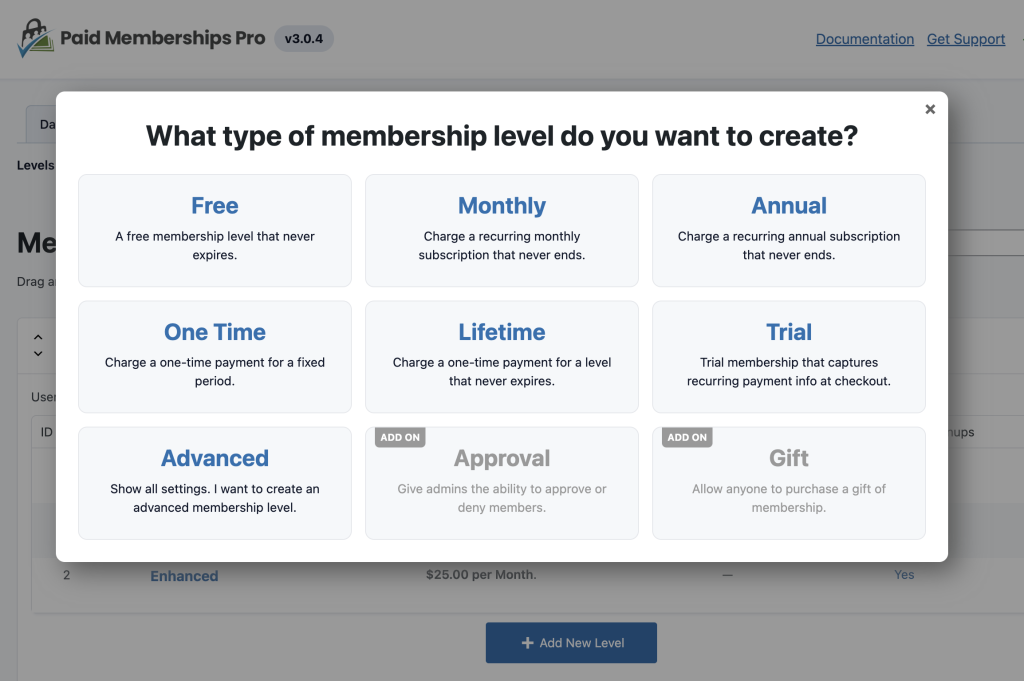
We recommend keeping your pricing exactly as it is currently on Substack. You want your existing paid subscribers to land on a level that looks identical to what they signed up for. You can experiment with pricing after the migration is complete.
Connect your own Stripe account
In Memberships > Settings > Payment Gateway, connect Stripe to PMPro. This must be your own Stripe account, not Substack’s. Confirm the Stripe webhook is connected, then test a free signup and a paid checkout in Stripe test mode end-to-end.
Related: Stripe Documentation
Pick a content-first theme
Newsletter readers want to read. A clean, content-first theme will serve you better than a heavy magazine theme with sidebars stacked five deep. Memberlite is our own theme, built specifically for PMPro.
If you already have a theme you like, PMPro works with any WordPress theme, so there is no need to switch. Stick with the basics for launch. You can always redesign later.
Decide your category structure
Most newsletter creators use a single “Newsletter” category with topic-level tags, plus a clear way to mark premium issues. Keep it simple.
Use categories for organization and for PMPro content restriction (for example, every post in a “Premium” category). Member list and tag sync into MailPoet, Mailchimp, or Kit is driven by membership level changes in PMPro, not by post categories.
Step 2: Export Everything From Substack
With your new site standing by, it is time to pull your data out of Substack. Substack offers two separate exports.
Export #1: Your Posts
In Substack, go to Settings > Exports > Create new export. Substack builds a zip of your publication data (posts and related stats) and emails you when it is ready.
Download the zip and keep it locally. You will use this export with the WordPress Substack Importer in the next step.
Export #2: Your Subscriber List
In Substack, go to Subscribers > All subscribers, open the ⋯ (three dots) menu, and choose Export. You can export all columns or only the visible columns.
This CSV is your free and paid audience file. Expect emails and status-style fields such as free, paid, or comped, depending on the columns you choose. Substack’s subscriber export does not include full names, and it does not include payment methods.
Understand what is NOT in your export
Substack’s export does not include the Stripe customer records for your paid subscribers. Substack handles the actual charging, so the payment method data lives in Substack’s Stripe account, not yours. We will tackle this in Step 5.
Step 3: Import Your Content Into WordPress
You now have a zip of your Substack publication data. There are a couple of ways to get this content into WordPress.
- Use the WordPress Substack Importer plugin. The Substack Importer on WordPress.org reads your Substack export and creates WordPress posts from it, bringing over titles, dates, and images in most cases. It requires the WordPress Importer plugin as a dependency, so install that first. Plan around two practical limits: large imports can time out partway through (run the import more than once if it stalls), and you should still spot-check images, embeds, footnotes, and formatting on a staging site. The plugin can also import podcasts and comments on publicly accessible posts. Paywall markers in content may need cleanup before you map premium posts to PMPro restrictions.
- Copy and paste, for small archives: If you have only a handful of posts, open each item from the export, paste it into a new WordPress post, and clean it up manually. This is tedious for large archives but gives you the most control over how each post looks.
Whichever method you choose, do the import on a staging site first. Spot-check a handful of posts for:
- Images, audio, and video displaying correctly, and re-hosting or repairing anything that did not come through cleanly
- Embedded tweets, YouTube videos, and audio embeds
- Footnotes and callouts (these often need cleanup)
- Date and author metadata
Once the imported content looks right, restrict the posts you want to gate behind a paid level. In PMPro, you can restrict by category, tag, or individual post. For newsletters, restricting by category (for example, every post in your “Premium” category) is usually the cleanest approach.
Step 4: Move Your Free Subscribers
Free subscribers are more straightforward to move. Your Substack subscriber CSV gives you everything you need.
Decide whether you want to:
- (Recommended) Auto-create WordPress accounts for them at the free level, and email them to set a password. This is the smoother experience. Use Import Members From CSV to create the accounts and assign your free PMPro level in one pass.
- Email your free list and invite them to sign up themselves at your free level. Lower technical lift, but you will lose some subscribers in the gap.
Whichever path you take, write the email yourself instead of letting Substack send a generic “your subscription has moved” message. Explain what is happening, what you are excited about, and what they need to do. People who get an unexpected platform-change email are more likely to unsubscribe than people who get a personal note.
Add your free subscribers to the appropriate list or tag in your email tool so future newsletter sends go to the right place.
Step 5: Handle Your Paid Subscribers Carefully
This is the hardest part of the migration. Paid subscribers pay through Substack’s Stripe account, not yours, and that billing relationship does not export into PMPro as a live subscription. For a WordPress and PMPro stack, plan on re-subscription, carried-over access through the current period, or a mix of both.
Option A: Carry over access, then bill on your site at renewal
This is often the better reader experience:
- Filter your Substack subscriber export to paid (and comped, if needed) subscribers.
- Import them with Import Members From CSV into PMPro levels that mirror their Substack tier.
- Set each member’s expiration or end date to align with the end of their current Substack billing period. They keep access on your site without your Stripe charging them yet.
- Email them before that date to add a payment method or renew on your PMPro checkout so billing continues on your Stripe.
- Cancel the corresponding Substack subscription at period end so nobody is double-charged.
During the overlap, Substack can finish the current paid period while your site becomes home for reading access and the upcoming renewal.
Option B: Ask paid subscribers to re-subscribe on PMPro
Set up your own Stripe account in PMPro, then email your paid list with a clear re-subscribe link on your new site. Soften the disruption:
- Send a personal email about two weeks before cutover explaining what is happening and why.
- Offer a small thank-you for moving with you, such as an extra month, a discount code, or bonus content.
- Send a reminder a few days before you cancel their Substack subscription.
- When possible, cancel on Substack at the end of the current billing period rather than in the middle of it.
Announce the change clearly before you make it. Surprise is the fastest way to lose paying readers.
Plan for meaningful churn either way. Not everyone completes a platform move, no matter how carefully you communicate.
Step 6: Cut Over and Announce the Move
Your content is imported, your free subscribers are in, and your paid subscribers are either carried over into PMPro or actively re-subscribing. Time to flip the switch.
Redirect your old Substack URLs
You cannot set real server-level 301 redirects on a *.substack.com address, so what you can do depends on whether you used a custom domain. If you have a custom domain on Substack (newsletter.yourdomain.com or similar), point that domain to your new WordPress site so it takes over serving your content.
If your newsletter lived at a default yourpub.substack.com address, those old links will not automatically follow you to a custom domain. Publish a final post at that address pointing every reader to your new site, turn off new signups, and leave the Substack archive up for a while so old links still resolve to something. Our guide on how to change your domain name without hurting SEO covers the redirects and search console steps that still matter on your own domain after cutover, especially for any slug mismatches.
Send the announcement
Send a real announcement email to every subscriber, paid and free. Include:
- A clear “what is happening” sentence at the top.
- A link to your new site.
- What they need to do (often nothing, but tell them anyway).
- What is improving for them (better archive, exclusive content, whatever applies).
- A way to reach you with questions.
This email is also a marketing moment. Subscribers who have been quiet for months may re-engage when they hear from you with news.
Retire Substack
Once your new site is live and paid subscribers are being charged through your Stripe account:
- Turn off new signups on Substack.
- Stop publishing new content there.
- Keep the Substack pages live as an archive or redirect target for at least a few months.
- Cancel the paid Substack plan only after every paid subscriber is either carried over into PMPro or has re-subscribed.
Do not rush the final cancellation. A few extra weeks on Substack costs far less than orphaning a paying subscriber.
Frequently Asked Questions
Some, yes. Because Substack’s billing relationship does not transfer cleanly into a normal WordPress and PMPro stack, you will ask at least some paid readers to re-subscribe or add a payment method on your site. Plan for meaningful churn. Clear communication, carried-over access through the current period, and a small thank-you incentive all soften the hit.
No. The migration uses standard WordPress plugins, the PMPro initial setup wizard, and a Substack importer. If you are comfortable installing plugins and following instructions, you can do this.
Yes, and you should. Build your WordPress site in parallel, test it thoroughly, and only cut over when you are confident everything works. There is no reason to cancel Substack before your new home is ready.
Own Your Audience for Good
Platform fees are only part of why this move is worth it. On your own site, your audience, your content, and your business are yours outright, and no platform change will ever force you to migrate again.
When you are ready to start, download Paid Memberships Pro for free and run the setup wizard. For more on building a paid newsletter on your own site, visit our Paid Newsletters Hub for the complete playbook.

Free Download: The AI-Powered Membership Site Blueprint
Download the free guide: Learn how to plan, build, and grow a membership site using AI as your strategic partner: from buyer persona to launch and beyond.