
Square is a widely used payment platform for in-person and online sales. This Add On adds Square to your list of Paid Memberships Pro payment gateways so members can pay by card when they join.
- Accept one-time credit and debit card payments through Square.
- Members pay on your site. Card fields are embedded in the checkout, with no redirect.
- 3D Secure (SCA) buyer verification is handled automatically where required.
- Manage sandbox and live credentials from a single settings screen.
- Choose which Square location records your transactions.
Installation
You must have the Paid Memberships Pro plugin installed and activated to use this Add On.
- Navigate to Memberships > Add Ons in the WordPress admin.
- Locate the Add On and click “Install Now“.
- Or, to install this plugin manually, download the .zip file above.
- Upload the compressed directory (.zip) via the Plugins > Add New > Upload Plugin screen in the WordPress admin.
- Activate the plugin through the Plugins screen in the WordPress admin.
How to Set Up the Square Gateway
This Add On requires Paid Memberships Pro, a Square account, and HTTPS on your site.
Step 1: Get Your Square Credentials
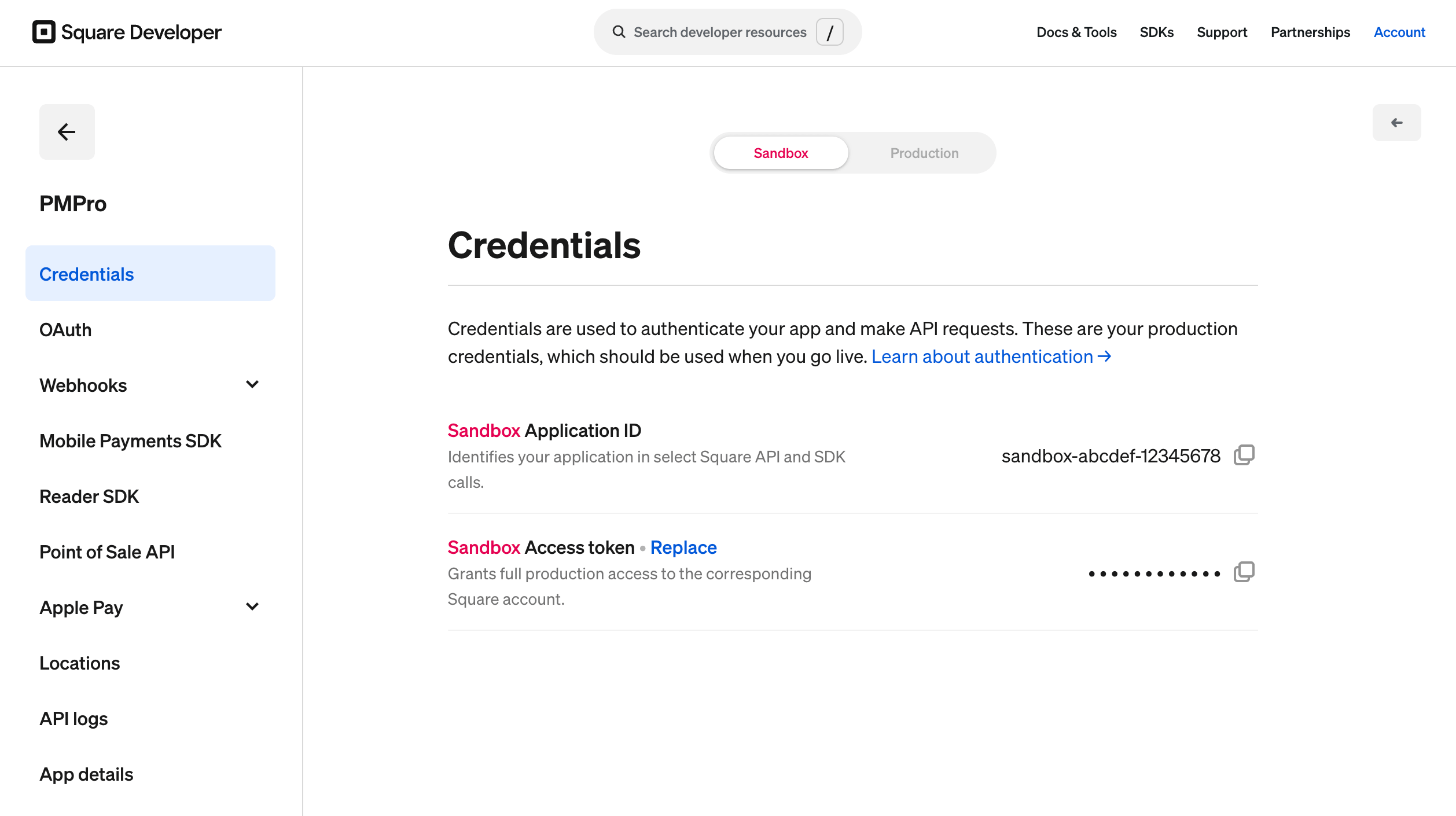
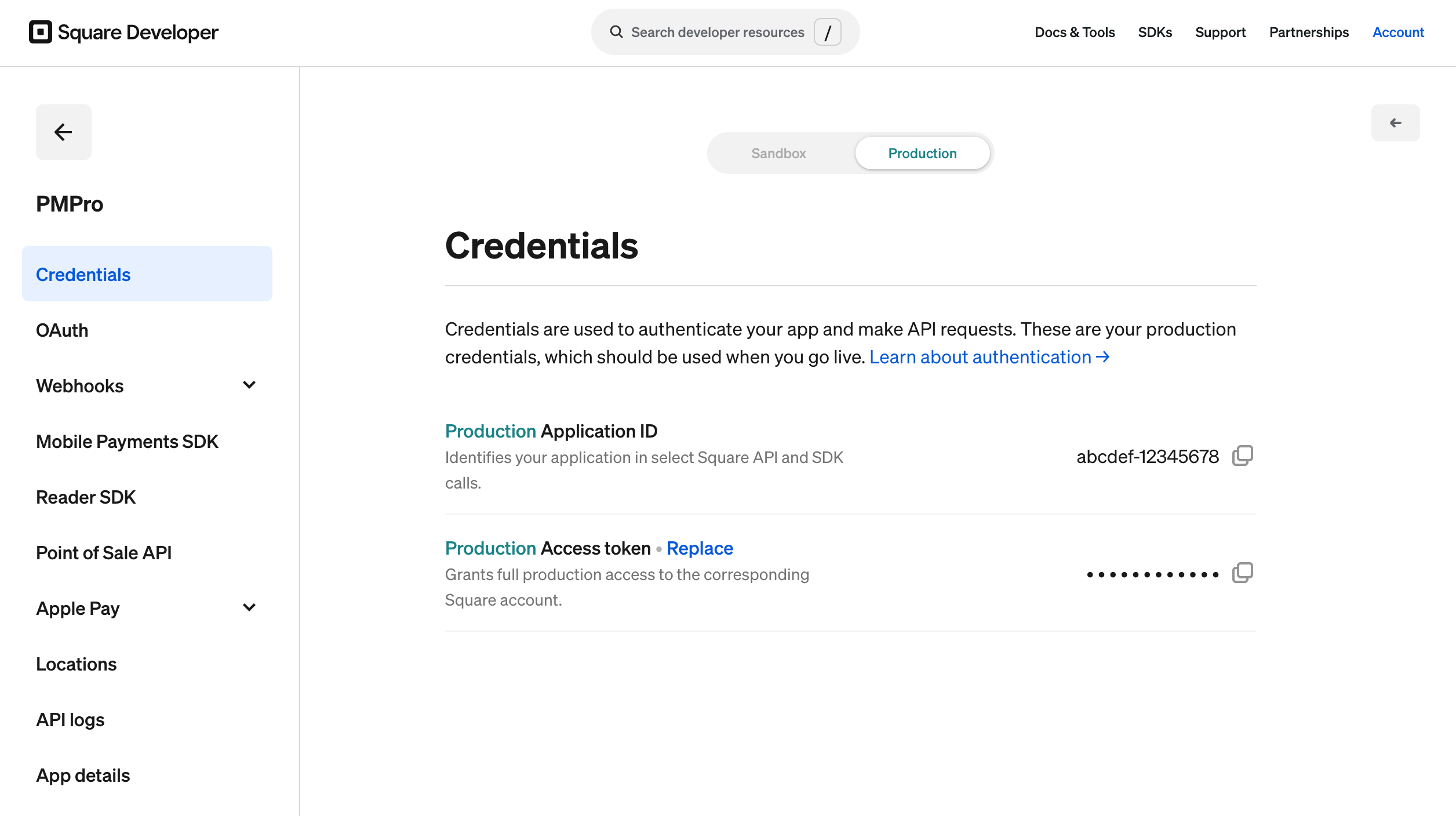
You’ll need an Application ID and an Access Token from Square. Get your Sandbox credentials first for testing, then repeat for Production when you’re ready to go live.
- Go to the Square Developer Dashboard and log in with your Square account.
- Open an existing application or create a new one.
- From the application’s credentials, copy the Application ID and Access Token. Use the Sandbox values for testing and the Production values for live payments.
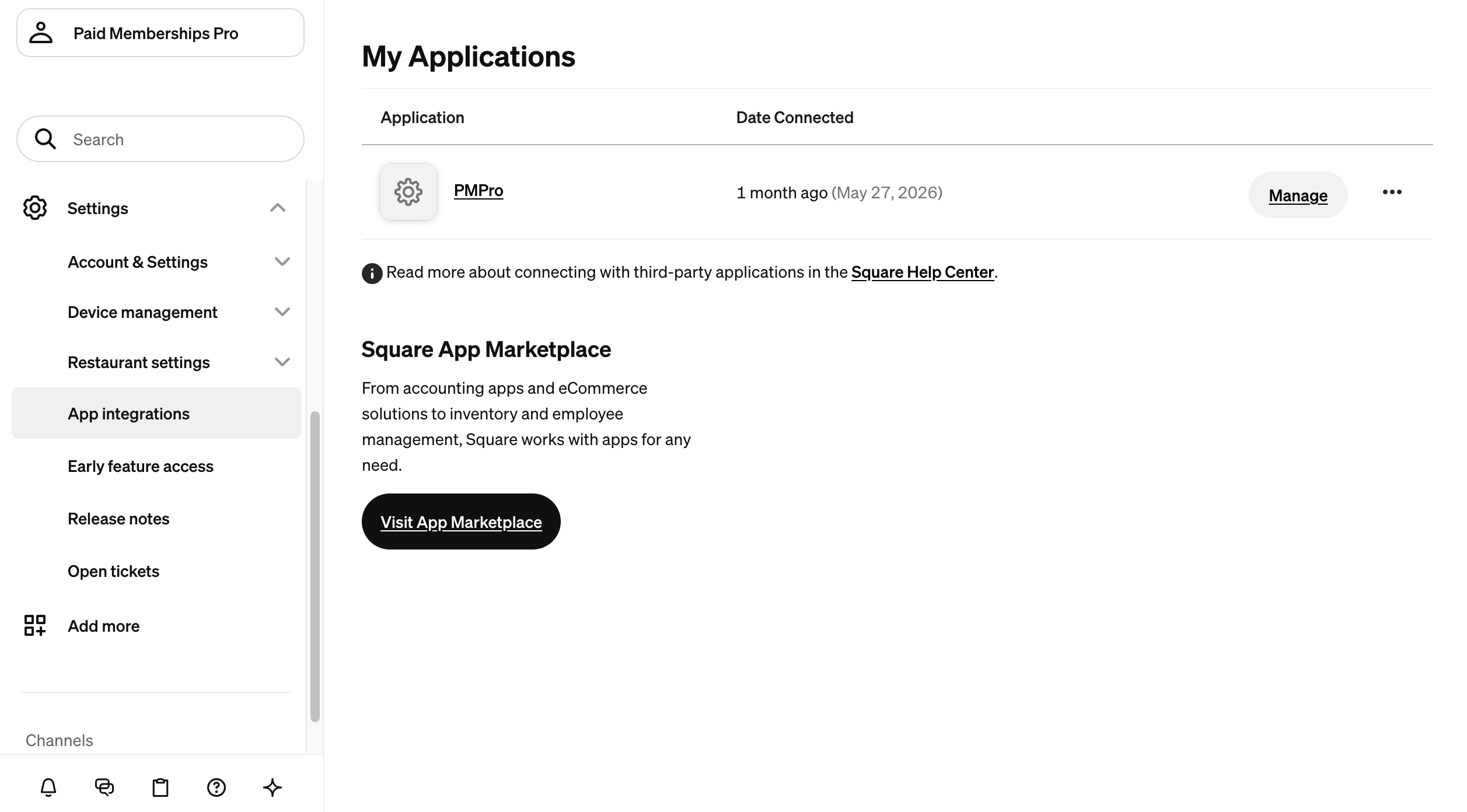
Your connected application also appears in your Square account under Settings > App integrations.
Step 2: Configure the Plugin
- Install and activate the Square Add On if you haven’t already.
- Go to Memberships > Settings > Payment Gateways & SSL.
- Select Square from the Payment Gateway dropdown, and set the Payment Gateway Environment to Sandbox or Live.
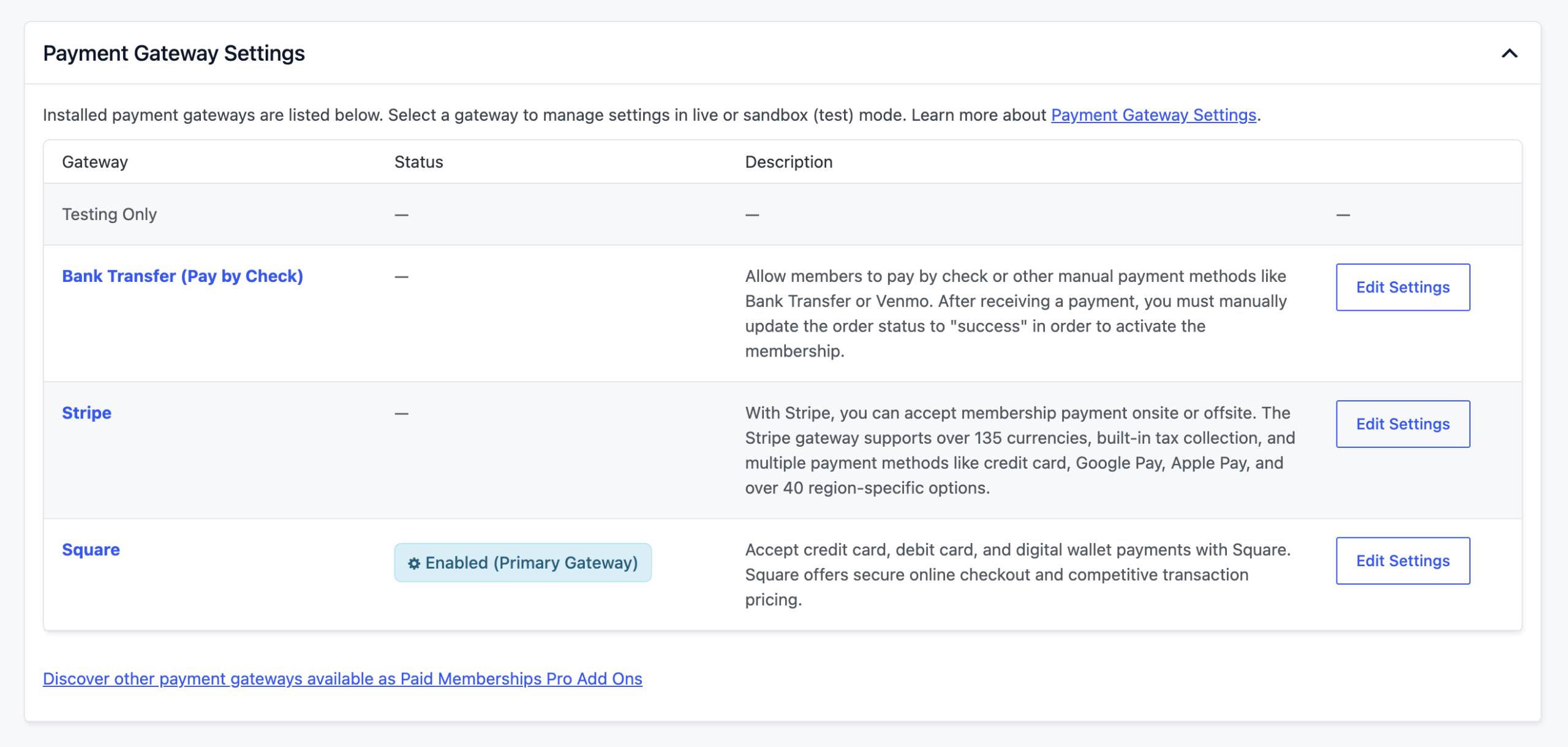
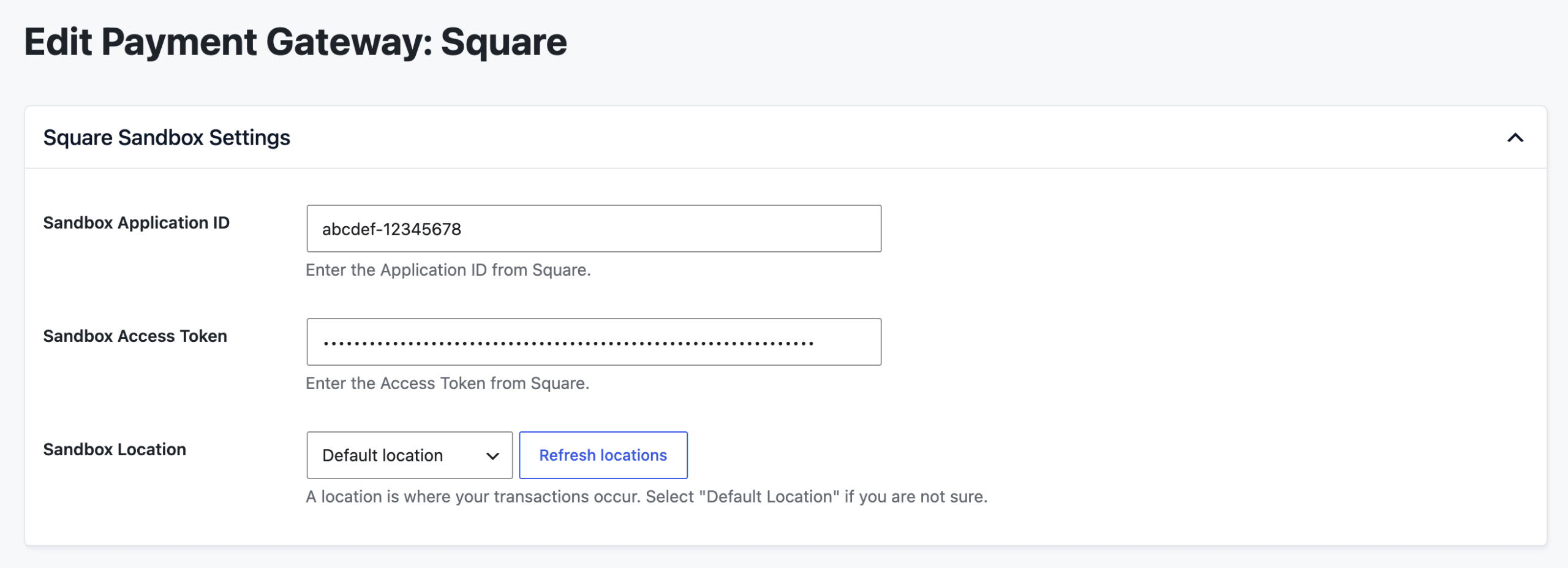
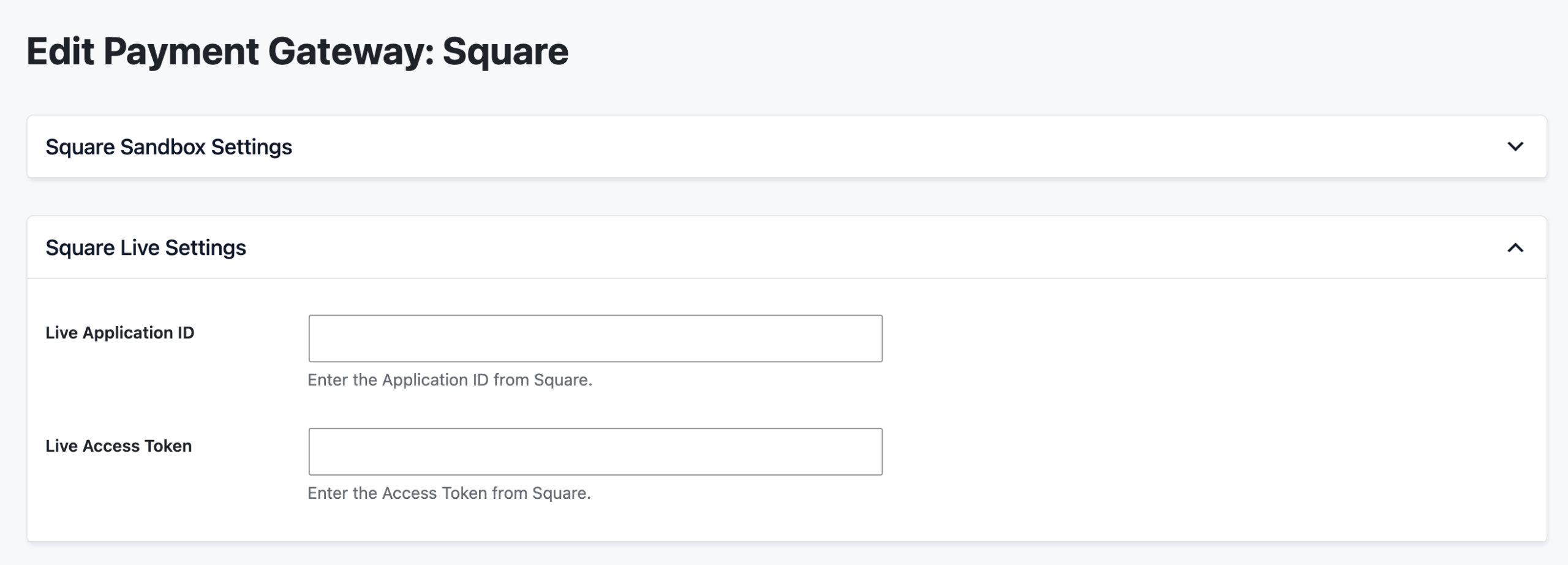
- Enter your Application ID and Access Token in the Square Sandbox Settings and Square Live Settings sections.
- After you save a valid Access Token, a Location selector appears for that environment. Choose the location where your transactions should be recorded, or leave it on Default location. Use Refresh locations if your locations don’t appear.
- Click Save Settings.
How Checkout Works
Square checkout happens on your site. The Square gateway renders a secure card field directly in the Paid Memberships Pro checkout form. There is no redirect to an external payment page.
- The member fills out the checkout form and enters their card details in the Payment Information field.
- Square tokenizes the card in the browser and, where required, performs 3D Secure (SCA) buyer verification.
- Paid Memberships Pro creates the member’s account and order, then charges the amount due through Square. The membership activates on a successful charge.
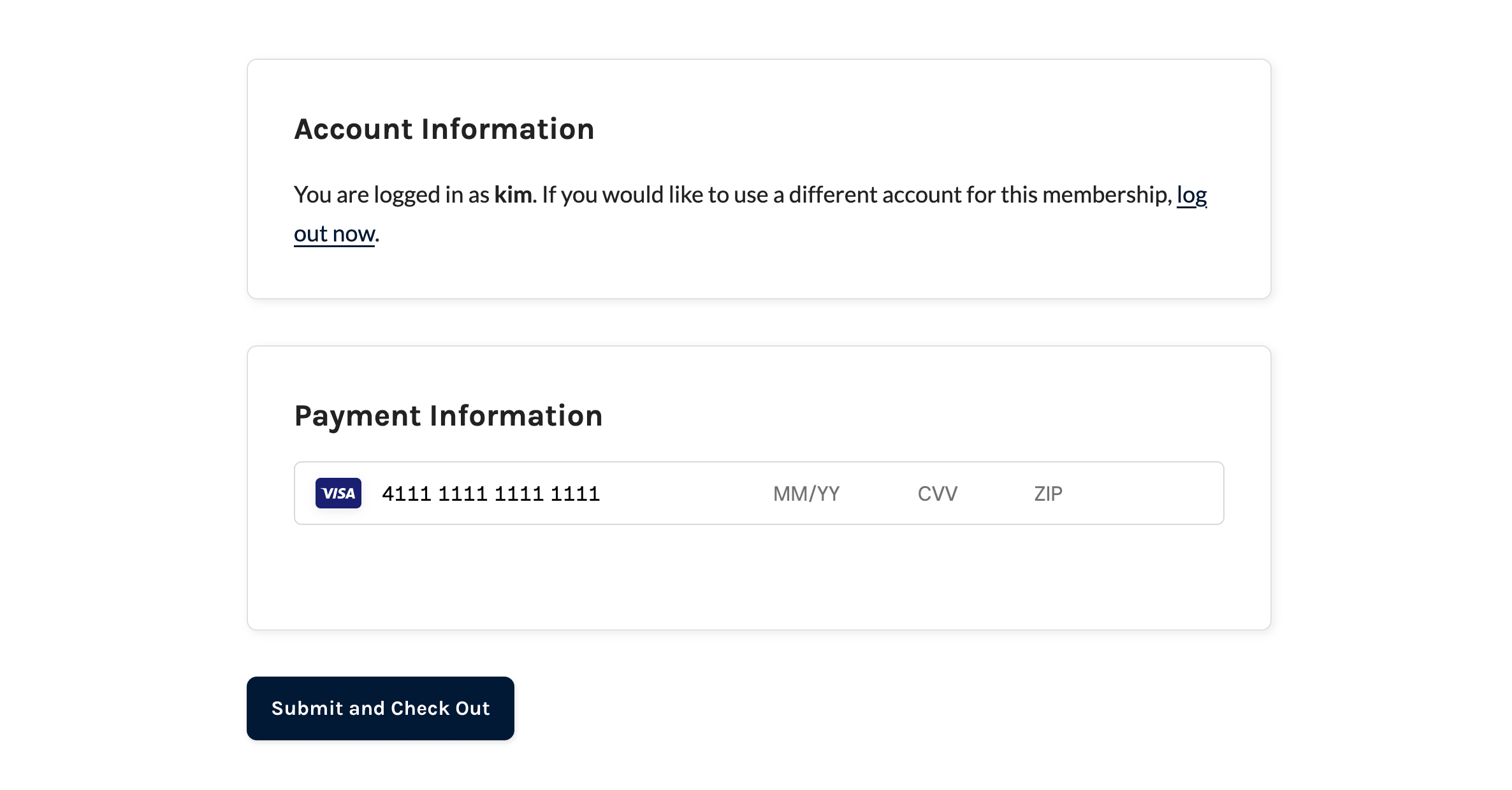
Square does not require a billing address, so the billing address fields are hidden on checkout. A member account is required to check out, which Paid Memberships Pro creates as part of the standard checkout flow.
One-Time Payments Only
This Add On processes one-time payments only. It cannot bill recurring subscriptions, so any membership level or discount code set up with recurring billing is not supported, and its checkout is blocked before a charge is made.
When Square is your active gateway and a recurring level or discount code is found, Paid Memberships Pro shows a warning on the Memberships > Settings screens and on the Edit Membership Level and Edit Discount Code screens. These warnings don’t stop you from saving; they flag configurations that won’t be able to check out.
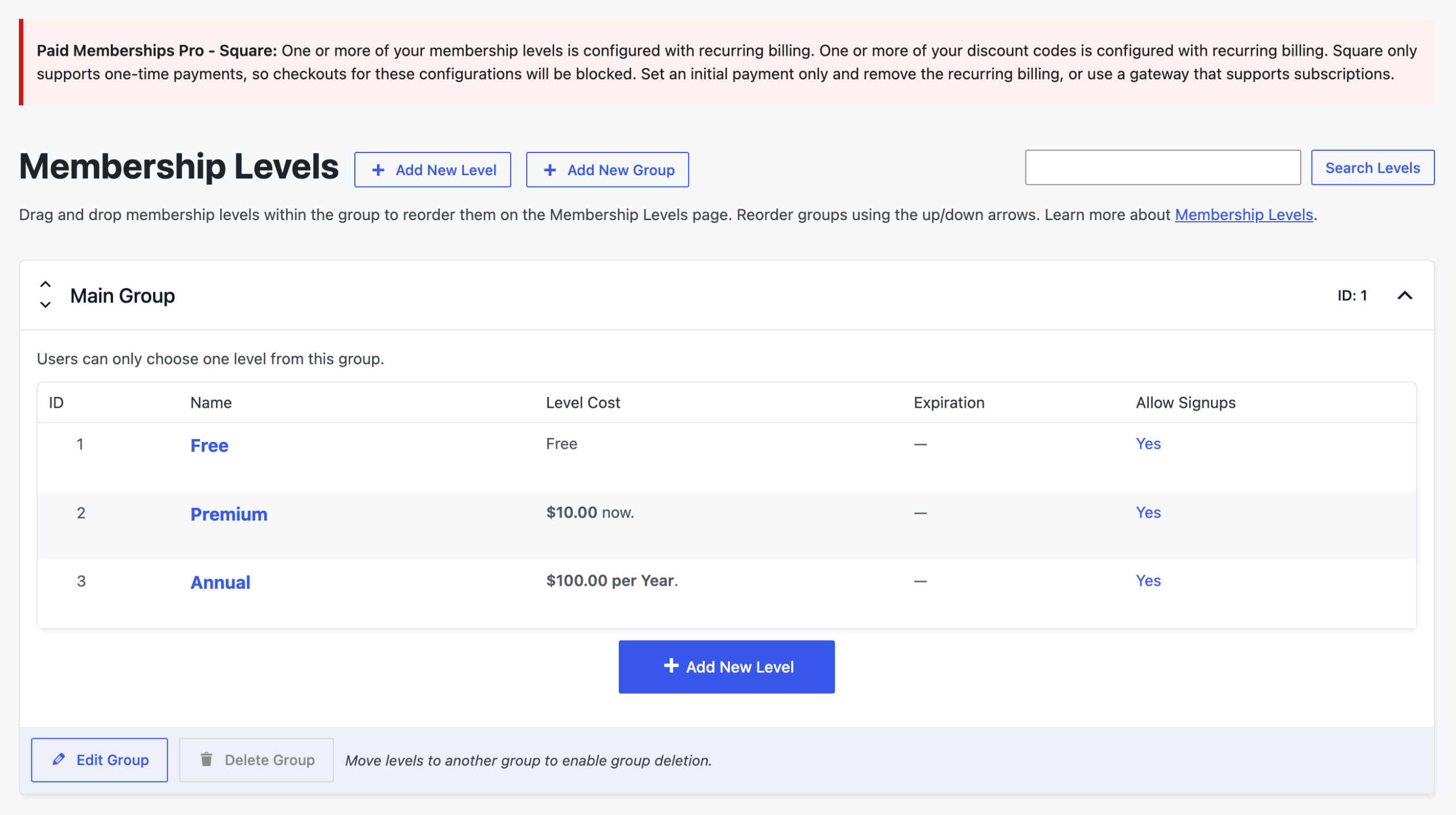
To charge each level a single time, set an initial payment amount only and remove the recurring billing. To accept recurring subscriptions, use a gateway that supports them, such as Stripe or PayPal.
Testing in Sandbox
Before going live, test your integration with Square’s sandbox. Set the Payment Gateway Environment to Sandbox in Paid Memberships Pro and enter your Sandbox Application ID and Access Token.
Use Square’s test card values to simulate payments. See Square’s Sandbox Payments documentation for test cards and scenarios. When you’re ready, switch the environment to Live and enter your Production credentials.
Frequently Asked Questions
No. The Square Add On supports one-time payments only. Checkouts for membership levels or discount codes configured with recurring billing are blocked. To accept recurring subscriptions, use a gateway that supports them, such as Stripe or PayPal.
Members pay by credit or debit card, entered directly on your site through Square’s secure card field.
No. The Square card field is embedded in the Paid Memberships Pro checkout form, so members complete payment without being redirected to an external page.
Yes. Square’s Web Payments SDK performs buyer verification for Strong Customer Authentication where it is required.
Square records each transaction against a location in your account. Choose the location for your business, or leave the setting on Default location if you only have one.
Yes. Set the Payment Gateway Environment to Sandbox, enter your Square Sandbox credentials, and use Square’s test cards to simulate checkouts before switching to Live.
This is a Free Add On.
Create a free account or log in to gain access to downloads and documentation.

